Written by Megan
Edited on
16 July 2025
·
10:32
How do you put books on your Storytel e-reader?
To read your favorite books, you can download Storytel on your e-reader. In this article, we'll explain how to do this. As a result, you can soon enjoy all your e-books while sitting on the couch.

Get started with your Storytel Reader
Go through the steps and put e-books and audio books on your e-reader.
- Get your Storytel e-reader ready for use
- Download e-books
- Upload your own files

Step 1: install your Storytel e-reader
Make sure the e-reader is ready for use before you start. You can only use the e-reader if you have a Storytel subscription and you're logged in. You'll have unlimited access to the complete selection of e-books and audio books by Storytel. Haven't you installed your e-reader yet? We'll explain how to do this step by step.
Step 2: download e-books
- Make sure your e-reader is connected to a WiFi network.
- Click the magnifying glass at the top right and choose a book.
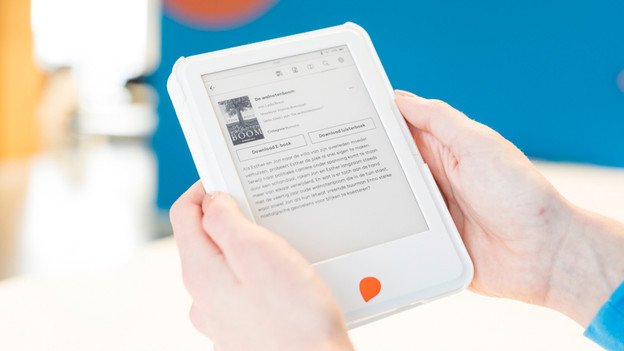
- Click the book to go to the details page.
- Choose 'Download e-book' or 'Download audio book'. You can choose to download both too.
- After downloading, you'll find the book on your book shelf.
- Make sure to connect your e-reader to the internet at least once every 30 days. After 30 days offline, the e-books will be deleted from your device.
Make sure your e-reader is connected to WiFi.
Click the magnifying glass on the top right.
Choose an e-book and select it.
Click 'Download e-book or download audio book'


Step 3: upload your own files
Besides the selection of Storytel, you can put your own books on your Storytel e-reader as well. You can do this via the Storytel website.
- Go to 'My page' and choose 'My Reader'.
- Click 'Upload file'.
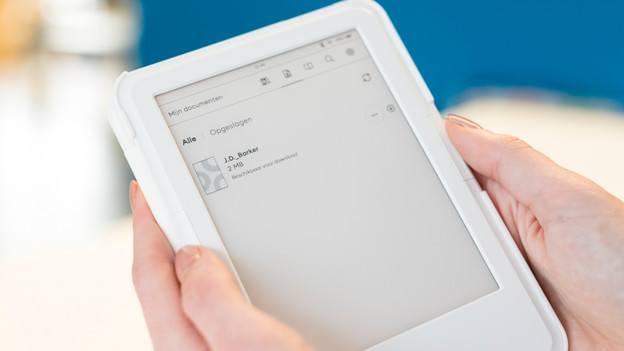
- Connect your Storytel e-reader to the internet after uploading. You'll find the e-books under 'My documents'.