Written by Bram
Edited on
8 September 2026
·
13:35
How do I use Philips Hue?
Do you think installing smart lighting is difficult? Philips Hue isn't. You can install your Philips Hue lights in 4 easy steps. The only thing you need is a light, a smartphone or tablet, and a stable WiFi network.
Set up Philips Hue in 4 steps
- Power your light source
- Connect your Philips Hue Bridge
- Download the app
- Configure the light
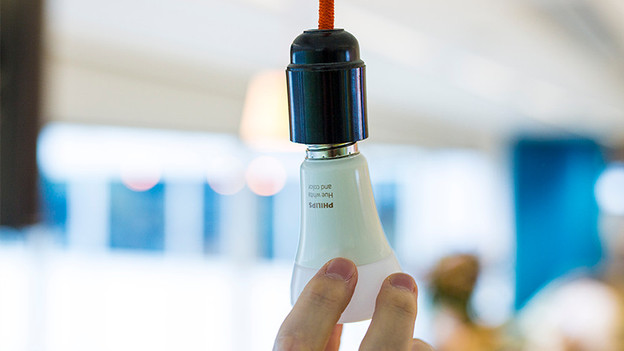
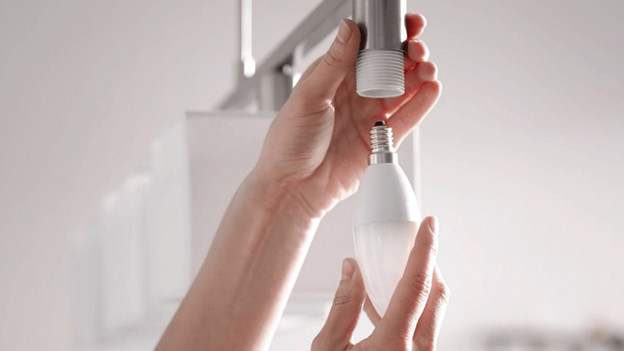
1. Power up the Philips Hue light sources
Once you know in which fixtures you want to place the light sources, it's time to power them up. In other words: screw the light sources into a lamp. Screw the Philips Hue light source into an existing lamp, then make sure to turn on the switch. If you've bought a Philips Hue lamp that's already enclosed within a fixture, you can simply plug it into the socket.
2. Connect your Philips Hue Bridge
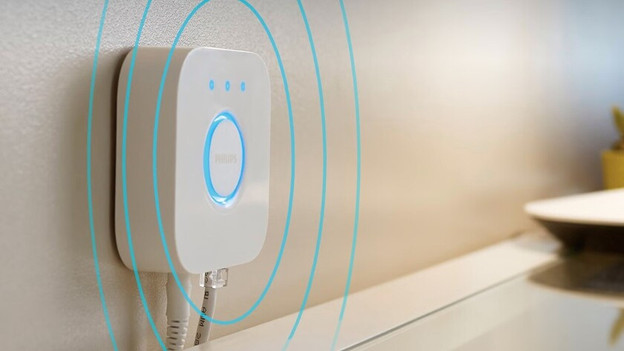
The Philips Hue Bridge is the heart of your smart lighting. Power up the bridge using the adapter, and it'll start up automatically. Connect the bridge to your router using the included network cable. Wait until the 3 LEDs on the bridge are on and you're ready for the next step. Without a Bridge, you can control the lights via Bluetooth and you don't have to connect the bridge.

3. Download the app
You can control all your lights using the Philips Hue app. You can download the app on your smartphone or tablet. It's available for both iOS and Android. You can cou connect to the Philips Hue bridge using the app, which then connects to the light sources in your house. It all happens automatically. Simple, isn't it? Now you can get started with your smart lights.

4. Enjoy the light
Control your lamps using the Philips Hue app. Play around with the light and create the atmosphere that fits you. Explore the app's functions or download other Hue apps and discover new possibilities there. Choose from the various lighting scenes or make your own preset scenes. The possibilities are endless.
Frequently asked questions about the installation
Can I use Philips Hue lights without a Hue Bridge?
Yes, with Philips Hue lights that support Bluetooth. You can control up to 10 lights that are within about 10m with the Hue app. For outdoor controls and extensive automatizations, you need a Hue Bridge (Pro).
Can I use Philips Hue lights in an existing fixture?
Yes, if the fitting fits. For example, E27, E14, or GU10. Don't use the light behind a regular dimmer and leave the light switch on when you want to control the light via the Hue app.
Why won't my Philips Hue light connect?
Check if the light receives power. Turn on Bluetooth on your smartphone and check the connection to your router at a Hue Bridge. Then add the light again via Settings > Devices > the blue plus icon in the Hue app.
How do I connect my Philips Hue Bridge again?
Unplug the Bridge from its power source for 30 seconds and check the Ethernet cable. Plug the Bridge back in, connect your smartphone to the same network, and add the Bridge again via Settings > Devices in the Hue app.
Why can't Philips Hue find my light?
Make sure the light is on and it screwed into the fitting correctly. Scan de QR code in the Hue app or enter the serial number. Turn on Bluetooth and keep your smartphone close. If you use a Bridge, temporarily place the light close to the Bridge.
Which lights should burn on my Philips Hue Bridge?
With a regular Hue Bridge, the lights mean the following: Left: the Bridge receives power. Middle: the Bridge is connected to your router. Right: the Bridge is connected to the internet. Blue ring: the wireless connection with your Hue lights works. Is a light not burning? Check the power, Ethernet cable, and router. The Hue Bridge Pro uses different status lights.

Article by Bram
Smart Lights Expert.