Written by Megan
Edited on
13 December 2022
·
14:51
How do you put your own ePub files on your Storytel Reader?
With your Storytel subscription, you can read and listen to thousands of e-books and audiobooks on your Storytel Reader. But maybe you also have downloaded books that you like to read on your e-reader. You can easily upload these ePub files to your device. In this article, you can read how to do this step-by-step.
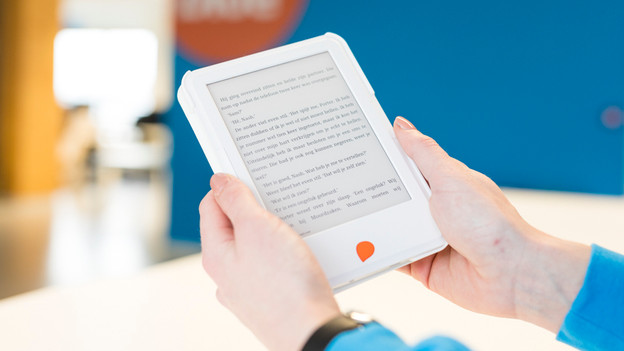
Get started with your ePub files
To put your own ePub files on your e-readers, follow the step-by-step plan.
- Download ePub files
- Upload the books
- Synchronize the e-reader
Note: you need an active Storytel subscription to put your own ePub files on your e-reader.
Step 1: download ePub Files
To put your own books on your Storytel Reader, it's important that they have the ePub file format. The e-reader doesn't support other file formats. You also can't upload e-books that are protected with Digital Rights Management. So you can't read borrowed books from the online library to your e-reader.
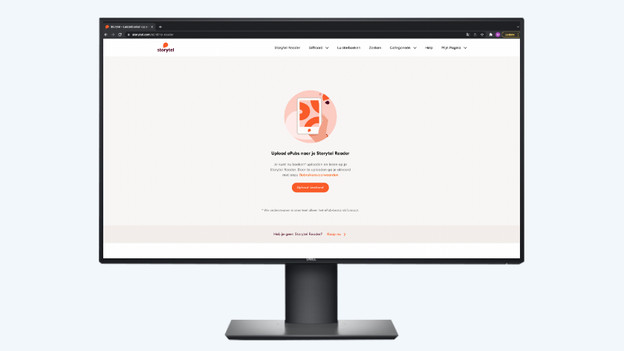
Step 2: upload your books via the Storytel website
You can put your own books on your e-reader via the Storytel website.
- Go to the website and log in with your account.
- Go to 'My page'. Then go to 'My Reader'.
- Click on 'Upload file'.
- Choose all the ePub files you want to upload to your e-reader.
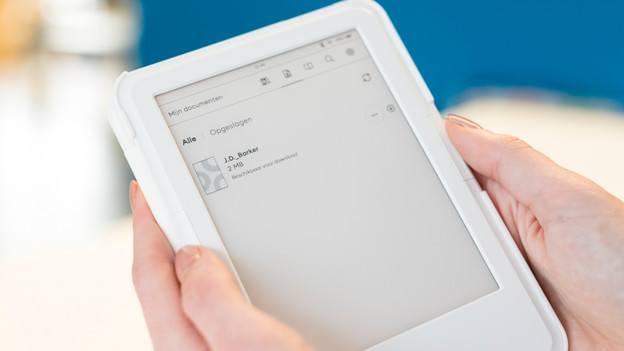
Step 3: sync your Storytel Reader
After you upload the books via the website, you must sync your Reader. Otherwise, the books won't appear on your device.
Connect your e-reader to a WiFi network. Then go to My Documents. Your books are on the e-reader. Don't see the option "My Documents"? Check if there's a software update available.