Written by Giovanni
Edited on
19 May 2025
·
14:41
How do you set the sound of your Xbox One headset?
You've connected your new Xbox One gaming headset to your console and want to start gaming as soon as possible. If you configure the sound right away, you don't have to go back to the settings while you're gaming. We'll tell you how to set the sound of your Xbox One headset in 3 steps.
Get started with the Xbox One
When you connect a gaming headset to the Xbox One, the console automatically selects the best settings. So you only have to adjust it if the settings don't meet your needs. Follow these 3 steps:
Step 1: go to the settings.
Step 2: adjust the volume.
Step 3: create the right balance.
Step 1: go to the settings
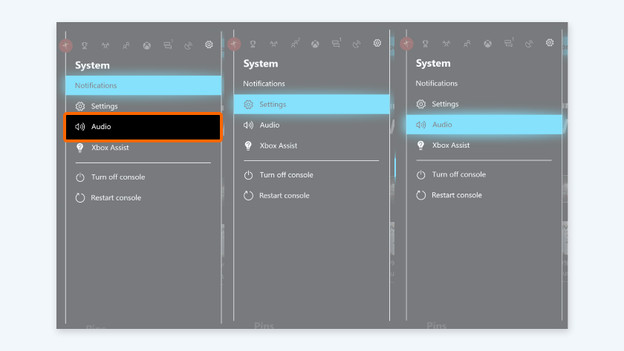
You can adjust the sound settings via the 'Audio' menu of your Xbox One.
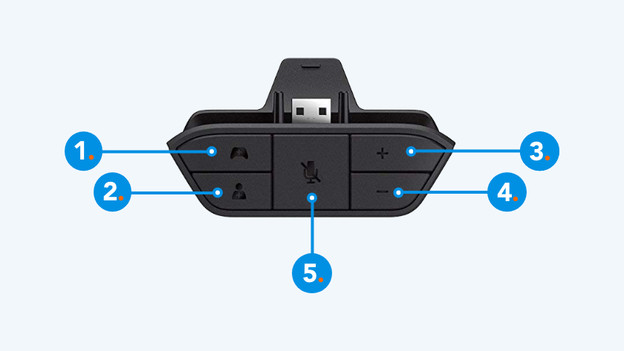
1a: is your headset connected to the controller via a 3.5mm jack? Boot the Xbox One. Go to 'System' and choose 'Audio'. 2a: are you using an Xbox One stereo headset adapter? Use the buttons on the adapter. With the game balance button (1), you adjust the in-game balance. With the button on the bottom left (2), you adjust the chat balance. With buttons 3 and 4, you can adjust the sound yourself.
Step 2: adjust the volume
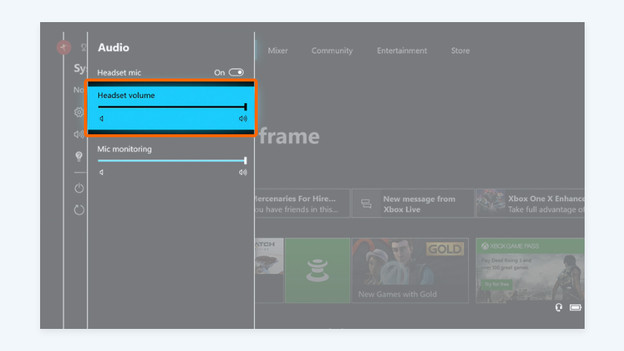
The most important settings are the output volume of your headset and the input volume of your microphone. Adjust these levels:
- Volume: turn the volume of your headset up or down until you're satisfied with the sound level. With an Xbox wireless headset, you can also control the volume via the right ear cup.
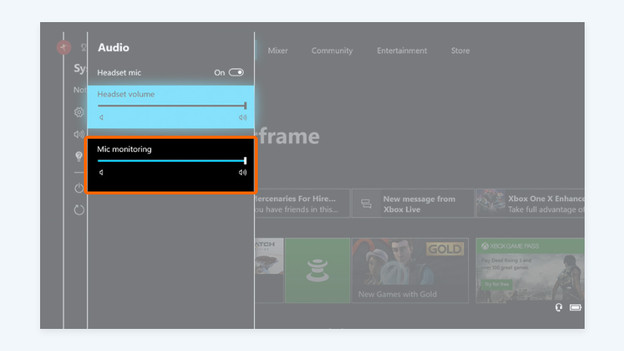
- Mic monitoring: if you turn this up, your team members will hear you more loudly. That's useful if you often talk strategy during a game. Only special Xbox headsets support this function.
Step 3: create the right balance
You determine the balance between the chat channel and the in-game audio with the 'Headset chat mixer'. You can also adjust this via the 'Audio' menu. Is talking to your teammates essential because you're discussing a strategy, for example? You can turn up the volume, so the voices are clearly audible over the sounds of the game. Are you playing a game in which you depend on ambient noise, like a shooter? Lower the volume a bit.
Tips for better audio
- Is the sound of the gaming coming from your TV and does it bother you? Turn off the volume of the TV. Your Xbox One doesn't mute this automatically.
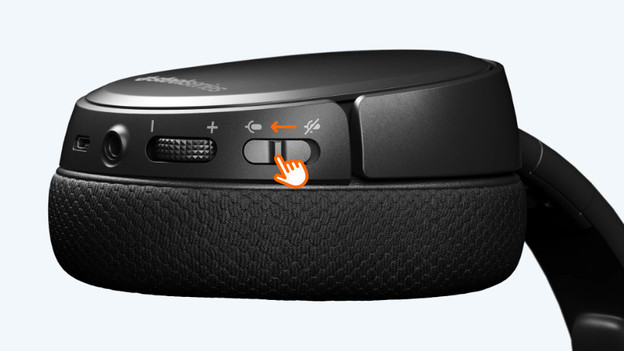
- Mute yourself when you take a short break. You can use the mute button of your headset or the Xbox One stereo headset adapter for this.
- Doesn't your headset support mic monitoring? Point the microphone inwards or outwards. The different distance to your mouth affects the input volume.
Article by Giovanni
Gaming Expert.