
Written by Anne
Edited on
16 December 2025
·
08:13
Get started with your office headset
You use your office headset for work conversations, online meetings, and video calls. You want a clear microphone and good sound for this, of course. That's why it's important to set everything up correctly. With these 5 tips, you can get the most out of your headset from the start.
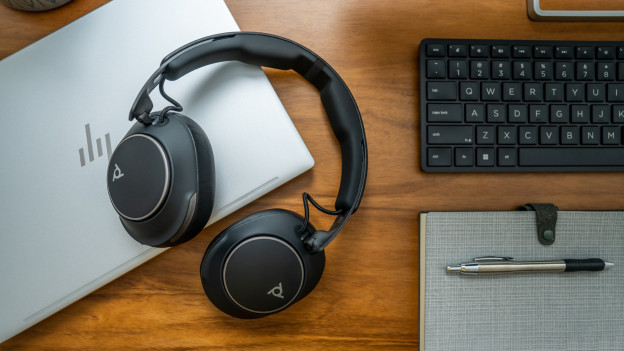
Get started with your office headset
Just started with your office headset? With these 5 tips, you can ensure clear audio and a good working microphone:
- Tip 1: provide a good internet connection
- Tip 2: select the office headset as audio input
- Tip 3: use the dongle with wireless headsets
- Tip 4: wear the headset in the right way
- Tip 5: Shut out unnecessary ambient noise

Step 1: provide a good internet connection
Office headsets work via internet. A bad internet connection is often the cause of stuttering sound or a delayed microphone. You mainly notice this during video calls. That's why it's better to use a network cable instead of WiFi. Working via WiFi? Make sure you're close to the router or that there's an WiFi extender in your office. It also helps if you close programs that use a lot of internet, such as downloads and streaming services.
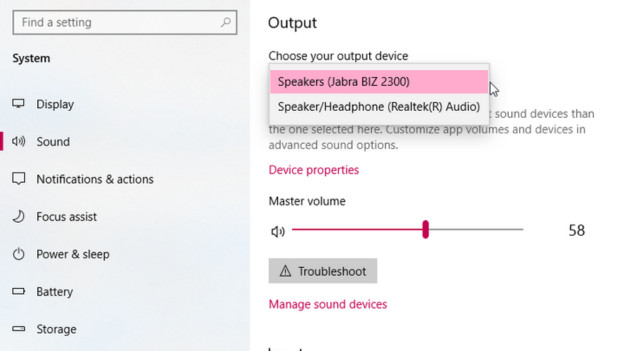
Tip 2: select the office headset as audio input
The microphone only works well if your PC uses the headset as audio source. To check this, go to Settings > System > Audio in Windows and check if your headset is selected. Using a MacBook? Go to System Settings > Sound in your Mac Apple menu and check under Input if your headset is selected. Using a communication program such as Teams or Zoom? Check if your headset is selected as audio input there as well.
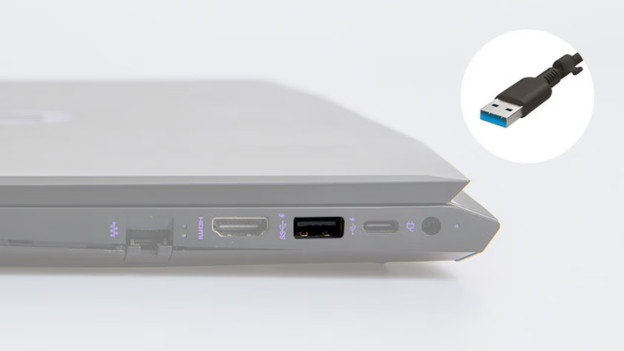
Tip 3: use the dongle with wireless headsets
You often connect wireless headsets via Bluetooth. However, this doesn't always ensure the best connection to your PC. Your connection is more stable if you use the dongle that's included with the headset. This makes a direct connection to your PC. That way, you're less likely to experience slowing down, noise, or audio that drops out while you talk. Your voice sounds clearer and more constant for your conversation partner. You can connect the dongle to the USB port of your PC and select the headset as audio input.

Tip 4: wear the headset in the right way
The quality of the headset also depends on how you wear it. If the microphone is too close or too far away from your mouth, the audio can sound soft or shrill. That's why you should wear the headset like the manual indicates. Bend the microphone arm to your mouth, but not too close. The best distance is about 2cm. Check if the microphone has a 'front side' or a 'directional side' and be sure it faces you.
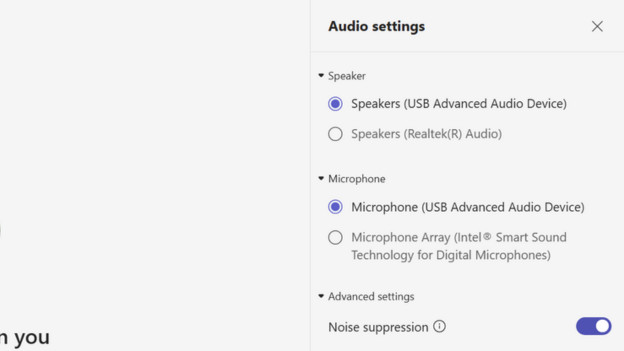
Tip 5: Shut out unnecessary background noises
A good microphone also picks up ambient noise. That means it's important you're in a quiet space during your meeting. Some headsets have a microphone with noise canceling. Set your microphone to mute when you're not talking, to prevent noise. Some programs like Teams have settings for noise suppression. Turn this on if it's available.
Article by Anne
Office Headset Expert
