Written by Julia
Edited on
12 March 2024
·
16:01
9 tips to extend the battery life of your Garmin smartwatch
Does the battery of your Garmin smartwatch run empty quickly? It helps to adjust your settings. Some function drain your battery quickly. In this article, we'll give you 9 tips to get the most out of your battery.

9 tips to extend the battery life
Every Garmin smartwatch has a maximum battery life, but it might happen that your watch doesn't last as long. View the tips below to see what you can change:
- Tip 1: change your app settings
- Tip 2: timeout function
- Tip 3: turn of push notifications
- Tip 4: change GPS settings
- Tip 5: turn off WiFi
- Tip 6: adjust the brightness of your screen
- Tip 7: turn off the sound and vibrate function
- Tip 8: turn on Smart Recording
- Tip 9: change your use
Tip 1: change your activity settings
Turn off Auto Scroll and Auto Lap.
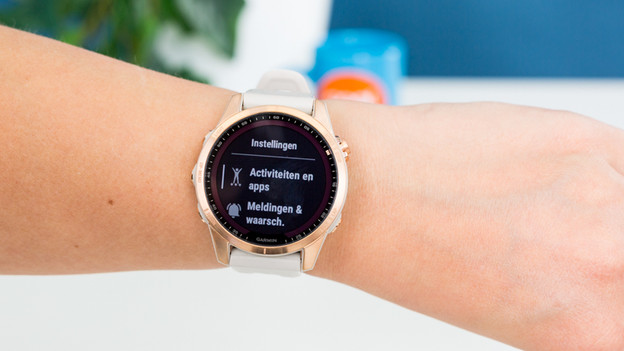
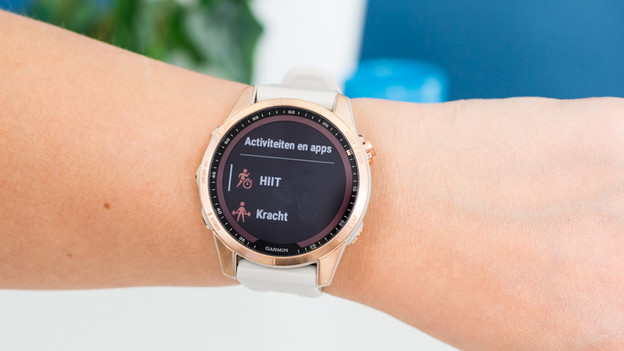
- Go to the settings of your watch and find Activities and apps.
- Choose the app or activity you want to turn off Auto Scroll or Auto Lap for.
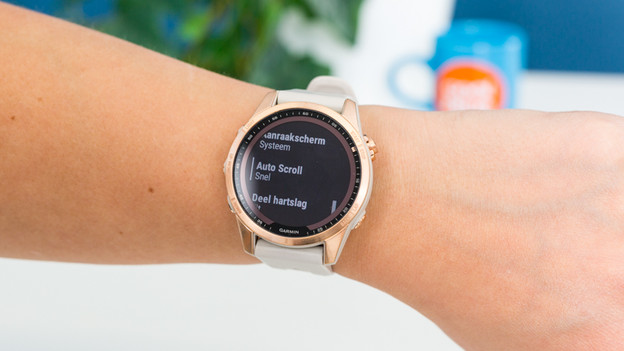
- Go to the settings of the app or activity and turn off Auto Scroll or Auto Lap.
Scroll to the cogwheel in your menu
Select 'Activities and apps'
Select an activity
Go to settings
Select 'Auto Lap'
Turn off 'Auto Lap'
Go to 'Auto Scroll'
Turn off 'Auto Scroll'




Tip 2: lower timeout function
Set the timeout function to its lowest level. This way, your device goes to sleep mode sooner, which saves battery.
- Go to the settings of your watch and find Activities and apps.
- Select the app you want to turn off.
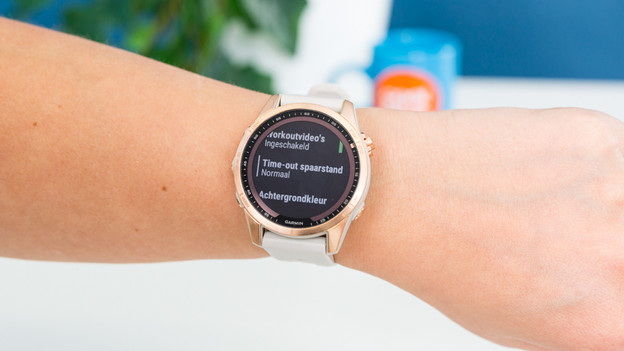
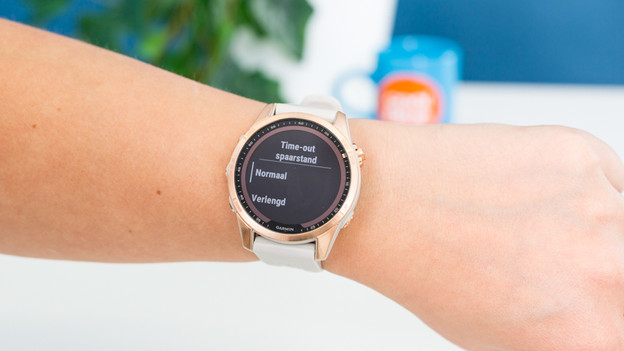
- Open the 'Timeout saving mode'.
- Select the option normal to save battery.
Go to 'Activities and apps' under 'Settings'
Select an activity
Select 'Power Save Timeout'
Select 'extended'
Tip 3: turn off your push notifications
Turn off push notifications.
- Go to the Garmin Connect app on your smartphone.
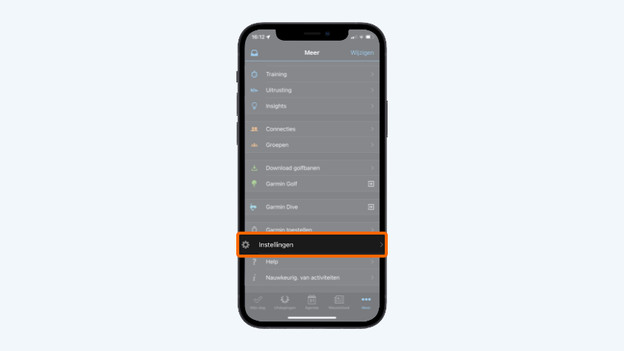
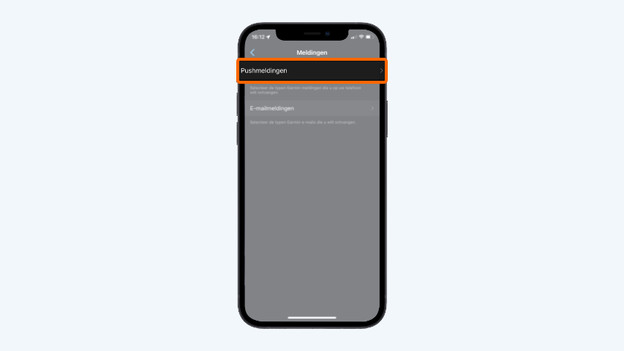
- Go to Settings and select Notifications.
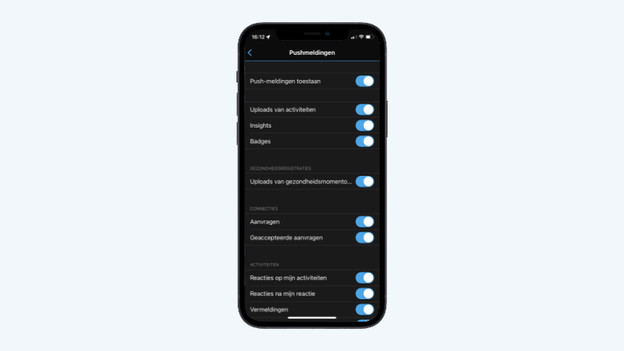
- Tap Push notifications and turn off notifications for all apps.
Go to the settings via the app
Select 'settings'
Scroll to 'push notifications'
Select where you want to receive notifications

Tip 4: turn on GPS settings
GPS drains your battery. You can save a lot of energy by turning off the GPS on your smartwatch.
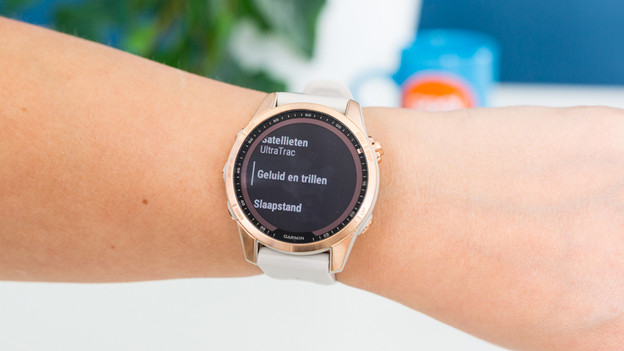
Scroll all the way down to 'System'
Select 'Satellites' and turn on 'Ultra Trac'


Tip 5: turn off WiFi
A WiFi uses a lot of battery too.
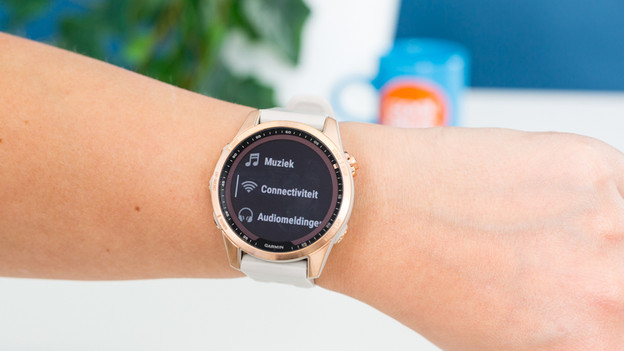
- Go to settings and select Connectivity.
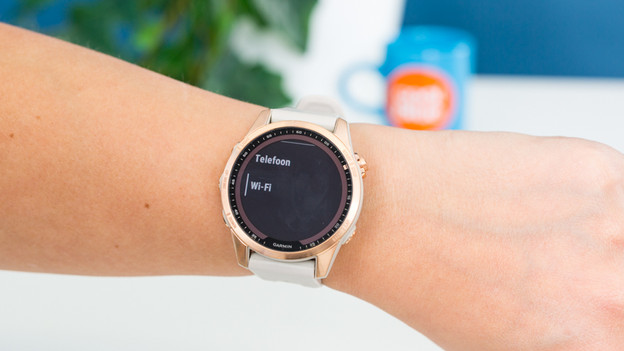
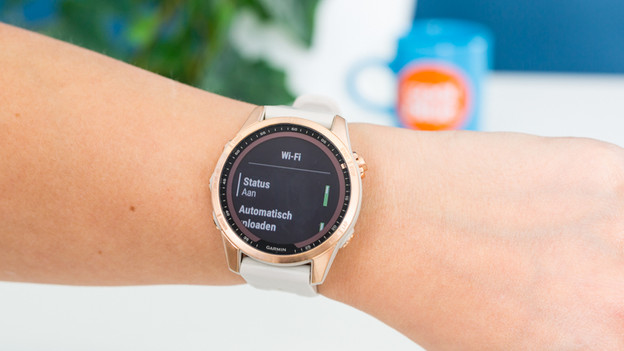
- Tap WiFi and turn it off.
Select 'Connectivity' in your settings
Select 'WiFi'
Change the status
Set the status to 'off'

Tip 6: lower the screen brightness
The screen of your watch uses a lot of battery too.
- Go to the settings of your watch and choose System.
- Choose Screen brightness followed by General use.
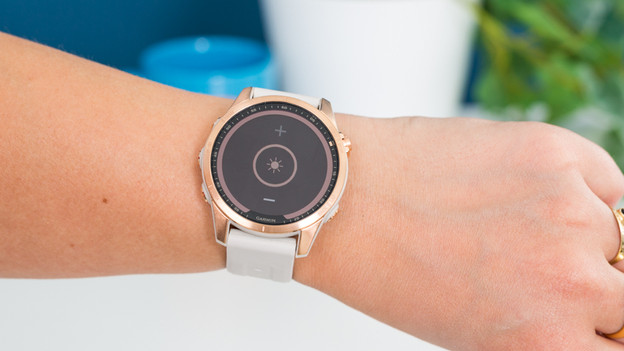
- Under Brightness, set the brightness of your screen.
Go to 'System' in your settings menu
Scroll to 'Screen brightness'
Go to 'General use'
Select 'Brightness'
Set the brightness


Tip 7: turn off the sound and vibrate function
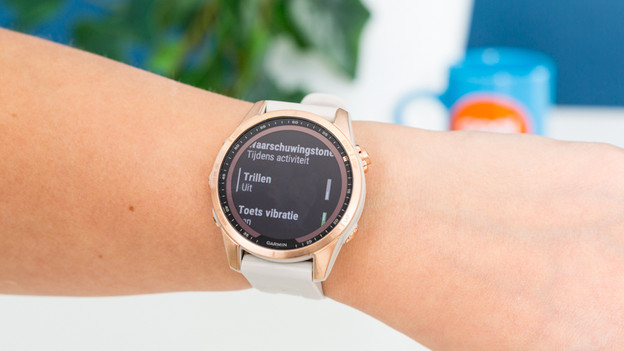
- Go to System and tap Sound and vibration.
- Choose what you want to turn on and off.
Scroll down to 'Sound and vibration' in 'System'
Turn off the vibrate function, for example
Tip 8: turn on Smart Recording
Normally, your Garmin watch saves information every second. But this isn't always necessary. Adjust this to reduce the energy consumption.
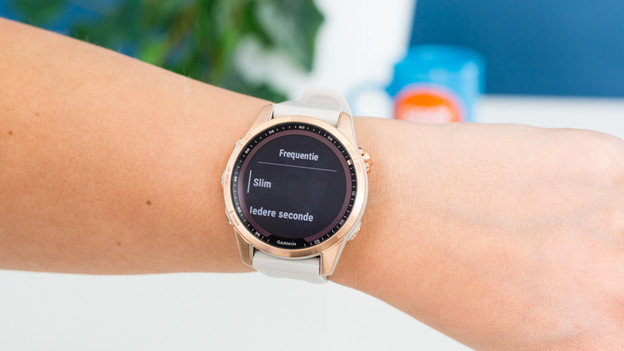
- Go to System and choose Data storage.
- Choose Smart at Frequency. Your watch now saves all the important changes, like a change in speed or height.
Select 'Storage' under 'System'
Set the 'Frequency' to 'Smart'


Tip 9: change your use
In addition to the specific settings named above, there are a few standard things that can extend the battery life.
- Always fully charge your Garmin watch up to 100% before you use it.
- Don't set up too many animated watch faces.
- Make sure you don't put your Garmin watch in a bag or pocket when you perform an activity that required satellite signals. Your watch needs to work harder to find the signal.