Written by Bob
Edited on
26 January 2024
·
15:00
How do you install WhatsApp on your Android tablet?
You have a new tablet and want to install WhatsApp. Unfortunately, there's no version of WhatsApp for tablets yet, but there's an app that allows you to send messages via WhatsApp to your friends and family via an intermediate step. In this article, we'll explain how this works.
Get started with WhatsApp on your tablet
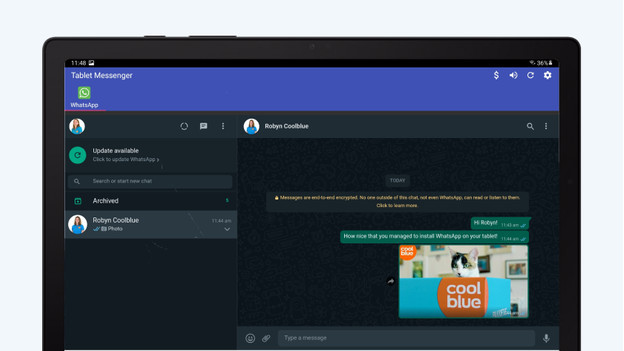
You can use WhatsApp via the Tablet Messenger app, without an extra SIM card. This way, you get access to all your conversations and contacts via WhatsApp Web. Follow these steps.
- Download Tablet Messenger
- Scan the QR code
- Log out via your smartphone
Step 1: download and open Tablet Messenger
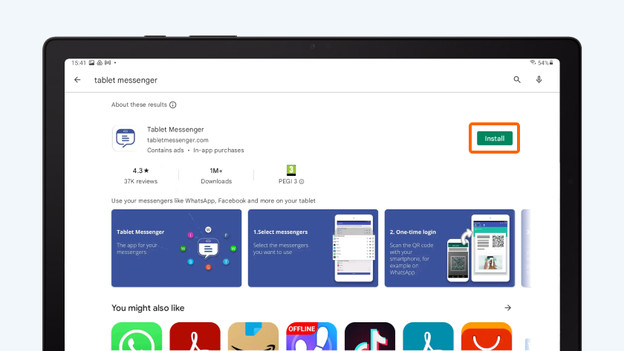
- Go to the Google Play Store on your tablet.
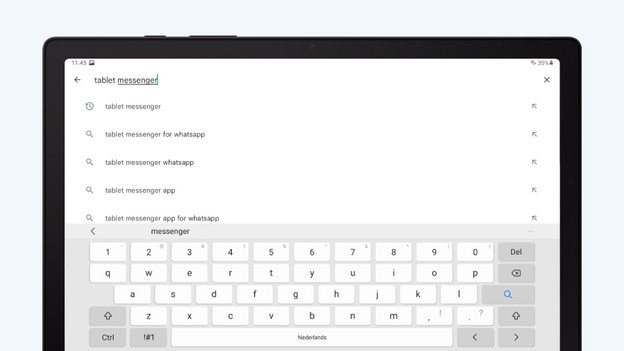
- Tap 'Tablet Messenger' in the search bar. Download this app.
- Open the app after installation.
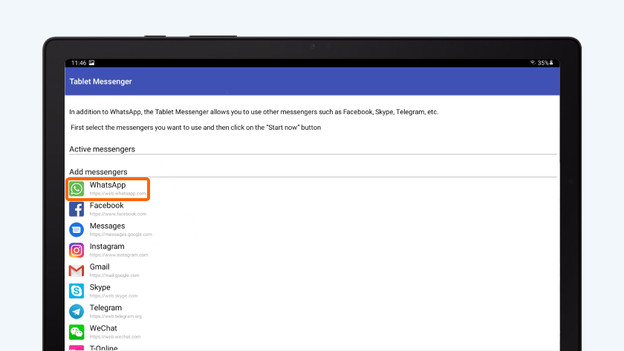
- Tap 'WhatsApp' and add the app to tablet messenger.
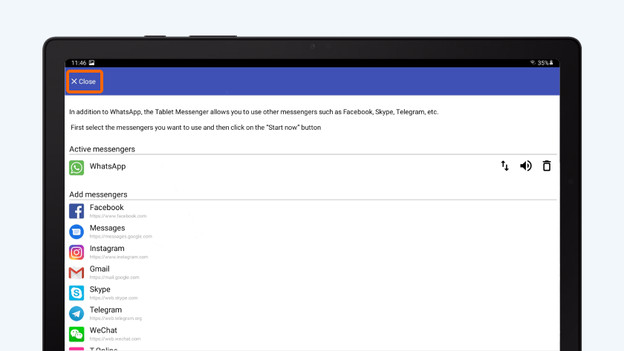
- Tap 'close'.
Search for 'Tablet messenger'.
Download the app.
Add 'WhatsApp'.
Click 'Close'.
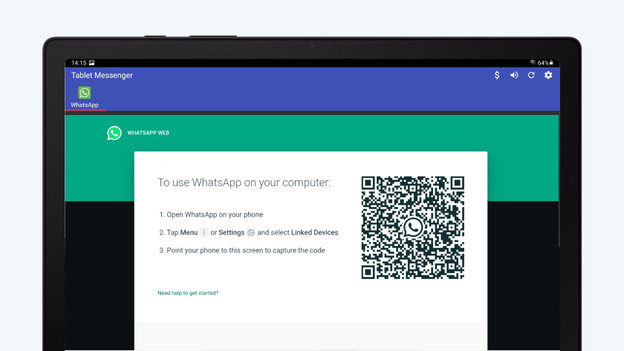
A window with a QR code opens.
Step 2a: connect your Apple iPhone
Do you have an Android smartphone? Go to step 2b.
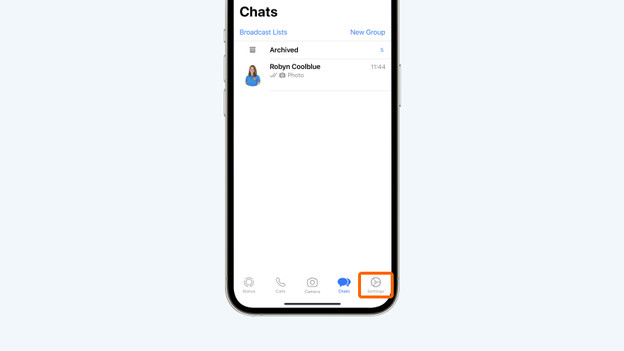
- Tap the cogwheel at the bottom right to go to the 'Settings'.
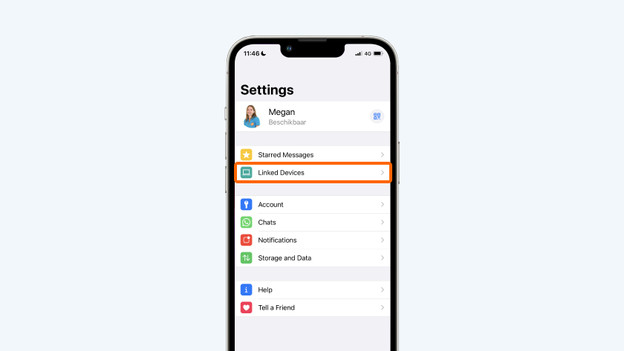
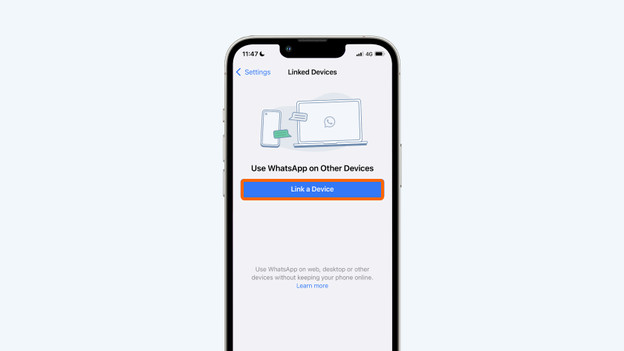
- Choose 'Connected devices'. Tap 'Connect a device'.
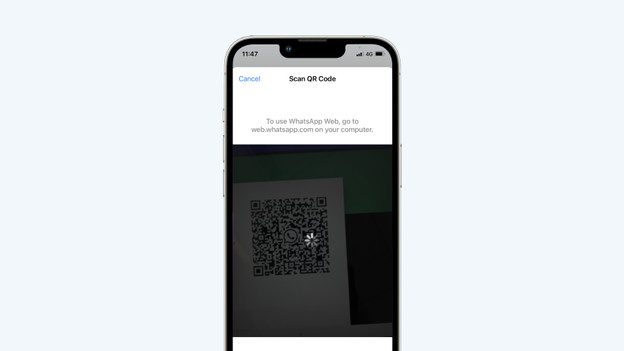
- The camera opens. Scan the QR code on your tablet.
Tap 'Settings'.
Go to 'Connected devices'.
Tap 'Connect a device'.
Scan the QR code.
Step 2b: connect your Android smartphone
Do you have the Apple iPhone? Go to step 2a.
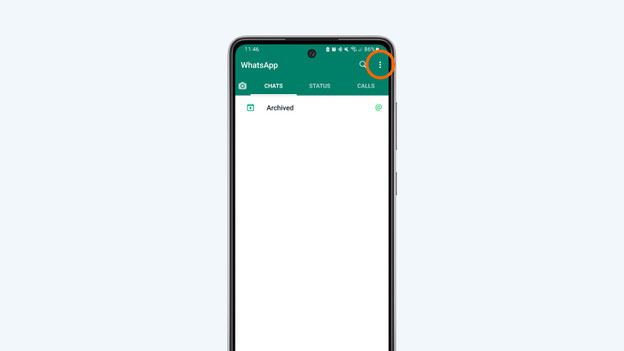
- Tap the 3 dots at the top right.
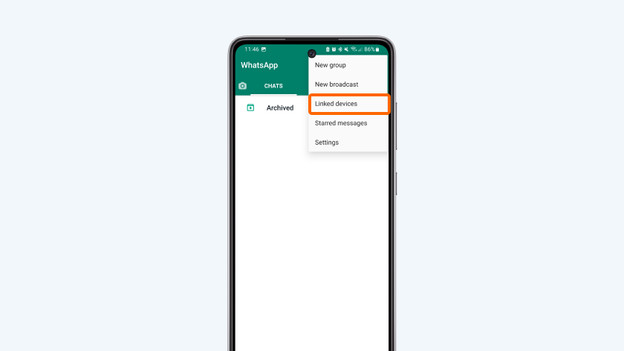
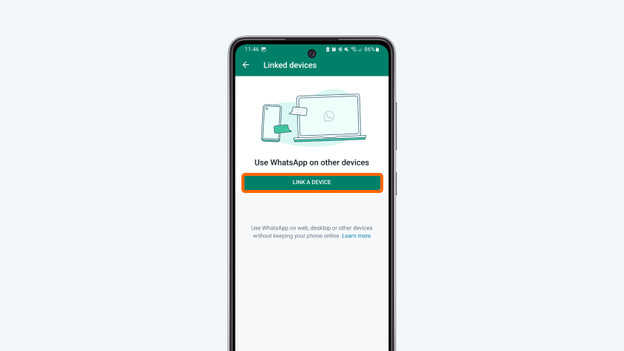
- Choose 'Connected devices' in the pop-up menu. Tap 'Connect a device'.
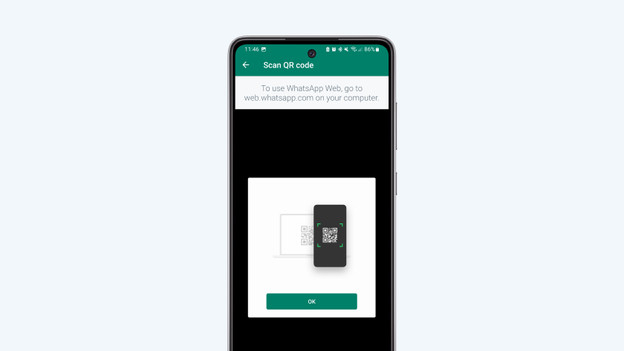
- A window opens with your camera. You can use this to scan the code.
Tap the 3 dots at the top right.
Choose 'Connected devices'.
Tap 'Connect a device'.
Scan the QR code.
Step 3: give the app permission (optional)
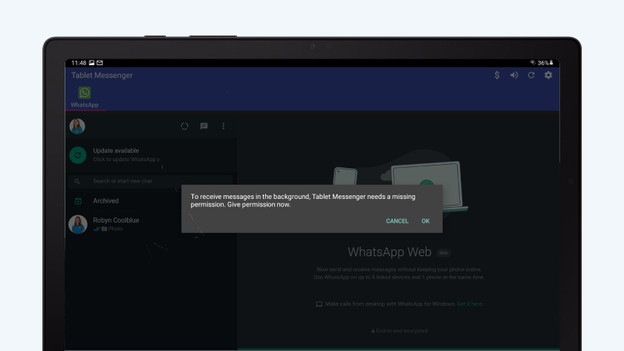
When you've scanned the QR code, the following notification may appear on your tablet.
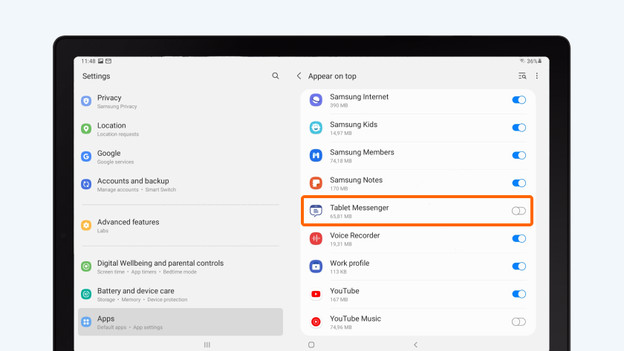
- Tap 'OK'. You'll be sent to the settings automatically.
- You can give permission by checking the box behind 'Tablet messenger'.
Tap 'OK'.
Check the box behind 'Tablet messenger'.
Step 4a: log out via the Apple iPhone
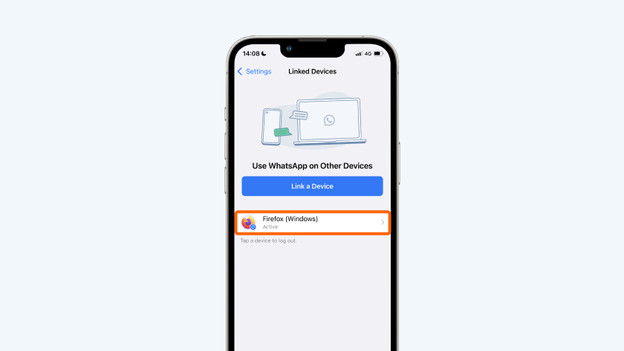
Log out of WhatsApp on your tablet via your iPhone. Go to 'Settings' > 'Connected devices'.
- Tap the device 'Firefox (Windows)'. Check which tablet is yours if there are multiple devices.
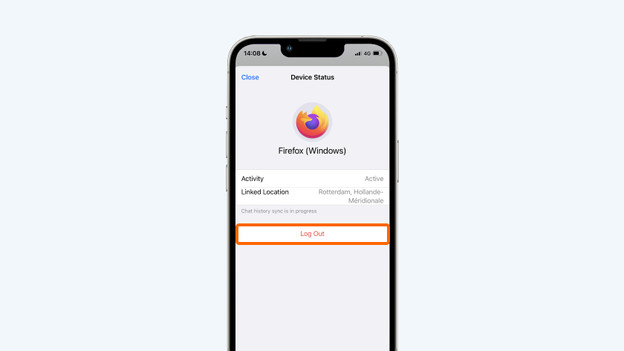
- Tap 'Log out'.
Tap the device you want to log out.
Tap 'Log out'.
Step 4b: log out via your Android smartphone
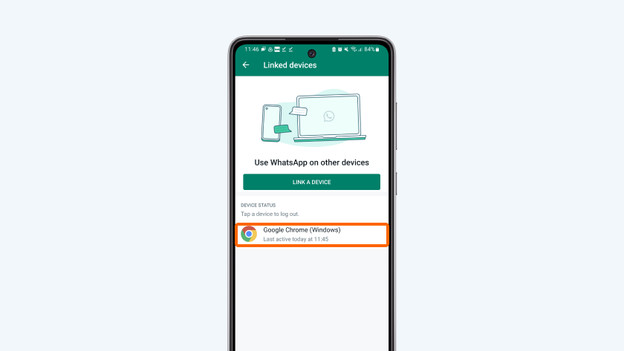
Tap the 3 dots at the top right again. Tap 'Connected devices' in the drop down menu.
- Tap the device 'Firefox (Windows)'. Check which tablet is yours if there are multiple devices.
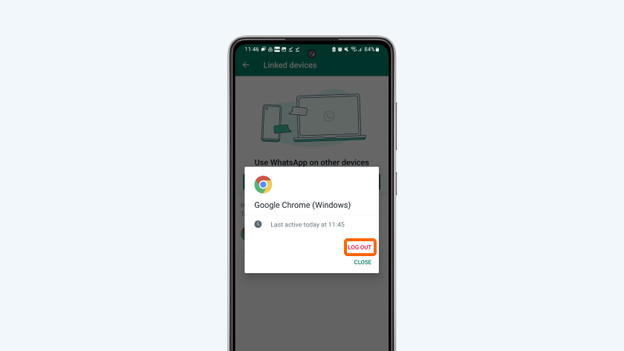
- Tap 'Log out'.
Choose the device you want to log out
Tap 'Log out'.