Written by Kayleigh
Edited on
21 March 2025
·
16:32
How do you choose a Wacom drawing tablet?
Wacom has a drawing tablet for everyone. It doesn't matter if you just started drawing or you're a professional already. A One by Wacom is a good starter model. Do you want to draw more precisely? Choose an Intuos Pro, Wacom Cintiq, or Cintiq Pro. Are you looking for a drawing tablet with screen? Choose the Wacom One or Wacom Cintiq. In this article, you'll read more on the differences between the Wacom drawing tablets.
Compare the Wacom drawing tablets
| One by Wacom | Wacom Intuos | Wacom One | Wacom Intuos Pro | Wacom Cintiq | Wacom Cintiq Pro | |
|---|---|---|---|---|---|---|
| Pressure levels of the pen | 2048 | 4096 | 4096 | 8192 | 8192 | 8192 |
| Lines per inch (LPI) | 2540 | 2540 | 2540 | 5080 | 5080 | 5080 |
| Screen | Without scree | Without scree | With or without screen | With screen | With screen | With screen |
| Image resolution | Doesn't apply | Doesn't apply | Full HD | Full HD | Full HD | 4K |
| Wired or wireless | Wired | Wired or wireless | Wireless | Wireless | Wired | Wired or wireless |
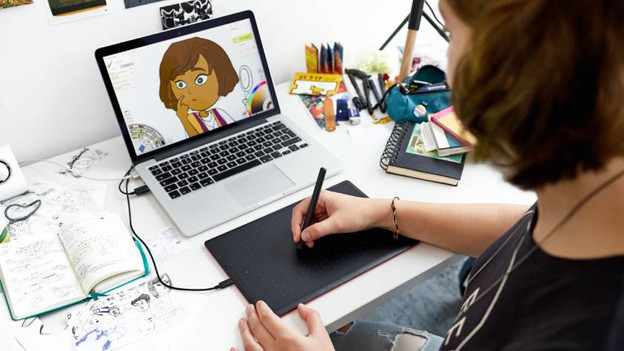
One by Wacom: little accuracy
One by Wacom drawing tablets are the starter models by Wacom. With these models, you can discover whether a drawing tablet is for you. One by Wacom tablets don't have a built-in screen, so you have to connect it to your monitor or laptop. You do this via a cable, because these drawing tablets can't be connected via Bluetooth. The pen has 2042 pressure levels, which is the least amount of all product series by Wacom. You can choose the thickness of the lines, but not as accurately as with a pen with more pressure levels.
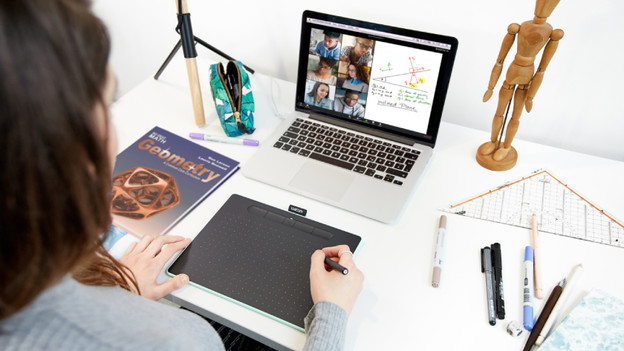
Wacom Intuos: more accurate lines
With a Wacom Intuos drawing tablet, you can use a pen that supports 4096 different pressure points. This is comparable to the Wacom One. Thanks to the higher pressure points, you can easily draw lines with various thickness. There are 2 different Intuos: with or without Bluetooth. With Bluetooth, you have more freedom of movement while drawing. Intuos drawing tablets don't have a built-in screen, so you have to connect them to a monitor, laptop, or other screen.

Wacom Intuos Pro: most accurate lines
The Intuos Pro is one step up from the Intuos. The main difference is the buttons on the sides. For example, there's a touch ring that you can use to tilt or zoom in on your drawing. You can also easily assign your most-frequently used shortcuts to the different buttons on the side. That way, you can draw thicker lines again with just one touch of a button. The number of pressure levels in the pen doubles to 8192, so you can make the most accurate lines and transitions.

Wacom One: with or without screen
Wacom One drawing tablets are available in 2 versions: with or without a screen. With a screen, you'll see what you're drawing right away. This feels more natural. Without a screen, you connect your drawing tablet to a monitor or laptop. You can draw lines precisely thanks to the Wacom One pen with 4096 different pressure points. The largest screen of the Wacom One is 13 inches. Do you want more screen space? Choose a Cintiq or Cintiq Pro.

Wacom Cintiq: most accurate lines and screen
The Wacom Cintiq is one of the most accurate drawing tablets thanks to the LPI resolution of 5080 LPI and 8092 pressure levels. With the Cintiq, it feels like you're drawing on real paper. Thanks to the vibrant colors, brightness, and the ergonomic design, you can take your creative ideas and digital illustrations to the next level with the Wacom Cintiq.
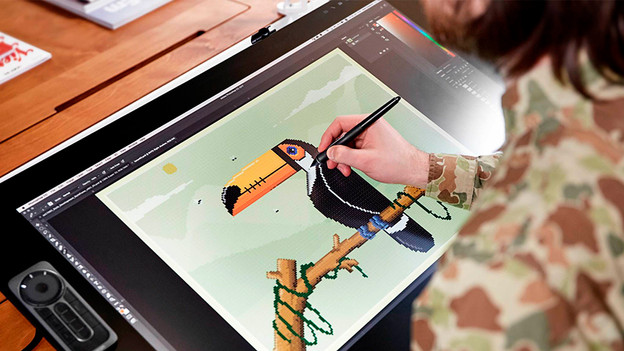
Wacom Cintiq Pro: most details thanks to the 4K scree
The Wacom Cintiq Pro is the most extensive drawing tablet by Wacom. On the 4K screen, all details come alive. With 8192 pressure levels in the pen, you can draw lines very precisely. Assign your favorite shortcuts to the programmable buttons. For example, changing the pencil size, undoing lines, and saving creations. This makes your work even easier. The Wacom Cintiq Pro is the largest drawing tablet too at 27 inches. As a result, you'll have a lot of screen space.