Written by Sanne
Edited on
3 September 2024
·
07:25
How do you get started with GoPro Quik?
In the GoPro app, you can edit the footage of your GoPro action camera. This way, you can easily make creative videos. You can share them via your social media channels right away, such as Instagram and TikTok. Read this article to find out how to use the app, so you can share cinematic content with your friends and family.

Get started with GoPro Quik
In 7 steps, we'll explain how to edit videos via the GoPro Quik app and how to share them via social media right away. Without a subscription, you can use the standard GoPro themes and music. Want more options? Be sure to get a subscription.
Step 1: download the GoPro Quik app.
Step 2: connect the app to your GoPro.
Step 3: open the edit tool.
Step 4: choose the desired videos.
Step 5: edit the separate footage.
Step 6: choose the order, music, and size.
Step 7: share your video.

Step 1: download the GoPro Quik app
First, download the GoPro Quik app on your phone or tablet. If you have an Apple iPhone or iPad, you can download the app via the Apple Store. If you have an Android smartphone or tablet, download it via the Google Play Store.
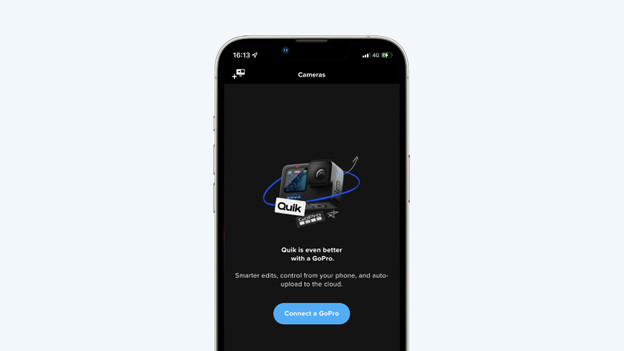
Step 2: connect the app to your GoPro
On the home screen of the GoPro Quik app, you can connect your GoPro to your phone. Follow the steps in the app to do this. Once your GoPro is connected, you can control it via the app. You can start your recording, for example. You can also adjust the settings of your action camera. And your recorded images will appear in the app, so you can quickly watch them in the app. You can also easily edit them there.

Step 3: open the edit tool
You can find the edit tool in the 'Studio' tab. This tab is located at the bottom bar of the app. Then, tap 'My edits' at the top of the screen. If you've already edited videos, this is where you'll find them. You can start editing as soon as you tap the 'Create and edit' button.

Step 4: choose the desired videos
On the next screen, you'll see an overview of all the videos on your memory card. Choose the desired videos. A blue frame will appear around it. Did you choose all the videos? Tap 'Create my edit'.

Step 5: edit the separate footage
The videos will appear on the next screen in a row. There's a blue plus sign next to each video. If you tap this, you can edit the separate footage. You can shorten the video in the 'Trim' tab, for example. You can also select the highlights of your video here. With these highlights, the app will produce the end result. In this screen, you can add a filter to your footage as well. This makes it look creative. When you're done, tap 'Done' in the top right corner.

Step 6: choose the order, music, and size
Did you edit all the separate footage? on the home screen of the edit tool, you can select the order of the videos, use a theme, and add music. Is your video too long? Trim it via 'Length'. Under 'Format', choose the aspect ratio of your video. Choose a square 1:1 aspect ratio for Instagram videos, for example. You can watch the result while you're editing if you tap the play button. This way, you know exactly if your video is what you want it to be.

Step 7: share your video
If you're happy with the result, tap 'Save' in the top right corner. The app will now save your video. If you want, you can continue editing your video afterwards. You can now easily share the video via social media. In the preview, you can see 3 icons. If you tap the one in the middle, you can store your video or share it via social media right away.
Article by Sanne
Video Camera Expert.