
Written by Rowan
Edited on
5 March 2024
·
13:27
How do you expand the memory of your MacBook?
If your MacBook is slowly filling up, you might consider expanding the memory. Whether that's possible depends on which MacBook you have. On this page, you can read if you can expand your Apple MacBook and how that works.
Step 1: check which MacBook you have
Before expanding the MacBook storage, you first have to know which MacBook you have. Luckily, you can find out in no time.
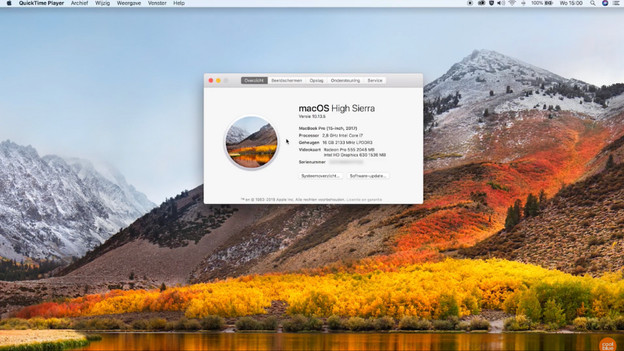
- Click the Apple logo in the top left of your screen.
- Click 'About this Mac'.
- Check which version Apple MacBook you have.
You can only expand the RAM on MacBook Pro models from before 2013. The storage capacity is always expandable.
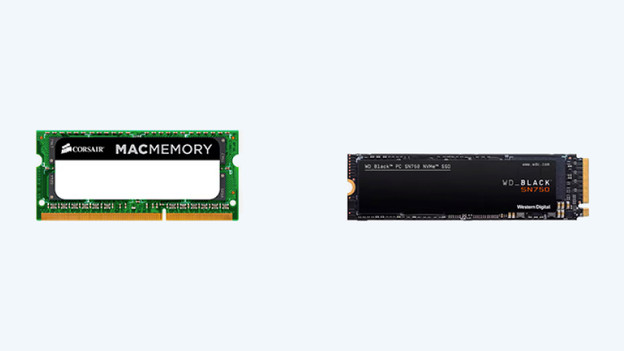
Step 2: consider if you want to expand the RAM or the storage
In short, more RAM makes your MacBook faster. More storage means more room for your files. You can compare it to a desk. The RAM is the desktop. The bigger it is, the more you can fit on it. It's useful for all of the things you want to keep nearby. The cabinet below your desk is the storage. This is where you keep everything you don't need as often. Your MacBook keeps all of your important files here, so they're stored securely.
Step 3: expand your storage with an external SSD
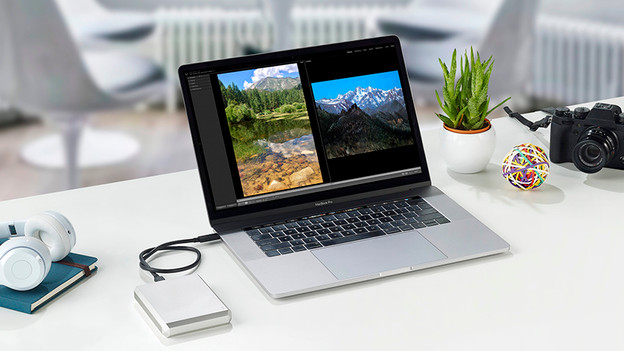
Connecting an external drive to the Apple MacBook is a simple way to expand the storage capacity. On the newer models, you can't replace the internal components. That's because all of the components are welded onto the motherboard. The warranty expires if you tamper with it. Choose an external SSD with a USB-C connector. An SSD is fast, so you can still work at the same speed. Thanks to the USB-C connector, you can use it without adapters.