Written by Jelle
Edited on
22 July 2026
·
15:11
How do you reset your Apple MacBook with Intel processors?
Isn't your Apple MacBook working properly? Or are you going to sell it? You have to reset your Apple MacBook first. There are 2 ways to reset your Apple MacBook. If it's not working properly, you have to reset the SMC. If you want to sell your MacBook, you should reset it to factory settings. We'll tell you how you can reset your MacBook quickly and easily here.
Reset an Apple MacBook with Apple silicon chips
Is your MacBook from 2020 or later? Chances are that the MacBook uses the Apple silicon chip rather than Intel processors. If that's the case, you can read how to reset your MacBook in our advice article.
Reinstall the System Management Controller
If there's a problem with the power supply or the fans of your Apple MacBook, it would be wise to reset the System Management Controller (SMC). This is also called a soft reset. How you can do that differs per model.
Step 1: log out everywhere
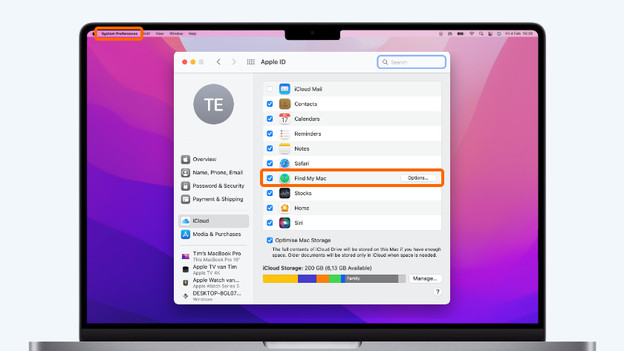
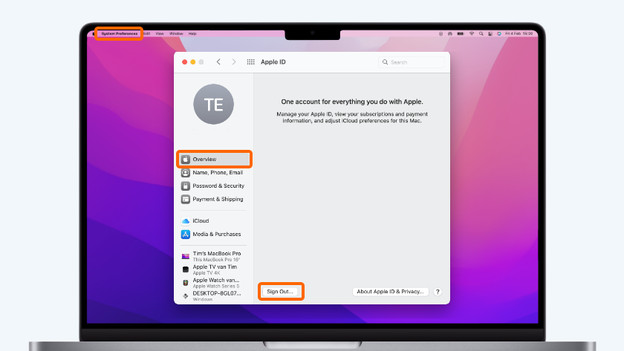
There are multiple apps that require an account. For example, iMessage and iCloud. Check all apps and log out. Especially if you're reselling or getting rid of your Mac. This works differently in each app. For iCloud, the process is as follows:
- Click the Apple logo in the top left corner of your screen.
- Select System Preferences.
- Choose Apple ID and then iCloud.
- Uncheck the box for the option Find My Mac.
- Click Overview in the side panel.
- Complete the process and select Log Out.

Step 2: boot macOS Recovery
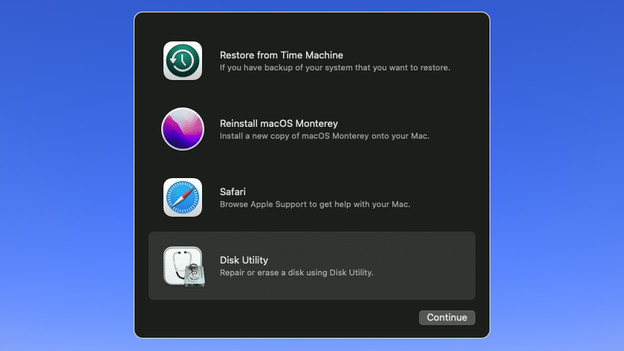
Boot your MacBook in Recovery Mode:
- Click the Apple logo in the top left corner of your screen.
- Click Restart.
- During restart, press the Command key and the R key at the same time.
- Keep both keys pressed down until you see the Recovery Mode appear on your screen.
Step 3: erase the boot drive
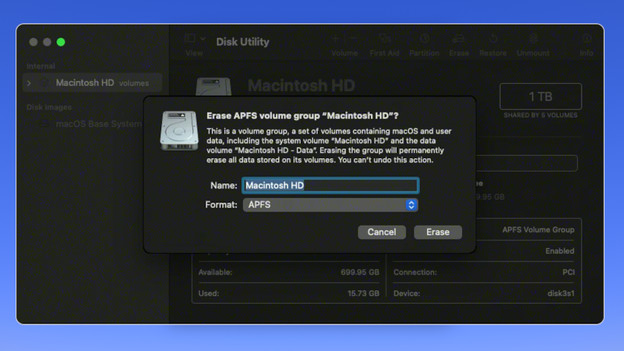
You can now erase the boot drive from your Mac. Keep in mind that this erases all of your files, accounts, and apps. Follow these steps:
- Click Disk Utility in the utility window.
- Select the drive you want to erase. The boot drive is usually listed at the top and is called 'Macintosh HD'.
- Click Erase above the menu.
- Keep the name 'Macintosh HD' and use structure APFS
- Click Erase if you don't see the option Erase Volume Group.
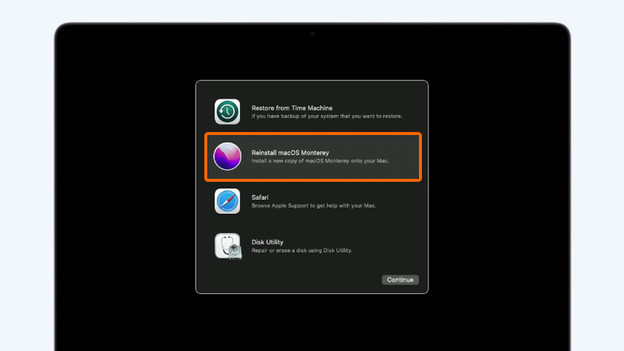
Step 4: reinstall macOS
After erasing the drive, you can move on to the final step. This is reinstalling macOS. Follow these 6 steps:
- Click Reinstall macOS.
- Select Continue.
- Choose a boot drive and click Install. If you get to choose between Macintosh HD or Macintosh HD - Data, choose Macintosh HD.
- When the installation is complete, restart your Mac.
- Wait until your Mac has finished the reinstallation. This can take a couple dozen minutes.
- Do you see the start screen? Go through the steps or turn off your Mac if you're reselling it or getting rid of it.
Article by Jelle
Apple Expert.