Written by Laurence
Edited on
21 March 2025
·
16:32
How do you soft reset a Sony Android TV?
Is your Sony Android TV not showing any image, doesn't it connect to the internet, or are the smart functions very slow? It's a good idea to do a soft reset. You'll erase all useless information from the memory, so the TV can function better. In this article, we'll explain how you do this in 2 steps.
Perform a soft reset in 2 steps
You can reset the Sony Android TV in 2 easy steps:
- Step 1: turn the TV on
- Step 2: press and hold the on/off button of the remote for 5 seconds
Have you connected an external hard drive to the USB port. Disconnect this first.
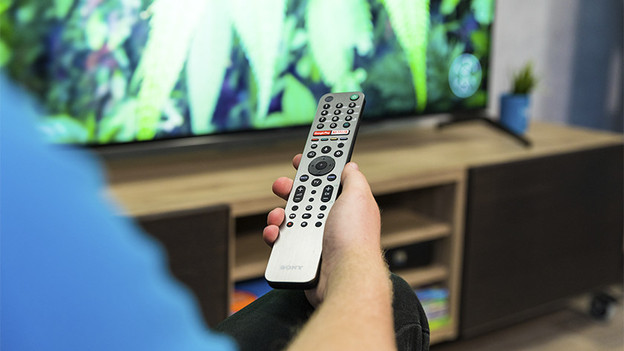
Step 1: turn on the TV
Turn on the device and wait until it's fully booted.
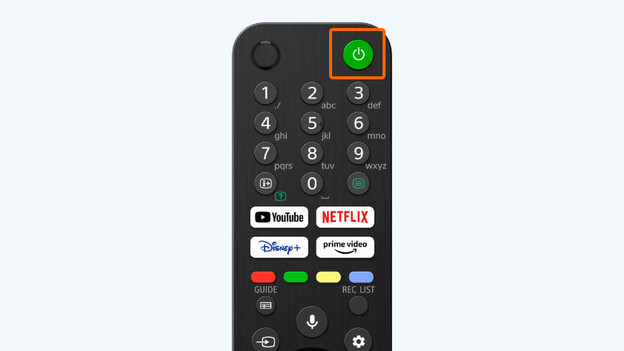
Step 2: press and hold the on/off button on your remote
Press and hold the on/off button for 5 seconds. This button is green and is at the top of your remote. The TV will turn off and after a minute, it'll turn on again. If this doesn't happen, press the on/off button again.
Article by Laurence
Television Expert.