Written by Maurits
Edited on
3 December 2024
·
15:08
How do you solve connection problems with AirPods?
If you have connection problems with your Apple AirPods, there are various things you can try to fix it. You can manually reset the Bluetooth connection or reset your AirPods, for example. In this article, you can read which steps to follow to solve the connection problems between your AirPods and Apple iPhone.
Connnecting Apple AirPods
Read how to connect your Apple AirPods to your iPhone in 2 steps.
Step 1: Connect AirPods manually
Step 2: Restore Bluetooth settings
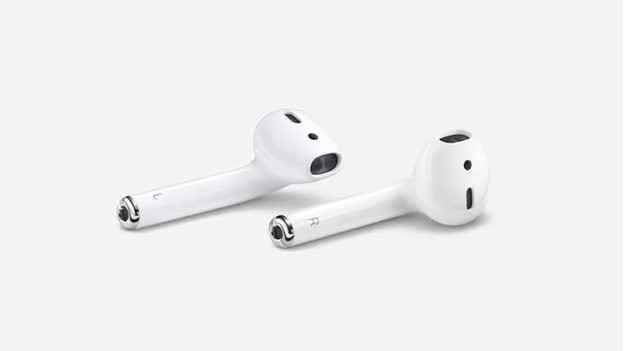
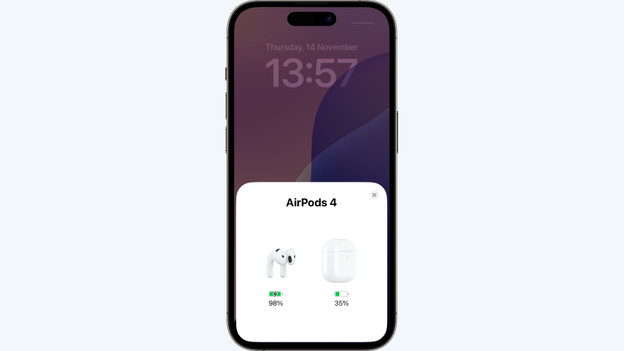
Connect Apple AirPods automatically
To pair Apple AirPods to an Apple iPhone, you need an iPhone with iOS 10 or higher.
- Make sure the Apple iPhone screen is on and go to the home screen.
- Open de case and keep it close to your iPhone. Mare sure the Apple AirPods are in the case. Now, a configuration pop-up appears on the screen.
- Choose 'Connect' on your iPhone and then tap 'Done'.
What if your AirPods don't connect to your iPhone?
If your AirPods won't connect to your iPhone, you can try a couple of things to restore the connection. You can try to connect your AirPods manually or to restore the Bluetooth settings on the Apple iPhone.

Step 1: connect AirPods manually
To restore the Bluetooth connection, follow the following steps your iPhone.
- Open the case, take the AirPods out, and put them in your ears.
- On the back of the case, press the button to activate the signal.
- Navigate to the settings on your iPhone and tap 'Bluetooth'. Here, select your Apple AirPods and choose 'Connect'.
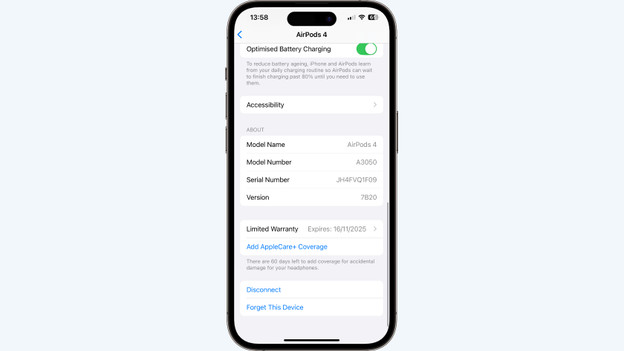
Step 2: restore Bluetooth settings
If the AirPods won't connect to your phone, it might be due to the Bluetooth settings of your Apple iPhone.
- Go to the settings of your iPhone and tap on 'Bluetooth'.
- Next to the Apple AirPods, tap the 'i' icon and then tap 'Forget This Device'.
- Turn off Bluetooth via the settings or the Control Center.
- Restart your iPhone.
- Turn Bluetooth back on and reconnect your Apple AirPods.
Article by Maurits
Apple Expert.