Written by Prescious
Edited on
30 December 2024
·
08:50
How do you install games on the ASUS ROG Ally?
You bought the ASUS ROG Ally and want to play all your favorite games on it. To install games, you first have to download game launchers. Then, you can install the games on your handheld gaming console and open the game via the 'Game Library'. Read exactly how to install game launchers and games and how to play the games here.

Game in 3 steps
To install your games, go through 3 steps first:
- Step 1. Install your game launcher
- Step 2. Install your game
- Step 3. Play your games

Step 1: Install your game launcher
There are a number of shortcuts in 'Game Platforms', so you can download them right away.
- Press the bottom white button on the right side of the screen and open 'Game Library'.
- Choose 'Content' and click 'Game Platforms'.
- Click on the game launcher you want to download and the download will start right away.
Want to download another game launcher? Open Microsoft Edge and search for the game launcher you want to download in the search bar of the search engine. As the ASUS ROG Ally runs on Windows 11, you should install any game launcher available on PC on the ROG Ally.
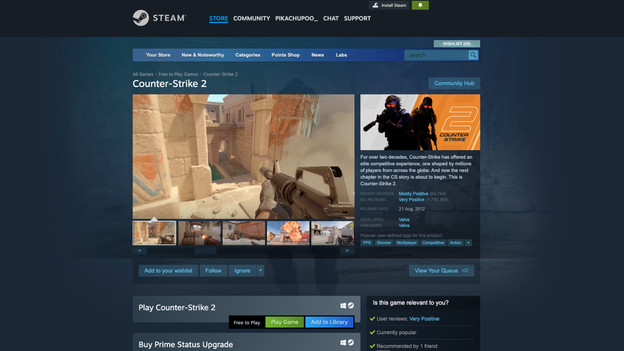
Step 2: download your game
- Press the bottom white button on the right side of the screen and open the game launcher via 'Game Library'.
- Find the game you want to play in the search bar and open the game page.
- Click download and the download will begin.
- Once the game is downloaded, it'll be available on your ROG Ally right away.

Step 3: open the game via the 'Game Library'
- Open the 'Game Library' via the bottom white button on the right side of the screen.
- Click on the game you want to play and the game will open right away.
You can now play all your favorite games on your ASUS ROG Ally.
Article by Prescious
Gaming Expert.