Written by Bob
Edited on
9 July 2025
·
07:18
How do you put books on your PocketBook e-reader?
Before you can start reading, you need to put some books on your e-reader. There are 3 simple ways to put e-books on your PocketBook e-reader. Use a USB cable to connect your e-reader to your computer and quickly transfer the files. Or use email to send the e-books to your e-reader, even if you don't have it on hand.
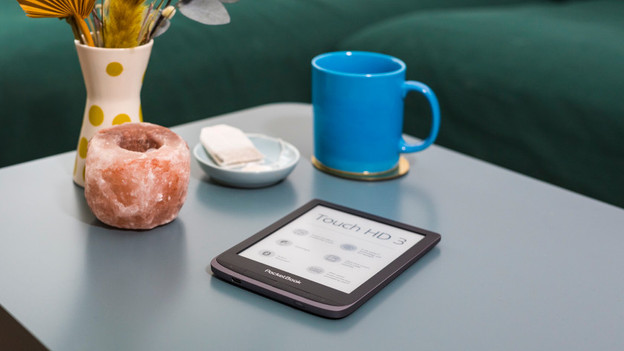
Get started with putting books on your PocketBook
With the tips in this article, you can easily put books on your e-reader.
- Via your computer or laptop
- Via email
- Via Adobe Digital Editions
Via your computer or laptop
- Connect your e-reader to your PC or laptop via a USB cable.
- A message appears on your e-reader. Select PC connection. Check if the USB cable is connected properly or use a different cable if this message doesn't appear.
- Open File Explorer (Windows) or Finder (Mac) on your computer. Your e-reader now appears in the list with your drives (Windows) or devices (Mac).
- Drag your e-books to your e-reader.
- Safely disconnect your e-reader. The books are now listed in the library of your e-reader.
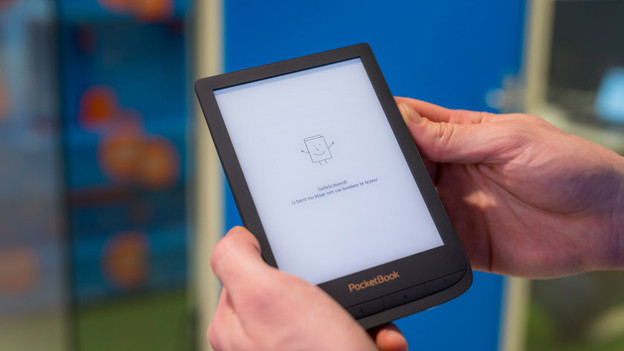
Via email
- Connect your e-reader with WiFi.
- On your PocketBook, go to Settings and then Accounts and synchronization.
- Select the option Send-to-PocketBook and tap Sign in.
- Enter your email address and password.
- Open your email on your smartphone, computer, or other appliance. You'll receive an email with an activation link. Click this link.
- You now created your own PocketBook email address. This address ends with @pbsync.com.
- You send an email to the new PocketBook email address with the e-books attached. Synchronize your e-reader. The e-books are automatically added to the library of your e-reader.
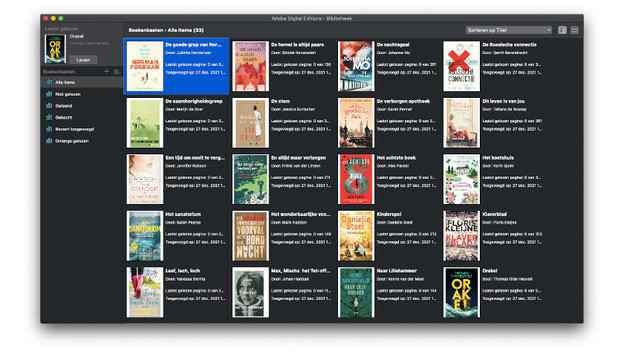
Via Adobe Digital Editions
Sometimes, e-books are secured via Adobe Digital Rights Management. You need Adobe Digital Editions (ADE) to put these books on your e-reader. Books that you rent from the online library are secured, for example. Read the article for a more extensive explanation.
Article by Bob
E-reader Expert.