Written by Jorn
Edited on
23 August 2022
·
12:54
How do you set the channels of your Sony TV?
Did you get just get your new Sony TV, did you just move, or do you want new channels? In these cases, you need to set the channels of your Sony TV. In this article, we'll explain how to do this step by step.
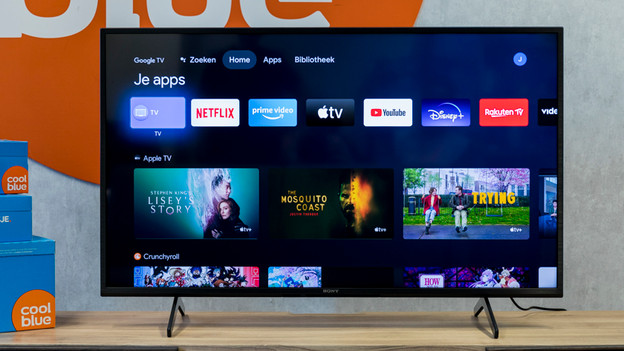
Set channels in 4 steps
With this step-by-step plan, we'll explain how to set up channels on your Sony TV.
- Go to 'System Settings'
- Select 'Channels and Inputs'
- Specify how you receive channels.
- Select 'Automatic Programming'
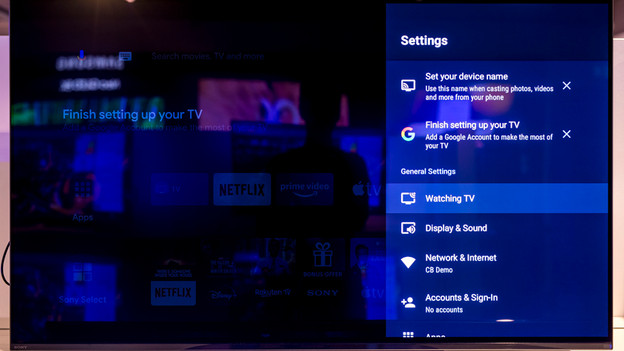
Step 1: go to 'System Settings'
First, you press the settings button on your remote. This is the button with the gearwheel icon on it.
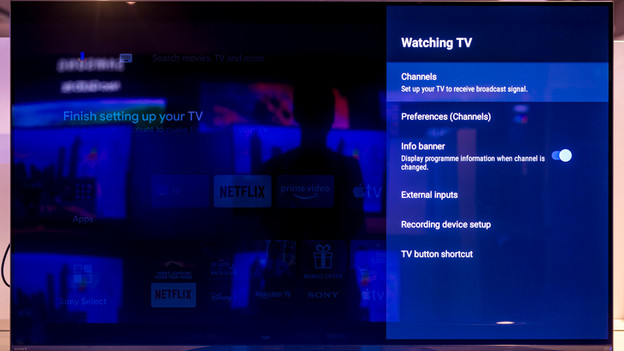
Step 2: Select 'Channels and Inputs'
- Select 'Channels and Inputs'.
- Once in this menu, select 'Channels' to continue setting up channels on your TV.
- Select 'Channel Installation'.
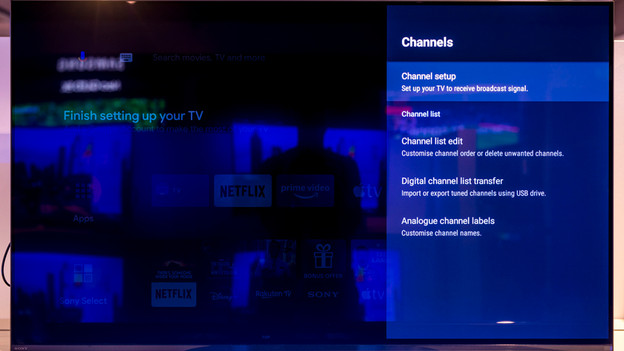
Step 3: Choose 'Automatic Programming'
Select this option to let the television search for channels automatically.
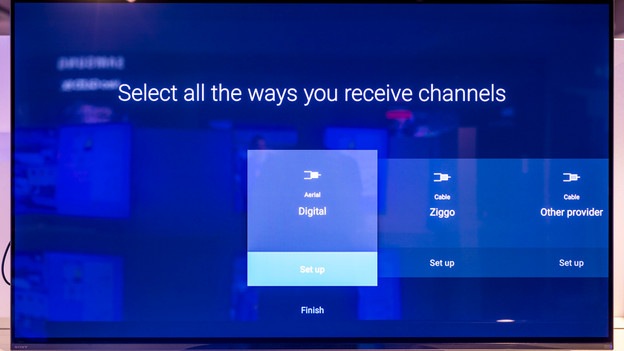
Step 4: indicate how you receive channels
The most obvious choice is 'Cable' which lists your TV provider. Choose this option if you receive channels via a wired cable network (usually with a CI+ module or a separate TV box from your provider).
Don't watch TV via cable? Choose 'Terrestrial' or 'Satellite'.
Your TV will now set the channels.
Article by Jorn
Television Expert.