Written by Prescious
Edited on
1 May 2023
·
13:07
How do you connect your Xbox Series X and S?
If you have your new Xbox, you want go get started with the console, of course. You first have to connect the Xbox. We'll tell you how to quickly and easily set up and make your new Xbox Series X or Series S ready for use.
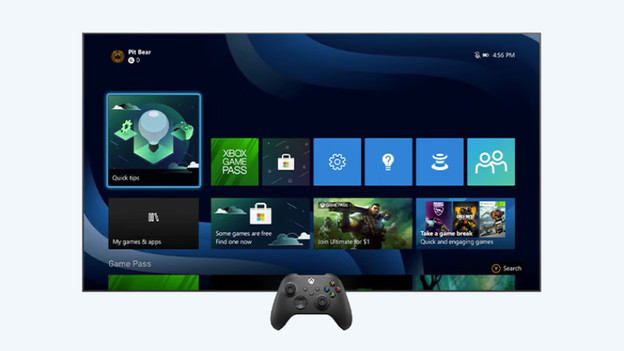
Set up the Xbox Series X or S in 5 steps
To set up your new Xbox as quickly and easily as possible, follow the steps below. There are 5 steps to go through.
- Step 1: unbox
- Step 2: connect
- Step 3: set up
- Step 4: log in and connect to the internet
- Step 5: connect controller

Step 1: unbox and find a spot
- The first thing you have to do is unbox your new Xbox, accessories, and cables.
- I you have unboxed everything, you need to find a spot for your Xbox.
- It's best to put your console close to the TV, with enough room around it. That's important for the fans which can distribute heat better with more room around them. This way, you make sure it doesn't overheat.

Step 2: connect cables
If you found a spot for your Xbox, it's time to connect the cables.
- Connect the included HDMI cable to your television and the Xbox. To be sure you get a 4K image quality, use the cable that came with the Xbox.
- Next, connect the power cable to a socket and your Xbox.
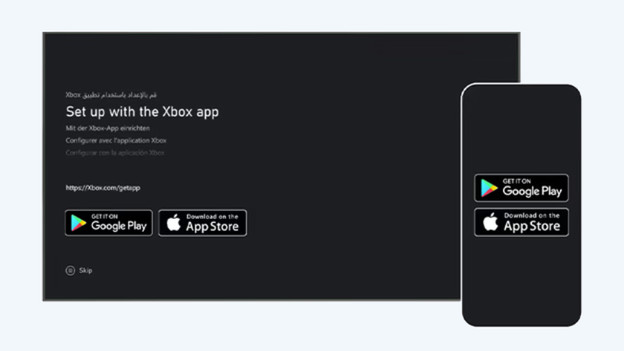
Step 3: turn on and set up
Time to turn on the Xbox.
- Press the power button and start your Xbox.
- To set up the Xbox, you need your smartphone and the Xbox app. If you don't have this app yet, download it via the App Store of Google Play Store.
- When you open the app, you'll see the option set up a console. Click this.
- Next, you'll see a code on your television screen. Enter this in the app.

Step 4: connect to the internet and log in
If you entered the code successfully, it's time to set up the time zone.
- Afterwards, you have to connect your console to the internet. You can do so via WiFi or with an internet cable.
- Enter your password and connect to your home network.
- If that worked, you probably have to update your console.
- Install the update and log in with your Xbox Live account.
- You can set up security options if you want to.

Step 5a: connect controller to Xbox Series X
The last thing you have to do, is connect your controller to your Xbox Series X. The included controller should already be connected to the Xbox.
- Connect the controller again manually, to be sure.
- Press the pair button at the top of the controller, and the pair button on the front of your Xbox Series X, like indicated in the image.
After a few seconds, you controller is connected to the Xbox, and you're ready to game.

Step 5b: connect controller to Xbox Series S
The last thing you have to do, is connect your controller to your Xbox Series S. The included controller should already be connected to the Xbox.
- Connect the controller again manually, to be sure.
- Press the pair button at the top of the controller, and the pair button on the front of your Xbox Series S, like indicated in the image.
After a few seconds, you controller is connected to the Xbox, and you're ready to game.