Written by Daniel
Edited on
30 January 2023
·
15:43
How do I reset my TP-Link router?
Did you forget the password of your TP-Link router? Or doesn't your router work anymore and can't you fix the problem? A reset will often solve your problem. You do have to reinstall the router after the reset. In this article, you can read how to reset a TP-Link router.

Reset your router
You're getting started with your router. You need a laptop or desktop, and for some models a paperclip. If you have everything, go through the following 3 steps:
- Step 1: connect your computer to your router wired
- Step 2: reset your router
- Step 3: install the router again
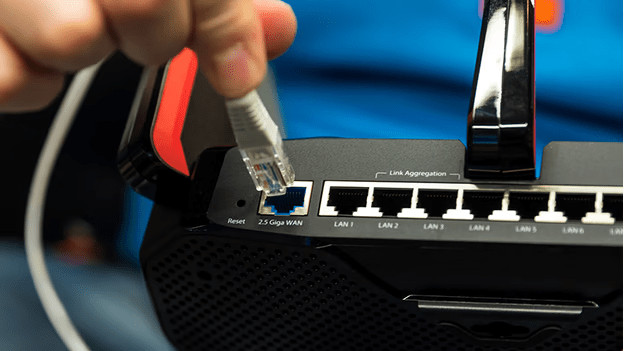
Step 1: connect your computer to your router wired
Connect your appliance to the router with a cable for the reset. That way, you ensure your computer is connected to the router and you can get to the settings of your router. Does your appliance connect to the internet this way? You can find the problem at the WiFi settings of your computer.
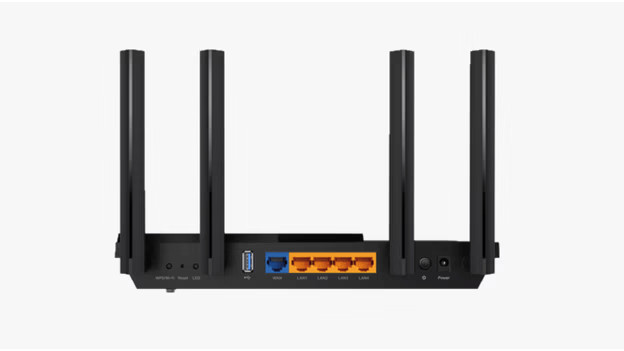
Step 2A: reset your router via the button on your router
The easiest way to reset your router is via the physical reset button on the back of your router. Press and hold the reset button for more than 10 seconds with the paper clip. You can find this button on the back of your router. With the latest models, the reset button is located all the way on the left. With older models, this button is called \ WPS/WiFi reset'.

Step 2B: reset your router via the TP-Link page
If the reset button doesn't work, you can reset the router via the TP-Link web page. Go through the following steps:
- Go to a browser and type 'tplinkwifi.net' in the address bar. Log in with your user name and password, or enter 'admin' twice.
- Choose 'Advanced' at the top of the page.
- Choose 'System functions' at the left side of the page, continued by 'Restore backup'.
- Select 'Restore factory settings' and wait for 1 minute.
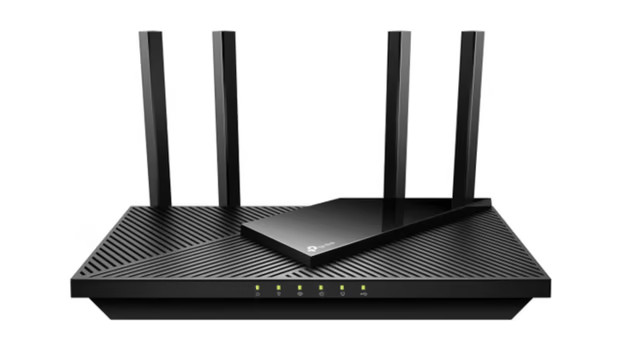
Step 3: install the router again
Your router has now been reset. You can reinstall it now. It's easiest to keep the router connected via the cable. Follow the steps from this article to be sure.
Article by Daniel
Network Expert.