Written by Donato
Edited on
21 March 2025
·
16:32
How do you set up your Samsung Smart Hub?
You've bought a new Samsung smart TV. You'll soon be able to watch your favorite movies, series, and sports events directly via the internet on your television. Before you can do that, you have to connect the television to the internet and download your favorite apps. In the following steps, I'll show you how to do that.
In short
| What are we going to do? | Prepare the Samsung Smart Hub for use. |
|---|---|
| How long does this take? | 5 to 10 minutes. |
| What do you need? | A Samsung smart TV and the included remote. The password to your WiFi network or a network cable connected to your network. |
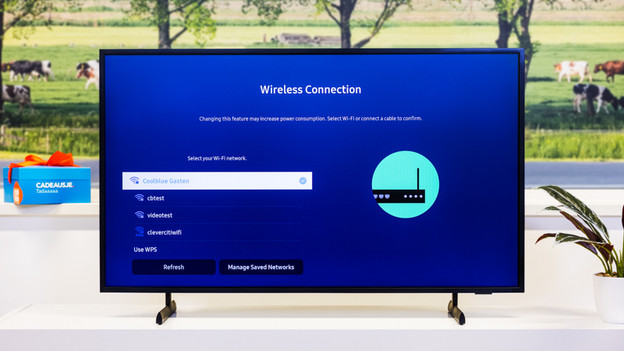
Step 1: connect your smart TV to the internet
To use and download apps, you have to connect your smart TV to the internet. On the next page, you can read how to do this. Is your TV already connected to the internet? Skip this step.
Step 2: find the app you want
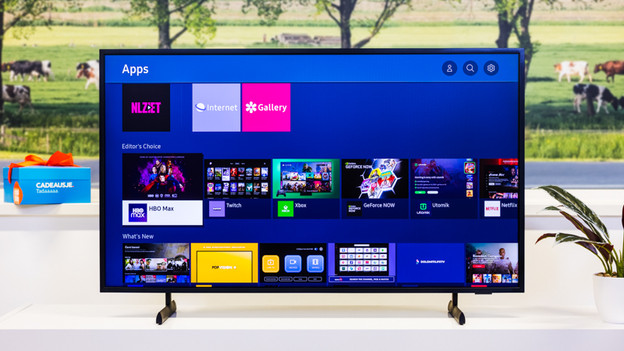
Select the app you want to open via the arrow keys on your remote and press enter. This is the button in the center of the arrow keys. You can find the apps in the smart menu by pressing the 'home' button on your remote. Select the 'apps' menu.
Use your remote to navigate through the menu to find an app, or use the search option at the top right.
Select 'Apps'
The app menu

Step 3: install an app
If you open an app that's installed on your television, it opens right away. In this case, skip this step.
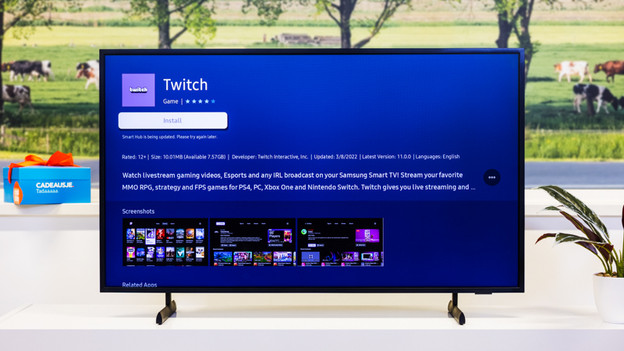
Is the app not installed yet? You'll automatically go to the installation screen after you open the app. Here, select the 'Install' button and press enter.
Was your smart TV made in 2016? Select the 'More' button on the left side of the screen first. Press the down arrow repeatedly until you reach the end of the text and select 'Close'. Then, select 'Install'.
Step 4: organize apps in the home bar
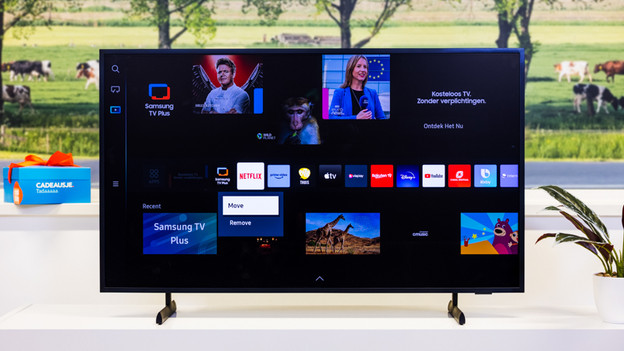
If you want to quickly open your favorite apps, you should place them in the right order in the home bar. You can do this as follows:
- Go to the Apps menu.
- Click 'Settings'.
- Select the installed app that you want to add to the homepage and select 'Add to homepage'.
- Go back to the homepage.
- Press and hold the selection key for 2 seconds.
- Select 'Move' to organize the apps in the home bar. Select 'Remove' if you want to delete the app from your television.
You're done
Repeat step 4 for all of the apps that you use frequently. Your television is now completely ready for using apps. Sit back and enjoy your new television.
Article by Donato
Television Expert.