
Written by Rowan
Edited on
19 August 2026
·
07:31
6 tips for when your MacBook doesn't charge
Doesn't your MacBook charge? Your laptop probably isn't broken. There might be dust in the charging port, the cable might be damaged, or maybe you're using the wrong charger. In this article, you can read how to solve the charging issues of your MacBook quickly and easily.

Solve charging problems
With the following tips, you can solve common charging problems:
- Tip 1. Clean the charging port
- Tip 2. Check the adapter and cable for damage
- Tip 3. Use a charger with the right wattage
- Tip 4. Download the latest macOS version
- Tip 5. Check the battery level
- Tip 6. Have your MacBook repaired
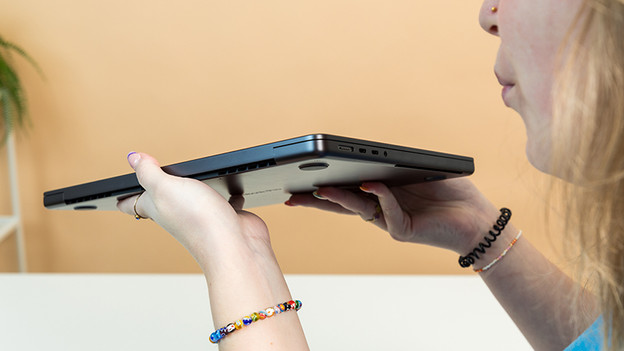
Tip 1: clean the charging port
Your MacBook might not charge due to dust being in the charging port. You can easily clean the charging port with some pressed air or by softly blowing into it. If it's dust that's more difficult to clean, you can use a soft brush.

Tip 2: check the adapter and cable for damage
Your MacBook might not be the problem, it might be the charger. Make sure to check whether your charger is damaged. Think about cracks, kinks, or tears. Your charger can also have invisible damage. Use a different adapter or charging cable, so you know what's causing the problem.
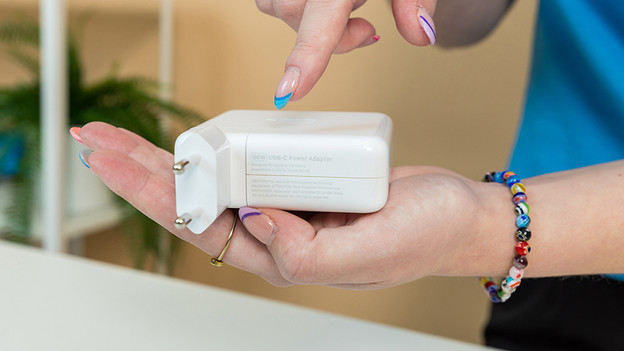
Tip 3: use a charger with the right power
Are you using an adapter with the wrong power? Your MacBook may take longer to charge or not charge at all. That's why you should always check whether you're using the right adapter. You can read the amount of power on the bottom of your adapter. This is expressed in wattage. In the following table, you'll see how much wattage is required for your MacBook.
MacBook models and the accompanying power of the adapter
| MacBook model | Processor | Required power of the adapter |
|---|---|---|
| MacBook Pro (16 inches, 2023) | Apple M3 Pro, Apple M3 Max | At least 140W |
| MacBook Pro (14 inches, 2023) | Apple M3 Max | At least 96W |
| MacBook Pro (14 inches, 2023) | Apple M3 Pro | At least 70W |
| MacBook Pro (16 inches, 2023) | Apple M2 Pro, Apple M2 Max | At least 140W |
| MacBook Pro (14 inches, 2023) | Apple M2 Max | At least 96W |
| MacBook Pro (14 inches, 2023) | Apple M2 Pro | At least 67W |
| MacBook Pro (16 inches, 2021) | Apple M1 Pro, Apple M1 Max | At least 140W |
| MacBook Pro (14 inches, 2021) | Apple M1 Max | At least 96W |
| MacBook Pro (14 inches, 2021) | Apple M1 Pro | At least 67W |
| MacBook Pro (13 inches, 2022) | Apple M2 | At least 67W |
| MacBook Air (15 inches, 2023) | Apple M2 | At least 35W |
| MacBook Air (13 inches, 2022) | Apple M2 | At least 30W |
| MacBook Air (13 inches, 2020) | Apple M1 | At least 30W |
| MacBook Pro (13 inches, 2020) | Apple M1 | At least 61W |

Tip 4: download the latest macOS version
It may also be caused by a software problem. Turn your MacBook off and on again. Still not working? Check whether you've downloaded the latest version of macOS. This works like a type of reset for the battery settings, so your charging issues may be gone now.

Tip 5: check the battery level
There's a small chance you have to have the battery of your MacBook replaced. This is how you can find out:
- Click the Apple symbol in the menu. Go to Battery.
- Check the battery condition. If the battery isn't working (properly) anymore, it'll say Replace now or Replace soon.
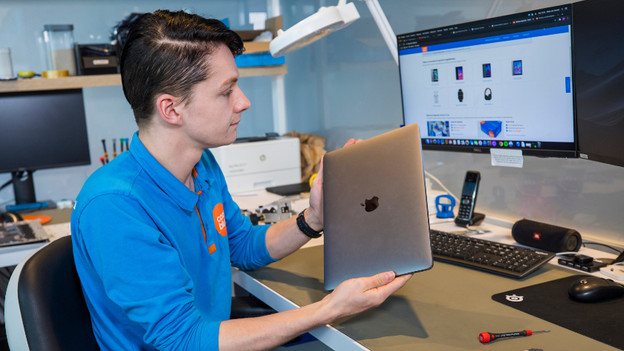
Tip 6: have your MacBook repaired
If none of these tips solve your charging issue, something else is going on with your laptop. Have your MacBook repaired by an Apple expert.
