Written by Donato
Edited on
19 August 2026
·
07:31
5 tips for optimal gaming on your television
If you want the best gaming experience, you should take the time to adjust your the settings of your television. How do you get the best image with a minimal delay? You can read it in this article.
5 tips for optimal gaming
The settings you need to get the best gaming experience can be found in various places in the menu. Take the time to browse your television's menu and have the manual ready.
- Tip 1: use a new HDMI cable.
- Tip 2: put your TV on Gaming Mode.
- Tip 3: set the image format to Full Screen.
- Tip 4: choose the correct color settings.
- Tip 5: set the sound delay.
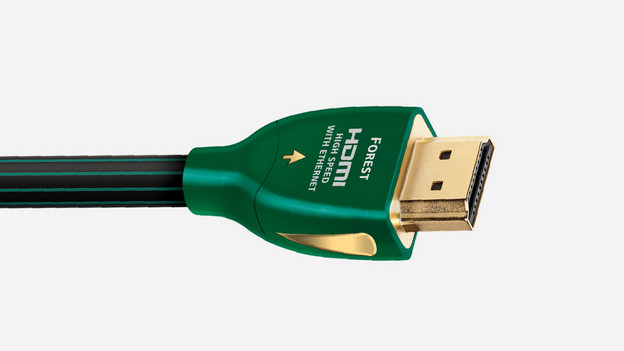
Tip 1: use a new HDMI cable
With a new cable, you're sure that all of the latest video standards are supports and that you can achieve have the best image quality. Because the latest video signals like 4K and HDR take up a lot of data, there's a chance that an older HDMI cable can't properly transmit these signals. A new cable is usually included with your console. HDMI 2.1 is the newest version, but it needs more bandwidth to transmit high-quality video and audio signals. For example, it supports 4K at 100Hz or 8K at 50Hz. Do you game on a powerful PC? A 144Hz refresh rate is possible if your TV supports this.
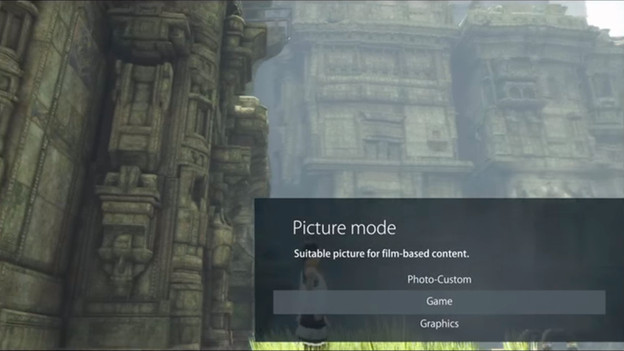
Tip 2: set your TV to Gaming Mode
New television are packed with technology that lets you improve the image. It can make the image much smoother and colors much brighter, for example. These techniques only a have a minor affect on your console's image, but they come with a major downside, because they can lead to input lag. This means that your television needs time to perform all of the calculations, causing the image to fall behind on the action that's happening in the game. With the Gaming Mode, you can disable all of the features with the push of a single button.
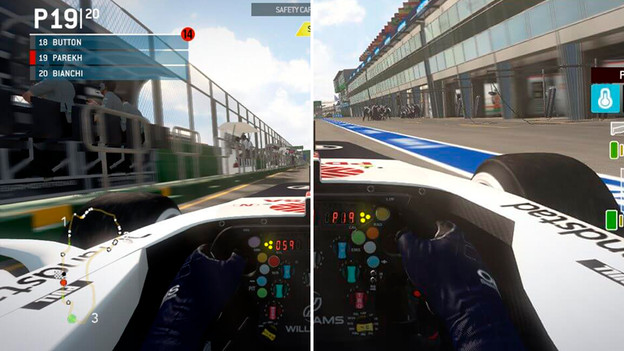
Tip 3: set the picture format to Full Screen
By default, your TV is set to a picture format of 16:9. In this format, your screen is zoomed in. This is also called overscan, which causes you to lose a part of the screen. If you set your TV's picture format to Full Screen, you zoom out, allowing you to see much more information. This gives you a better overview of what's happening in your game. Try switching between Full Screen and 16:9 to find out which setting you like best.
Note: In the menu, Full Screen is also called Just Scan, 1:1, or Screen Fit.
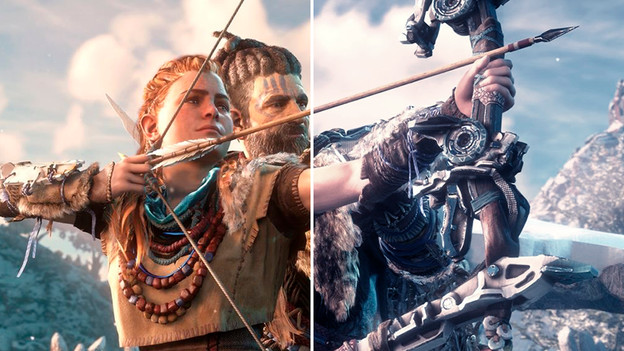
Tip 4: choose the correct color settings
Each television has a different color depiction, and each gamer has a different preference. That's why you should take the time to calibrate the colors and the contrast exactly to your liking. Your TV usually has a couple of presets. For the Picture Mode setting, select the one you like best. Most gamers go with Movie, Natural, or Cool. Adjust this setting after you've set the television to Gaming Mode.
Tip 5: adjust the audio delay
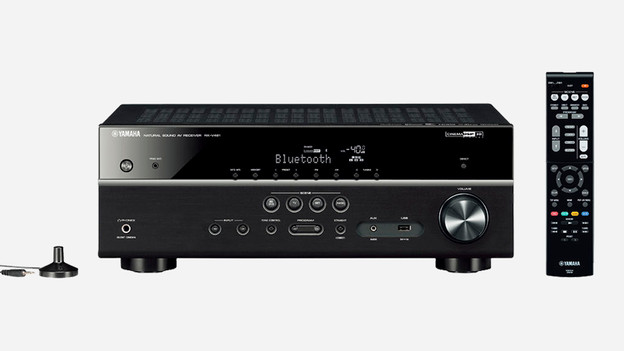
Are the image and audio not in sync? You can easily adjust this with the Audio Delay option. Adjust this option after you've set your television to Gaming Mode. If you're using a soundbar or receiver, set up the audio delay option on these devices instead.
Gaming on your TV via your PC or laptop
Are you a PC gamer and do you want to connect your PC or laptop to your TV? You can connect your device with an HDMI cable and use the image settings of your PC or laptop. Our expert is happy to tell you what you have to look at.