
Written by Lodi
Edited on
26 May 2023
·
15:02
3 tips to upload routes to your Mio Cyclo bike navigation
Do you want to upload the best bike routes to your Mio Cyclo? We'll explain how this works. There are 3 ways to upload routes. You can do so via MioShare, via GPX files, or wirelessly via WiFi.

3 ways to upload routes
You can upload routes to your Mio Cyclo navigation in different ways. Make sure you've registered your Mio Cyclo with MioShare. You can do so via the CycloAgent computer software or the MioShare app or website. You need MioShare and CycloAgent to upload routes to your Mio Cyclo.
- Find or make routes with MioShare
- Get third-party files via GPX
- Via built-in WiFi
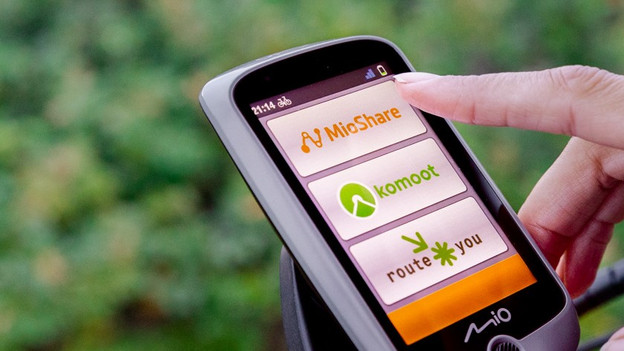
Find routes with MioShare or make them yourself
MioShare is Mio's own platform. You can use it to upload routes to your Mio Cyclo bike navigation.
- Make a route or find an existing route on the MioShare website or in the app. Save your route under 'Tracks'.
- Connect your Mio to your computer with a USB cable and open CycleAgent.
- In CycloAgent, click 'Synchronize with MioShare' in 'My device'.
- After the synchronization, you can disconnect your Mio from your computer. When it's turned on, you can find your saved routed under 'Tracks'.
Do you want to automatically synchronize your MioShare routes with your Cyclo? Enable 'Automatic synchronization' in the CycloAgent settings.
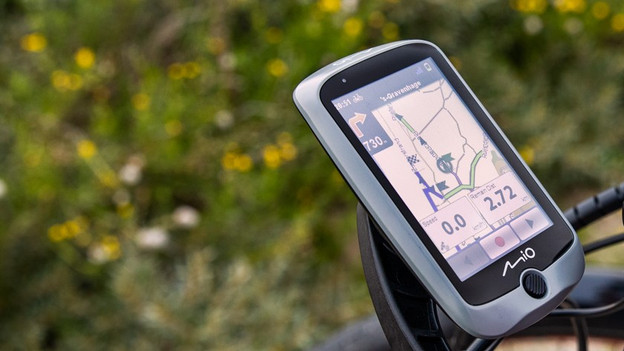
Upload a routes with a GPX file
There are many websites and apps where you can find bike routes. There are bike platforms like Strava, Komoot, and RouteYou, and special websites where you can find and make routes.
- Find a route that appeals to you.
- Download the route as a GPX file.
- Go to 'Upload' under 'Track maker' on the MioShare website. You can upload the GPX file there. You can find your route under 'Tracks'.
- Synchronize your Mio Cyclo with CycloAgent on your computer and find your routes under 'Tracks' on your device.

Upload your route via built-in WiFi
Some Mio bike navigation models have built-in WiFi. That applies to the Discover Connect, Discover Plus, Discover Pal, and the 605HC (Legacy). This way, you can upload routes wirelessly with the MioShare app.
- Save your routes in the app under 'Tracks'.
- Go to 'Settings' on your Cyclo and choose WiFi under 'Connections'.
- Also go to 'Settings' in the MioShare app and find the WiFi network of your Cyclo.
- Enter the code and click 'Join'.
- When the devices are connected, click 'Sync' on your Cyclo. After the synchronization, you can find your route on your Cyclo under 'Tracks'.
You don't have to connect your device to your computer with a USB cable anymore to synchronize.
