Wacom drawing tablets
Wacom drawing tablets.
Living on the etch.With a Wacom drawing tablet without screen, you get a digital canvas that you connect to a desktop or laptop. What you draw appears on the screen of your desktop or laptop.

Compare Wacom drawing tablets without screen
Most pressure levels for most precise drawings
Thanks to the highest pressure sensitivity of 8192 pressure levels, you get the most control over the thickness of your lines.
You can also use the Wacom Intuos Pro wirelessly via Bluetooth.
You can set up to 8 shortcuts, such as changing brush size, undoing a brush stroke, or saving.
Thanks to the higher 5080 LPI resolution, you can add more detail to your drawings.
8192
5080
8
From
to263,-
535,-
Faster workflow with adjustable shortcuts
You create more precise lines, thanks to the higher pressure sensitivity of 4096 pressure levels.
With the Wacom Intuos Bluetooth, you can also use your drawing tablet wirelessly.
Set up to 4 shortcuts, so you can easily save your project or change brush size, for example.
4096
2540
4
From
to68,-
535,-
Higher pressure sensitivity for precise lines
You create more precise lines, thanks to the higher pressure sensitivity of 4096 pressure levels.
You can also use the Wacom One wirelessly via Bluetooth.
4096
2540
2
From
115,-
Low pressure sensitivity
Thanks to the pen with 2048 pressure levels, you determine how thick or thin the lines you draw are.
2048
2540
0
From
37,99
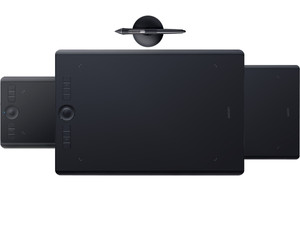

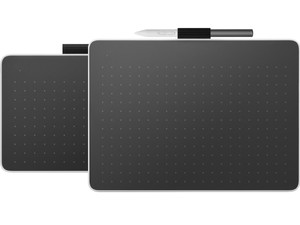


More detail with a higher LPI and more pressure levels
Pressure levels indicate how sensitively the drawing tablet responds to your pressure. The more pressure levels, the better you can create different line widths and shadows. If you press harder on the stylus, you get a thicker line. A higher pressure level is indispensable if you create drawings with a high resolution. With LPI (Lines Per Inch), we mean how many lines a drawing tablet can register in 1 inch. This is also called the LPI resolution. The advantage of a higher LPI is that you add more details to your drawings.
FAQ
How do you choose a Wacom drawing tablet without a screen?
If you're sure that you're choosing a Wacom drawing tablet without a screen, consider what you want to use your drawing tablet for. Want to take notes or use the drawing tablet as a mouse? A starter model such as the One by Wacom is enough. Want to take your drawings to the next level? Choose a drawing tablet with a higher LPI resolution and more pressure levels, such as the Intuos or Intuos Pro.
What is the advantage of ExpressKeys?
The Wacom Intuos and Intuos Pro have special ExpressKeys on the drawing tablets. These are buttons on which you set your specific shortcut. This way, you get quick and useful access to frequently-used functions and commands on your drawing tablet. You can adjust the shortcuts to your liking and workflow. For example, you can change brush sizes or undo brush strokes at the touch of a button. You save time with this, because you spend less time looking for menu options.