
Written by Elaine
Edited on
10 March 2023
·
09:04
How do you choose the right webcam?
You can use a webcam for video calls with friends, family, and colleagues, or to stream your gameplay to Twitch. You always want to be sharp in frame, of course. To find the best webcam for you, you can look at the resolution and functions like autofocus. We'll tell you everything about choosing a good webcam in this article.
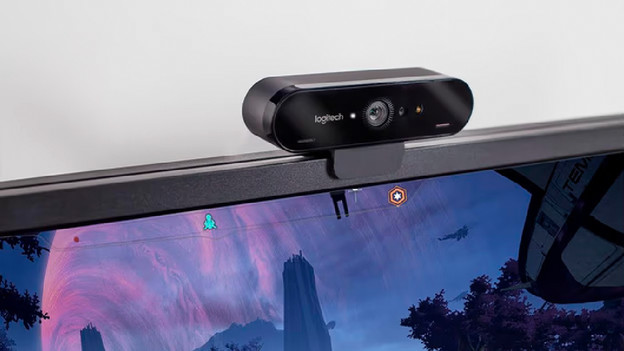
Choose webcam
At first glance, webcams look a lot alike. But not every webcam is the same. Ask yourself the following when you ask the best webcam for you:
- Do you want to have functions like autofocus?
- Which resolution do you need?
- Do you want a model you can tilt and swivel?
- Do you want a built-in microphone?
- What else should you keep in mind?
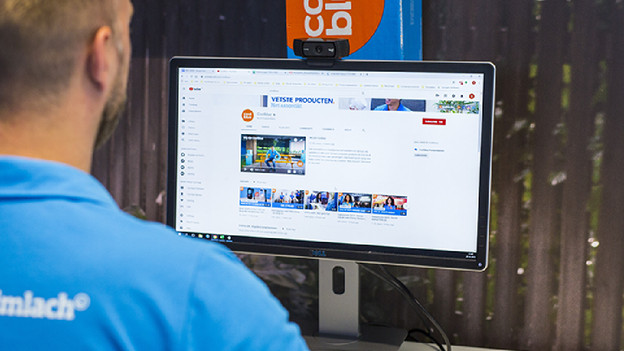
What's autofocus?
Webcams with autofocus automatically focus. Don't you want the wall or closet behind your desk is sharper in frame than you? Choose a webcam with autofocus. Many modern webcams have this function and it makes sure your face is sharply in frame. That's useful during video calls, streaming, and recording videos. You want to be in focus, of course.
Which resolution do you need?
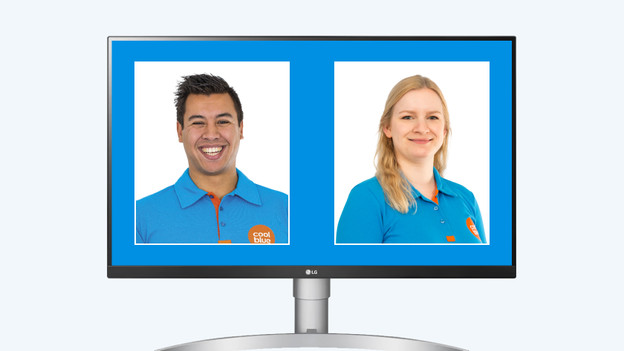
4K
A 4K webcam records with a resolution of 3840x2160 pixels. That's the highest resolution for a webcam, so others will see you sharply. A 4K webcam is ideal for streaming gameplay in high quality and to record sharp videos. Keep in mind that streaming in 4K requires a high internet speed from you and your viewers.
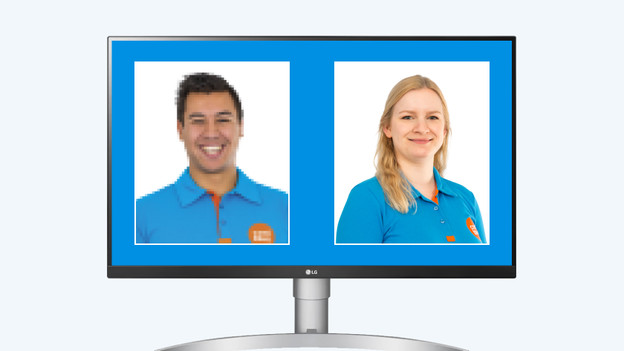
Full HD
Full HD webcams have a resolution of 1920x1080 pixels. This resolution is most common with webcams and it's suitable for all usage situations. Use a Full HD webcam when you work from home or for video calls with friends, for example. Full HD is also the standard resolution for YouTube videos, so you can also use these webcams to make videos or stream to Twitch.
HD ready
An HD Ready webcam has a resolution of 1280x720 pixels. This resolution is less sharp than Full HD, but it'll still bring your sharply in frame during video calls with friends, family, and colleagues. Keep in mind that you can't put the image on full screen. That makes the image less sharp.
Do you want a tiltable screen?
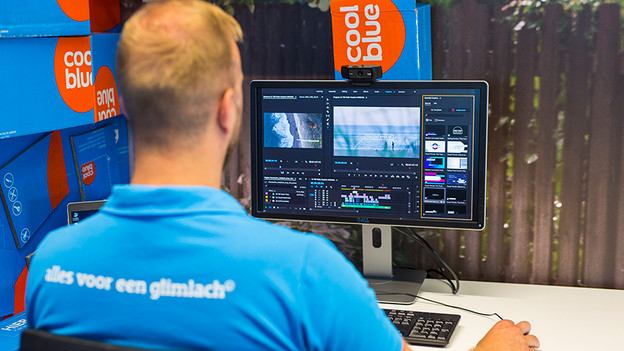
With a tiltable webcam, you can record from different angles. Swivel the webcam and bring something else into frame. Do you want to show your colleague documents on your desk or you new workplace? Tilt the webcam, so you can show them. A tiltable webcam is always a smart choice, because you can manually choose the right recording angle.
Do you want a built-in microphone?
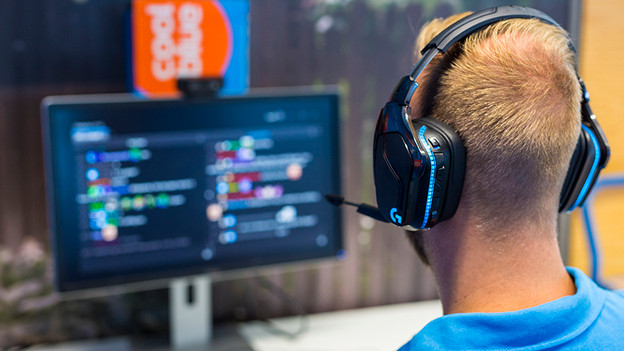
A webcam with a built-in microphone records your voice by itself. This way, you don't need a separate microphone when you make video calls, record videos, or stream gameplay. The built-in microphones often have noise suppression, so others can hear your more clearly and it filters ambient noise.
What else do you keep in mind?
Operating systems
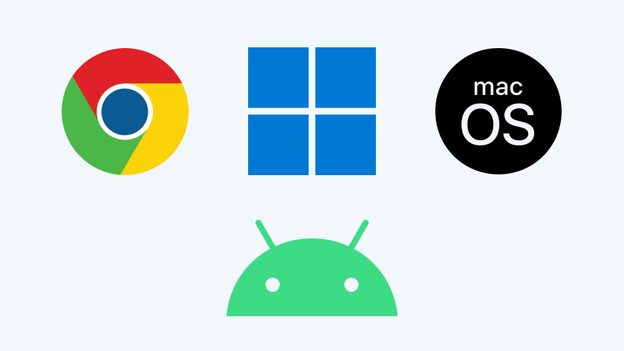
Not all webcams work on all operating systems. Do you use macOS, Windows, Chrome OS, or Android? Keep this in mind when you choose your webcam. This way, you can be sure your webcam works on your laptop or desktop.
Type of webcam holder
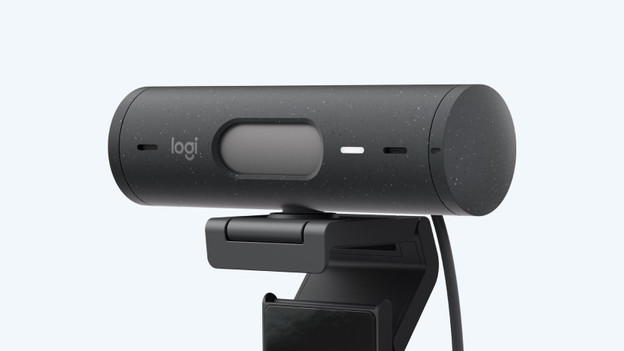
You can place your webcam on your desk in 2 ways. There are webcams with a desk stand, which you can simply place on your desk. You can place these anywhere on your desk, which gives you a lot of freedom of movement. There are also webcams that you can attack to your monitor or laptop with a universal clamp. This way, you often place them at eye level and your face is nicely in frame.
USB connector
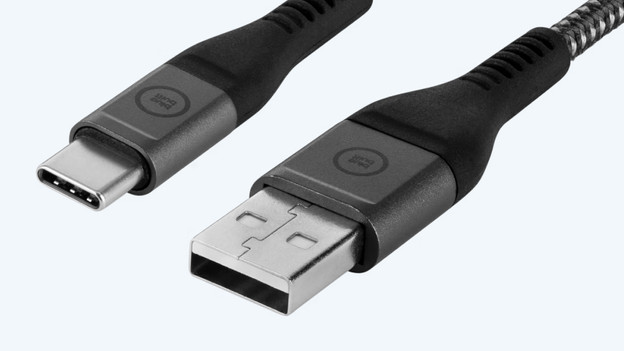
You can connect every webcam via USB-A or USB-C. USB-A is most common. This connector has a rectangular shape. USB-C is the latest type of USB port. You can recognize it by its oval shape. You can mainly find this connector on new laptops. Before you use the webcam, install the drivers from the website of the manufacturer. This way, you can be sure the webcam works well on your laptop or desktop.
Article by Elaine
Webcam Expert.
