
Written by Elaine
Edited on
1 October 2025
·
08:01
Compare the Logitech MX Master 4 to the Logitech MX Master 3S
The Logitech MX Master 4 is the successor to the successful Logitech MX Master 3S. The mice look like each other, but only have a few important differences. For example, the MX Master 4 has an Actions Ring that you can use for your favorite shortcuts via an overlay. In this article, we'll explain the similarities and differences, so you can choose the right model.
View the MX Master 4, MX Master 3S Bluetooth Edition, and MX Master 3S
- Logitech MX Master 4 Graphite
The Haptic Sense panel provides haptic feedback for notifications and actions.
With the Actions Ring, you have more shortcuts within reach.
You can quickly scroll through spreadsheets and documents horizontally and vertically.
The USB-C dongle is only suitable for devices with a USB-C port.
From
130,-
- Logitech MX Master 3S Bluetooth Edition
You can use this mouse on up to 3 devices at the same time via Bluetooth.
With a DPI of up to 8000, you can quickly navigate through pages.
You can quickly scroll through spreadsheets and documents horizontally and vertically.
You can't connect this mouse via a USB dongle.
From
98,-
- Logitech MX Master 3S
You can use this mouse on up to 3 devices at the same time via Bluetooth or the USB-A dongle.
With a DPI of up to 8000, you can quickly navigate through pages.
You can quickly scroll through spreadsheets and documents horizontally and vertically.
The USB-A dongle is only suitable for devices with a USB-A port.
From
79,-
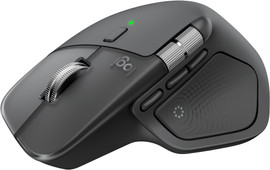
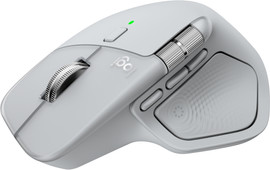
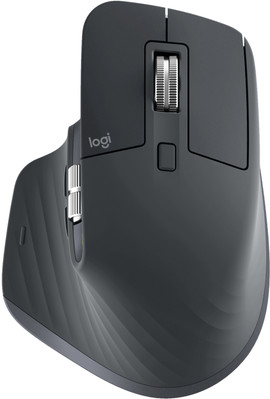
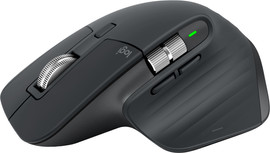
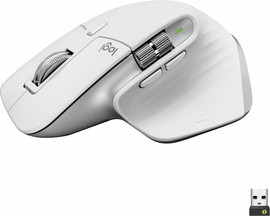
Comparison MX Master 4, MX Master 3S Bluetooth Edition, and MX Master 3S
| MX Master 4 | MX Master 3S Bluetooth Edition | MX Master 3S | |
|---|---|---|---|
| Connection | USB-C dongle, Bluetooth | Bluetooth | USB-A dongle, Bluetooth |
| Number of thumb buttons | 3 | 2 | 2 |
| Haptic feedback | Yes | No | No |
| Actions Ring | Yes | No | No |
Connection
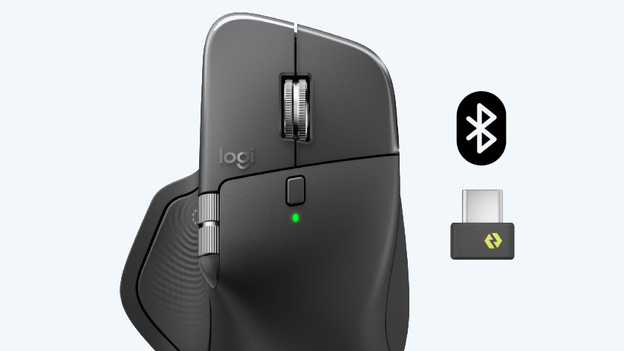
MX Master 4: USB-C and Bluetooth
The MX Master 4 includes a USB-C dongle instead of a USB-A one. It's also twice as powerful as an old USB-A port, so you have a better connection. Make sure you have a free USB-C port on your device if you want to connect the mouse via the dongle. You can also connect the mouse to 2 other devices via Bluetooth.
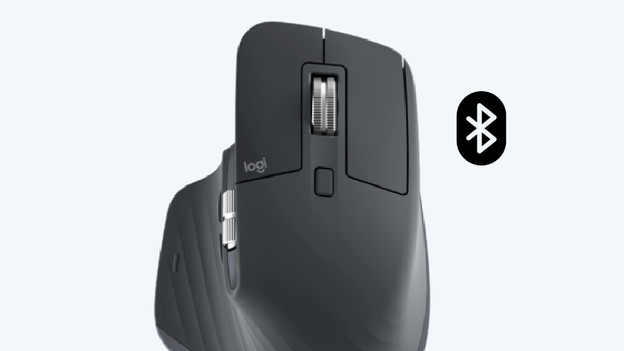
MX Master 3S Bluetooth Edition: Bluetooth
As the name suggests, this model connects only via Bluetooth. You can do this on 3 different devices at the same time. The advantage of this is that your USB ports remain free for other accessories. Plus, you don't run the risk of losing your dongle.
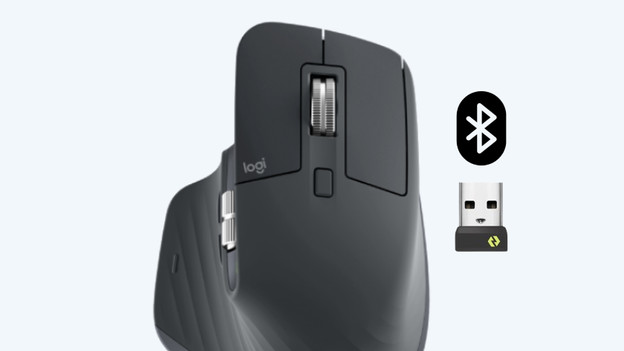
MX Master 3S: USB-A and Bluetooth
You can connect the MX Master 3S via the included USB-A receiver and Bluetooth. Of the 3 connections, 2 are suitable for Bluetooth. This makes it easy to connect the mouse to different devices. Switch between devices with a press of a button on the bottom of the mouse.
Number of thumb buttons
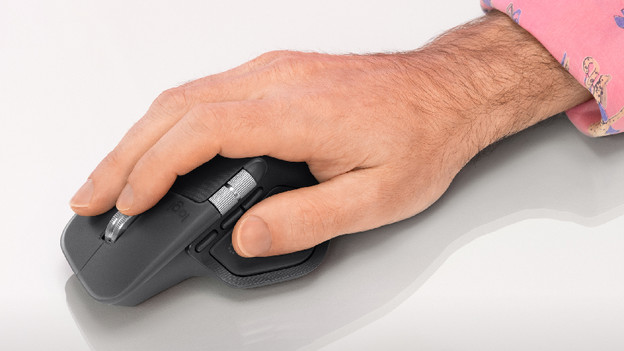
MX Master 4: 3 thumb buttons
In addition to the 2 standard thumb buttons, the MX Master 4 also has a third thumb button. This gives you access to an extra shortcut. For example, you can choose to display your desktop or pause your music. Just like with previous models, you can customize all of this using Logi Options+. The extra thumb button minimizes hand movements, which is extra ergonomic. You can also work even faster with this extra shortcut.
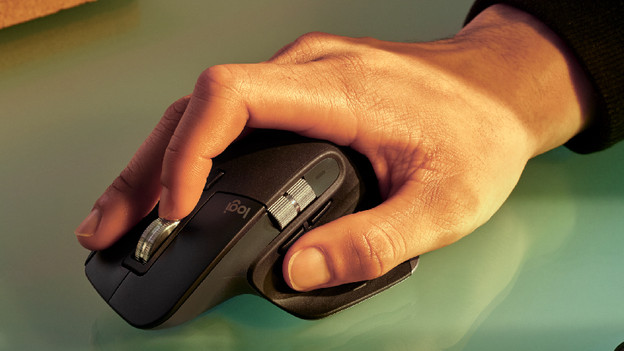
MX Master 3S and Bluetooth Edition: 2 thumb buttons
The MX Master 3S and the Bluetooth Edition both have 2 thumb buttons. These let you navigate to the next or previous page, for example. You can also customize shortcuts or hotkeys using Logi Options+. These can be configured not only for standard use but also for specific apps and programs. For example, you can choose different shortcuts for Adobe Photoshop than for Google Chrome or Spotify. This allows you to fully customize the mouse to your specific usage situation and workflow.
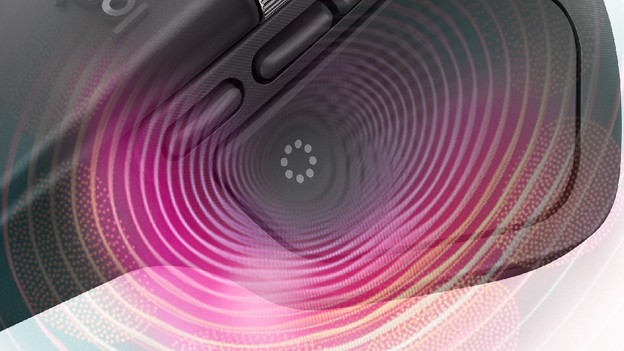
MX Master 4: haptic feedback
The MX Master 4 has a Haptic Sense panel for the first time. This panel provides feedback for specific actions, shortcuts, and notifications via vibrations. You won't get distracted by notifications on your screen this way, but instead receive haptic feedback. Haptic feedback also gives you a more intuitive feel for actions you perform in Photoshop, for example. The intensity of the vibrations is adjustable, so you can receive feedback in a subtle way.
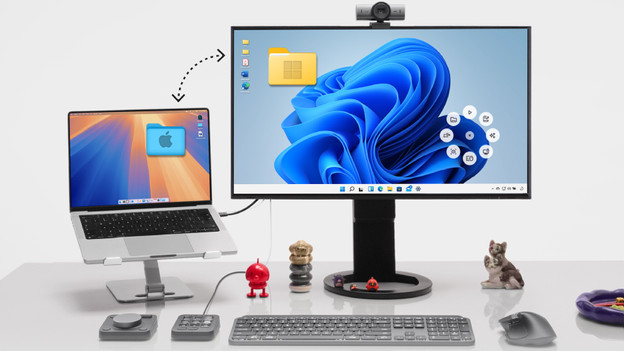
MX Master 4: faster access to shortcuts
Another new functions of the MX Master 4 is the Actions Ring. This overlay appears on your screen with the press of a special button near your thumb. Via the overlay, you have quick access to 8 actions and shortcuts. You can adjust these to your liking via Logi Options+. This saves you a lot of time while you work. Want a different overlay for each program? That's no problem. Just like the thumb buttons, you can customize it using the software.
Conclusion
Do you want the best mouse for intensive use? Choose the Logitech MX Master 4. You'll save a lot of time because you have more shortcuts at hand via the thumb buttons and the Actions Ring. Haptic feedback makes notifications and actions tangible. Are a few shortcuts are all you need? The Logitech MX Master 3S or the 3S Bluetooth Edition are a good choice.
Article by Elaine
Mice Expert.
