Written by Lucinda
Edited on
16 April 2025
·
13:33
How do you use the Find My app on Apple iPhone?
The 'Find My' app helps you find your Apple devices, but you can also share your location with friends and family with it. Want to find your iPhone? Use 'Find my iPhone' on a computer. In this article, you can read everything on the different functions of the 'Find My' app.

Get started with 'Find My iPhone'
We'll explain how to use the different functions of the 'Find My' app on Apple iPhone.
- Set up 'Find My' on your iPhone
- Find your devices from your iPhone
- Share your location with friends and family
- Find your iPhone via 'Find my iPhone'
Set up 'Find My' on your iPhone
To get started with 'Find My', open the 'Settings' app and follow the steps below.
- At the top, tap your name.
- Choose 'Find my'.
- Do you want your location to be visible to friends and family? Turn on 'Share my location'.
- Select 'Find my iPhone' and tap the slider at the top.
- Turn on 'Find My Network' if you want to see your iPhone's location even when it's turned off.
Are your AirPods and Apple Watch linked to your iPhone? They'll automatically be added to 'Find My'.
Tap your name at the top.
Choose 'Find My'
Turn on 'Share my location'
Tap the slider at the top
Turn on 'Find my network'


Find your devices via your iPhone
Did you put your Apple Watch or other Bluetooth device somewhere, but can't remember where? You can retrieve it with the 'Find My' app on your iPhone.
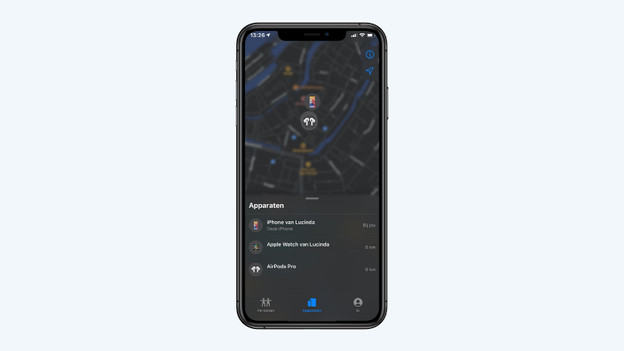
- Open the 'Find My' app on your iPhone. A map appears with the locations of your iPhone and other devices.
- Tap the device you're looking for at the bottom to see its exact location.
- Is the device you lost nearby? Choose 'Play sound'.
- Now find where the sound is coming from and you've found your device.
Tap the device you lost.
You'll see various options on this screen.
Tap 'Play sound' to find the device.


Share your location with friends and family
With 'Find my friends', you know exactly when your parents are at the door. To use this feature, your friends or family members must also have 'Find my friends' set up.
- Open the 'Find My' app on your iPhone and tap 'People' at the bottom. Select 'Start sharing location'.
- A screen will open where you can search for your contacts. Type the name of the person you want to add and tap 'Send' at the top right.
- Choose for how long you want to share your location.
- You can now find the location of your friend or family member in the 'People' overview.
Select 'Start sharing location'
Add people
Choose how long you want to share your location.
You can find the location in the 'Persons' overview


Find your iPhone via 'Find my iPhone'
You've looked everywhere, but your iPhone is nowhere to be found. Luckily, you can find it again using the "Find my iPhone" feature in iCloud.
- On a computer, navigate to your web browser and type www.icloud.com into the address bar or click the link below. There, log in with your Apple ID.
- In the overview, choose 'Find iPhone'.
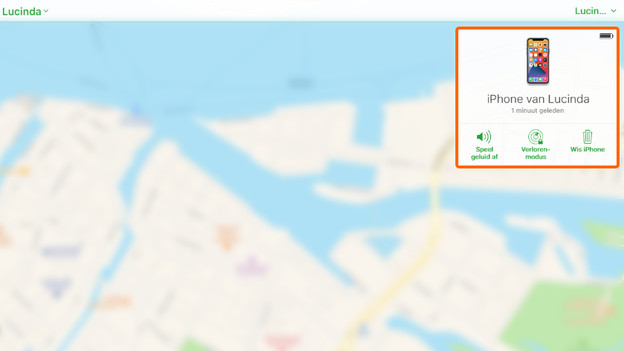
- Now a map will appear showing the location of your devices. Click 'All devices' at the top and select your iPhone.
- Is it nearby? Click 'Play sound' to find it. Do you suspect someone stole your iPhone? Choose 'Lost mode' and protect your personal information.
Log in to iCloud
Choose 'Find iPhone'.
Click 'All devices' and select your iPhone
Play sound or choose 'Lost mode'



Find your items back with Apple AirTag
Apple AirTag is a tracker that you can attach to your bag or keys, for example. This way, you'll know where to look when you lose something.
- Open the 'Find my' app and go to 'Objects' at the bottom.
- You'll know see the exact location of your keys, for example.
- Tap 'Play sound'. You'll hear a sound.
- If you tap 'Find', you'll get directions.
Article by Lucinda
Apple Expert.