Written by Kayleigh
Edited on
25 August 2026
·
09:04
Get started with your Cricut machine
It can be overwhelming if you're just getting started with Cricut. You can make endless projects and crafts with a Cricut machine, from vinyl stickers to customized mugs and T-shirts. With these 5 tips, we'll help you get started with your first Cricut projects. This way, you can get started with your Cricut machine right away.
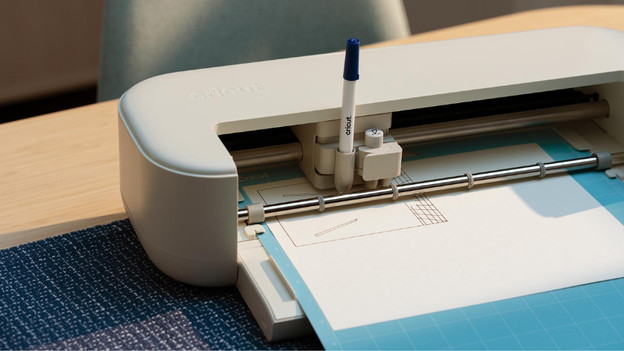
Get started with a Cricut machine
Do you have your Cricut machine and the materials you need? Get started with the following tips:
*Tip 1. Cricut instruction videos
- Tip 2. Cricut Design Space image cropping
- Tip 3. ready-made projects
- Tip 4. cropping images
- Tip 5. more inspiration
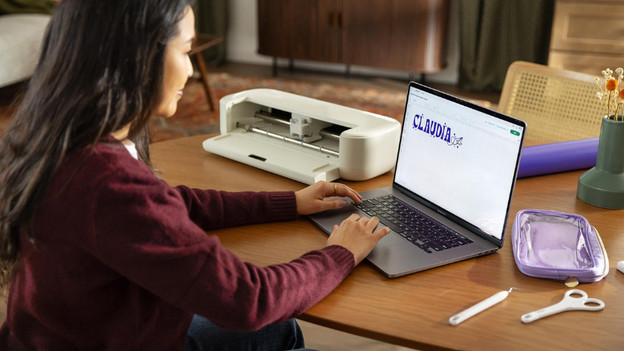
Tip 1: watch online Cricut instruction videos
Before you start, it's useful to know how your new cutting machine works exactly. Luckily, Cricut is happy to help you with this. On Cricut's YouTube channel, you'll find various instruction videos. Watch these, for example:
- What's a Cricut cutting machine?
- How do you set a Cricut cutting machine?
- What do you need to start with Cricut?

Tip 2: download Cricut Design Space
First, download Cricut Design Space. Design Space is Cricut's design software that you can download as an app on your MacBook, Windows device or smartphone. Follow the step-by-step plan with Design Space, so you can set up your Cricut machine properly. Discover what Design Space has to offer here. There's a library with thousands of designs or ready-made projects. Or get started in the Design Space, where you can create your own design. Via Design Flows, the app will guide you through making projects from A to Z.
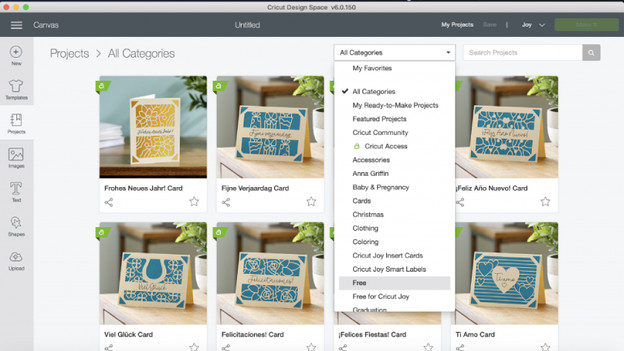
Tip 3: create a ready-made project
Want to get started, but don't know what you want to make yet? Check Cricut Design Space for the free projects. Here, you'll find 50 free ready-made projects. Do you have Cricut Access? This gives you access to hundreds more projects. These projects include all the steps you take to create the design. Follow these steps and easily create your first project.
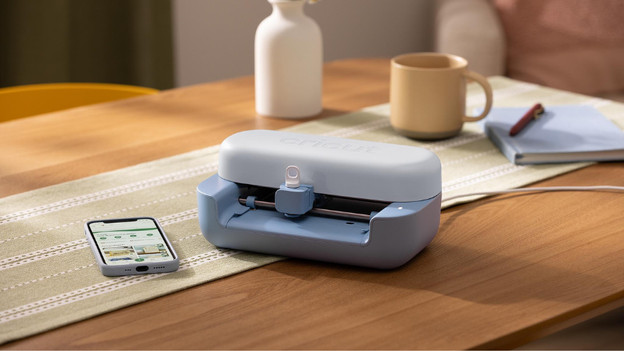
Tip 4: crop an image
In the design space of Design Space, you can place your own images that you cut with your Cricut machine. There are 3 ways to do this:
- Download an image from the Internet.
- Create your own design in the design space with lines and figures.
- Download an image from the Design Space library. There are thousands of free images there. Do you have Cricut Access, Cricut's paid subscription? Choose from more than 1 million images.
In the design space, resize your image and click the 'Make it' button. Then, follow the steps from Design Space and you'll have your cut-out design in no time.
Tip 5: get inspired
Want to find inspiration for your next project? Have a look on social media. You'll find many projects from Cricut users there. On Cricut's website, you'll also find examples of projects in their blogs. That way, you can see what you can make with a Cricut cutting machine and what your options are.
Article by Kayleigh
Cutting Machine Expert.