Written by Prescious
Edited on
12 March 2024
·
16:01
Solve scroll wheel problems of Logitech mouses
With some Logitech gaming mice, you can experience issues with the scroll wheel. For example, it's possible that the scroll wheel stutters or scrolls the wrong way. In this article, you can read how to install a firmware update that solves these problems.
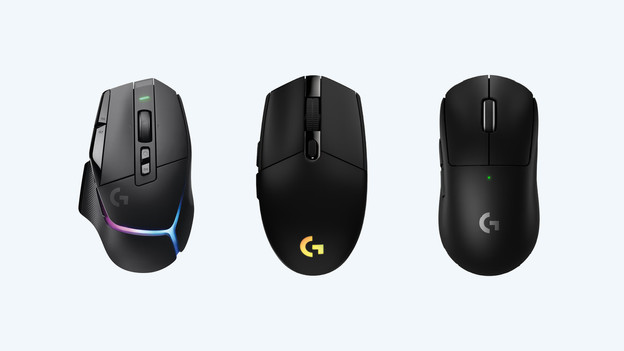
3 steps for solving problems with your scroll wheel
If you're having trouble with your scroll wheel, these 3 steps will help:
- Step 1: search for your product via the Logitech G website
- Step 2: download the firmware
- Step 3: clean your scroll wheel
Step 1: go to the right page
- Go to www.logitechg.com/nl-nl in your web browser.
- Click on the 3 bars at the top to open the menu. Then, select 'gaming mice'.
- You'll now see a page with all the Logitech gaming mice. Find your mouse here and click on it. This opens the support page.
- Choose 'support'.
- A new tab will open with the support page of your gaming mouse. Select 'downloads'.
Go to the right page via your web browser
Open the menu
Find your mouse
Click 'support'
Select 'downloads'





Step 2: download the firmware update
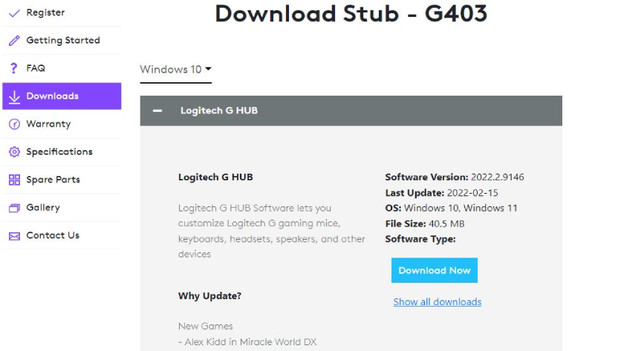
You're now on the downloads page of your mouse. Here, you can find all available software and other updates.
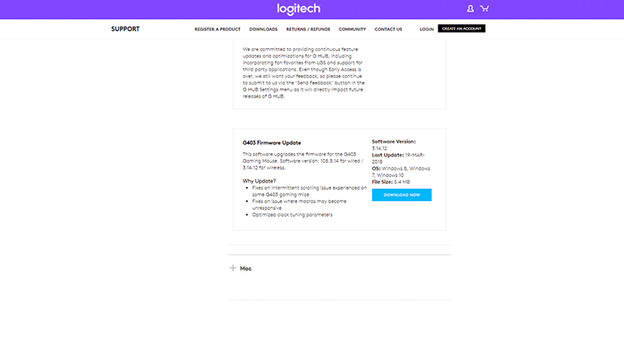
- Search the firmware update on the page and click 'download now'.
- Select the file with the name of your gaming mouse that has loaded in the top right corner of your browser.
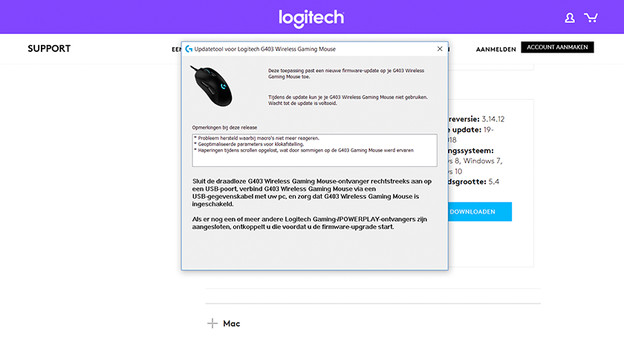
- A pop-up with the update tool for your gaming mouse will now appear. Follow the steps on your screen to install the firmware update.
You can find all updates here
Find the right update and click 'download now'
Click the downloaded file
Follow the steps on the screen

Step 2: clean your scroll wheel
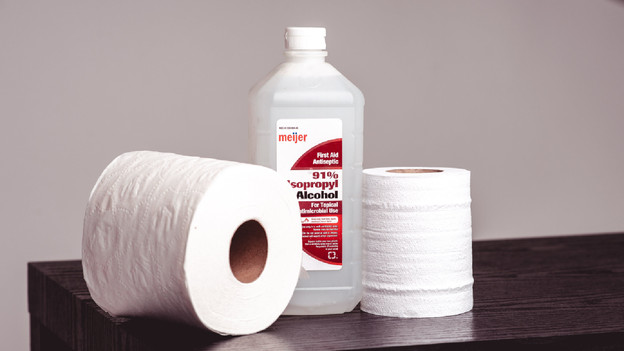
Still having problems with the scroll wheel? Follow the next steps. You'll need a cotton swab and isopropyl alcohol for this.
- Dip a cotton swab in the isopropyl alcohol. Make sure that the alcohol is well absorbed into the 8 cotton swab.
- Press the cotton swab against the side of the scroll wheel and start scrolling.
- Allow the alcohol to dry before using your gaming mouse.
Article by Prescious
Gaming Expert.