Written by Lucinda
Edited on
19 January 2024
·
15:37
Update the software for your Logitech keyboard
To make use of all functionalities of your Logitech keyboard, you need the accompanying Logitech software. Without the latest version of this software, your keyboard might not even function properly. In this article, we'll explain step by step how to install this software and how to update it to the latest version.
Step 1: go to the right page
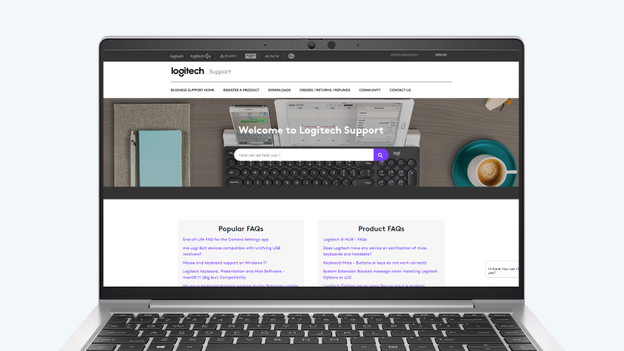
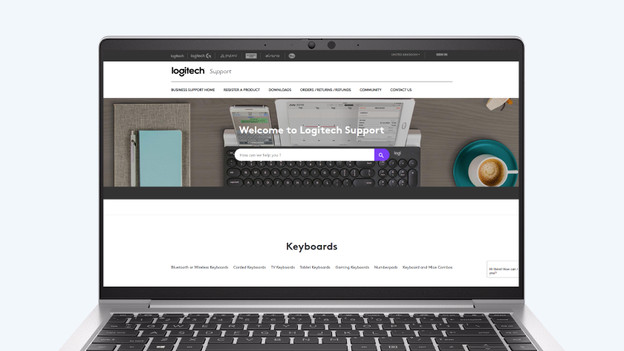
- Go to https://support.logitech.com and click 'Keyboards'.
- Do you have a wireless or wired keyboard? Click the category your keyboard belongs to.
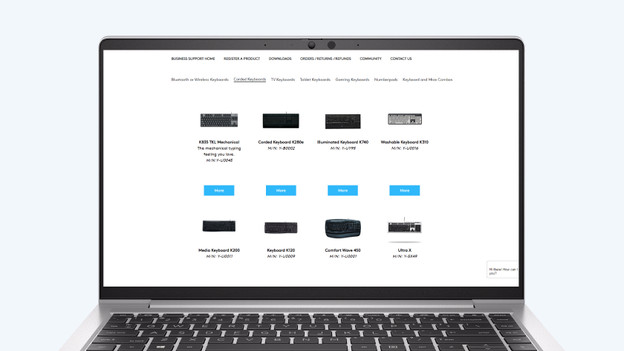
- You'll now see all keyboards within this category. Find your keyboard and click 'More'.
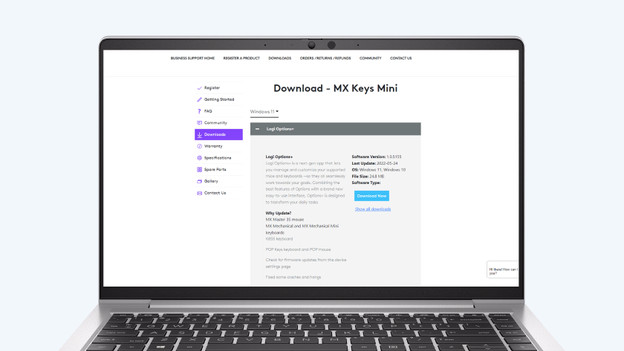
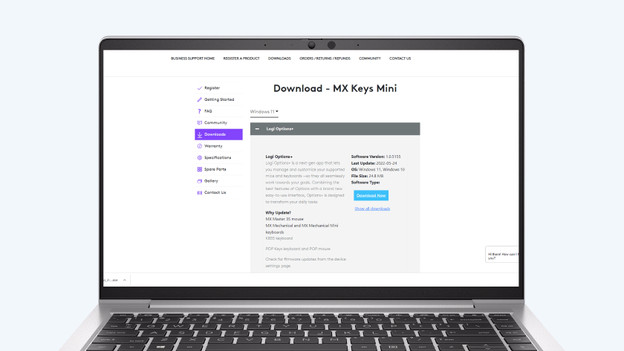
- You've now arrived at the support page of your keyboard. Click 'Downloads' for an overview of the latest apps and software, such as SetPoint, Unifying Software, and Logitech Options.
Go to the Logitech website
Click the appropriate category
Click on 'More' for your keyboard
Click on 'Downloads'
Step 2: download the software
- Choose the software you want to update and click 'Download now'. You'll see the progress of the download at the bottom of the screen. Note: I'm using the Logitech Options software in this example.
- Click the .exe file when it has finished downloading. A pop-up appears: 'Do you want to allow this app to make changes to your device?'. Click 'Yes'.
Step 3: install the software
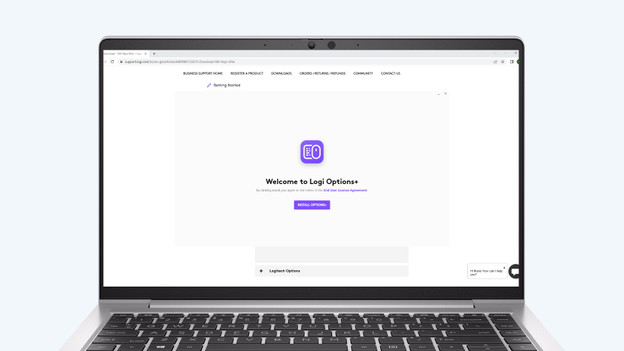
- A pop-up appears with 'Welcome to Logitech Options'. Choose 'Install Logitech Options'.
- In the next screen, you can choose if you want to share analytical data with Logitech.
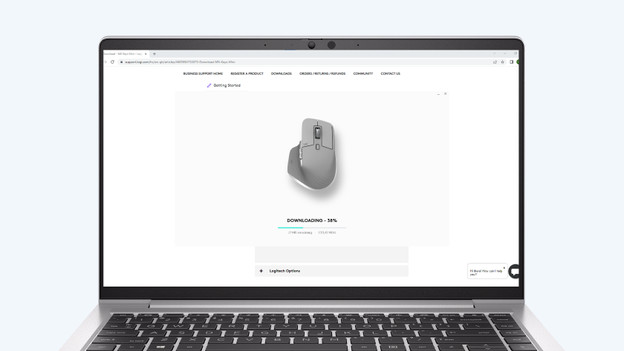
- The installation of the software now begins. You can tell by the window 'Installing... Logitech Options'.
- In the next window, choose 'Sign in or make an account'.
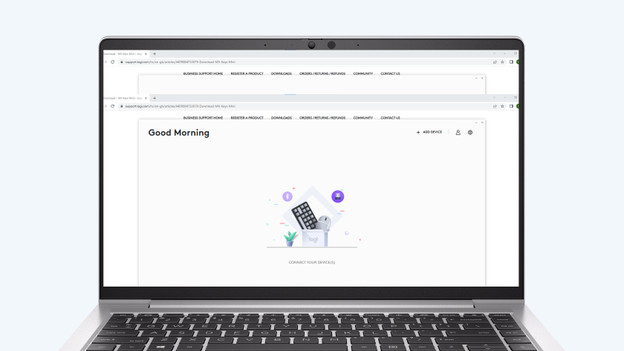
- Once you're signed in, you'll have the latest version of the software on your computer.
Choose "Install Logitech Options"
Choose whether you want to share analytical data
The installation of the program begins
Click on "Sign in or create account"
The new software is on your computer


Do you already have the software?
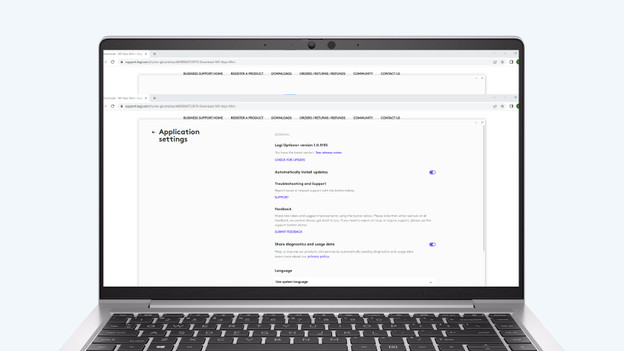
Do you already have the software installed on your computer or laptop? In that case, it's important to check if there's an update available. Open the software. I'm using Logitech Options as an example here. Click 'More' and then click 'Software'. If the box next to 'Automatically check for updates' is checked, your software is up to date. Is the box not checked? Read the following steps to update the software.
Step 4: update software
- Click the button 'Check for updates' under 'Software'. If there's an update available, a notification will appear at the bottom of the screen.
- If you click on this, a pop-up appears asking ''Do you want to allow this app to make changes to your device?'. Click 'Yes.
Now continue at step 3.1 and follow the steps for installation of the software.
Article by Lucinda
Keyboard Expert.