Written by Megan
Edited on
8 November 2023
·
08:21
How do you make a backup of your Android tablet?
If you store many photos and documents on your tablet, you don't want to lose those files. If you make a backup via Google, you can be sure that you won't lose your data. This way, you can easily transfer the documents, apps, and photos from you old tablet to a new one. Read this article to find out how to do that.

Get started with making a backup
With the following tips, you can make a backup of your Android tablet.
- Step 1. Make sure you have a Google account
- Step 2. Make a backup
- Step 3. Restore your data
- Step 4. Transfer the data
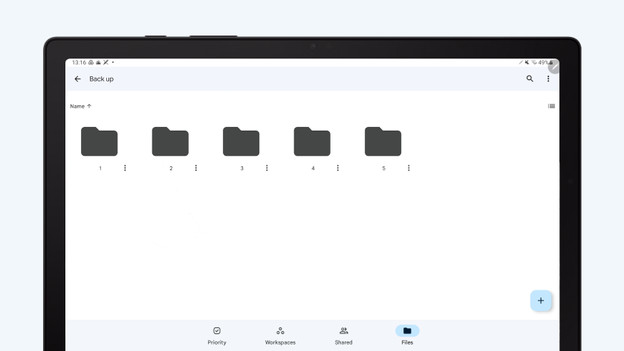
Step 1: make sure you have a Google account
When you make a backup of all your data, you save it in the cloud. It's most convenient to use your Google account for this. That way, you can always access your data without being tied to a tablet brand. You can also log in to Google Drive with a Microsoft or iCloud email address, for example..
Step 2: Make a backup
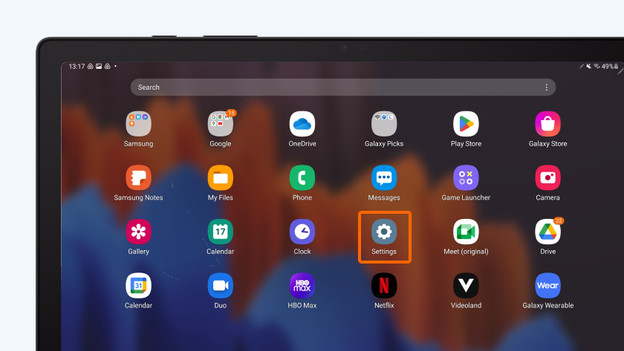
- Go to 'Settings'.
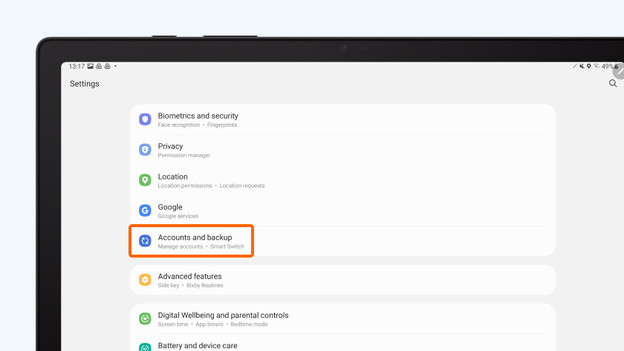
- Go to 'Accounts & backup'. Note: what this is called differs per tablet brand. Other terms may be 'Backup & reset' or 'System'.
- Can't find any of these titles? Use the search function in settings and enter 'Back up data'.
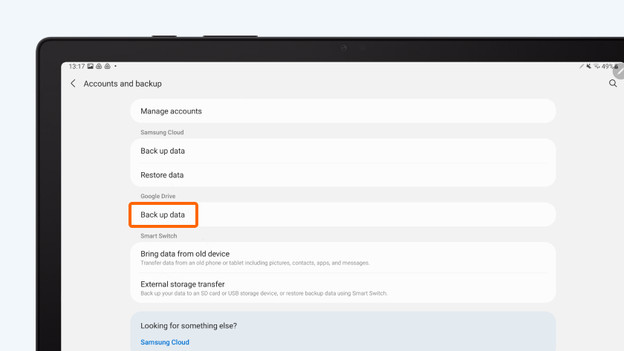
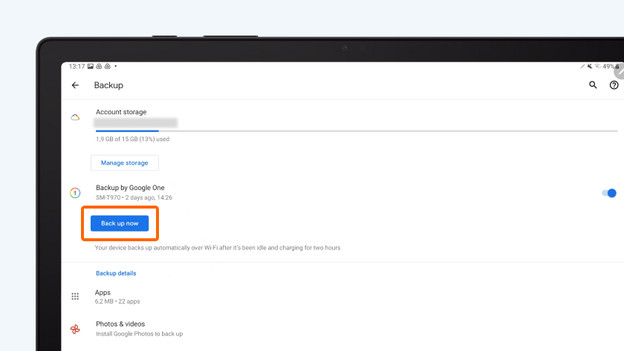
- Tap 'Back up data' under 'Google Drive'. You can now transfer your data to the cloud. Tap 'Make backup now'.
- If you also want to back up your photos, download Google Photos. Your tablet will then automatically back up all photos.
Go to 'Settings'.
Go to 'Accounts & backup'.
Choose 'Data backup'.
Tap 'Make backup now'.
Step 3: recover your data from your backup
When you've performed a hard reset on your device or erased all data, you can easily recover your data thanks to the backup.
- Go to 'Accounts & backup'.
- Choose 'Recover backup'.
- Your data will be transferred to your tablet.
Step 4: transfer your data to your new tablet
When you buy a new tablet, you can easily transfer all your data from your old tablet. Follow the steps below to do that.
- Turn on your tablet.
- Log in with your Google account or email address that's linked to your account.
- You'll see a list of tablet names with backups. Tap the backup of the data you want to transfer to your new device.
- Choose which data you want to transfer. After some waiting time, your tablet will have all of the data you need.
Article by Megan
Upgrade Expert.