Written by Jorn
Edited on
23 August 2022
·
12:54
How do you set up apps on your Philips Android TV?
You want to set up the Android smart platform on your Philips TV, but you don't know where to start. In this article, we'll explain how to download apps and add them to the Android platform on your Philips TV.
Setting up the apps on the Android smart platform
You can set up the Android smart platform on your Philips TV with the following steps:
- Step 1: go to the home screen
- Step 2: go to 'Apps'
- Step 3: set up your apps
- Step 4: agree to the terms and conditions
- Step 5: find an app
- Step 6: download an app
- Step 7: move an app
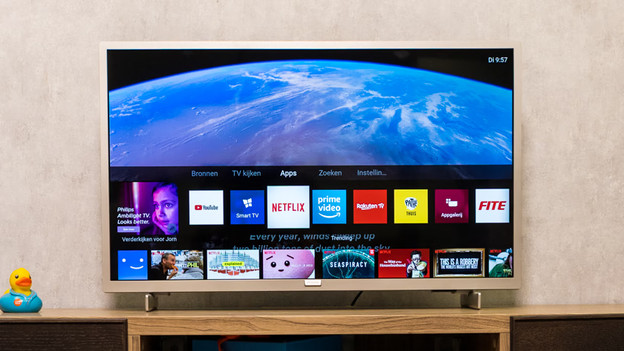
Set up the Philips basic smart platform
Does your smart platform look like the one on this image? That means that you TV has the Philips basic smart platform. Click the button below for the step-by-step plan to set up this platform.
Doesn't your smart platform look like this? Go to step 1.
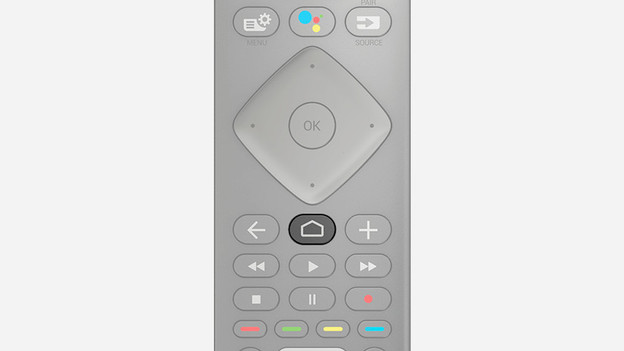
Step 1: go to the home screen
Go to the home screen of the TV. You can do this by pressing the home button on your remote. You can recognize this button by the icon that looks like a house.
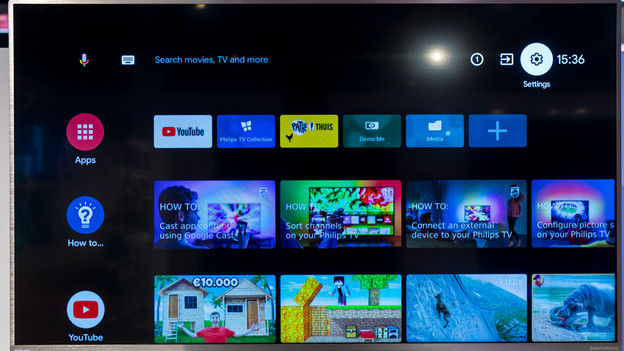
Step 2: go to 'Apps'
Select 'Apps' in the home screen menu.
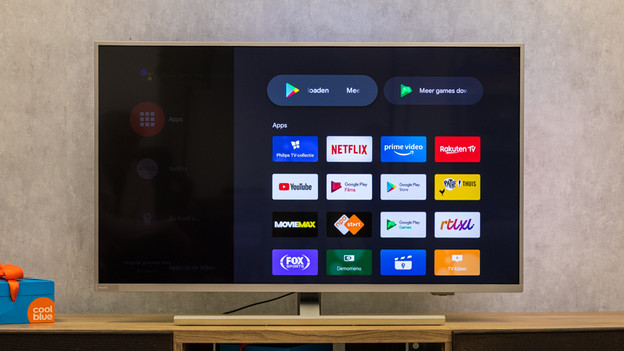
Step 3: set up your apps
Here, you can find an overview of your downloaded apps. Do you want to download and install more apps? Select 'Get more apps' at the top of the screen. This'll take you to the Google Play Store.
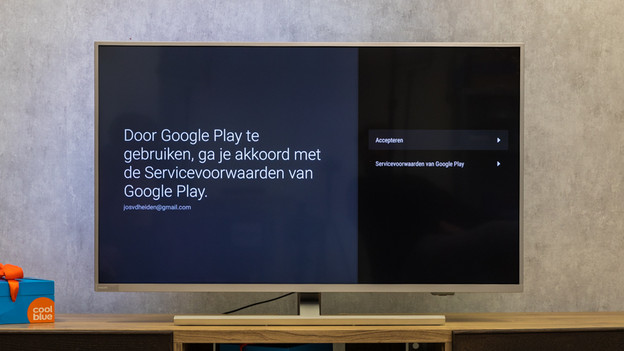
Step 4: agree to the terms and conditions
Before you use the Play Store, you have to agree to the terms and conditions. Select 'I Agree'.
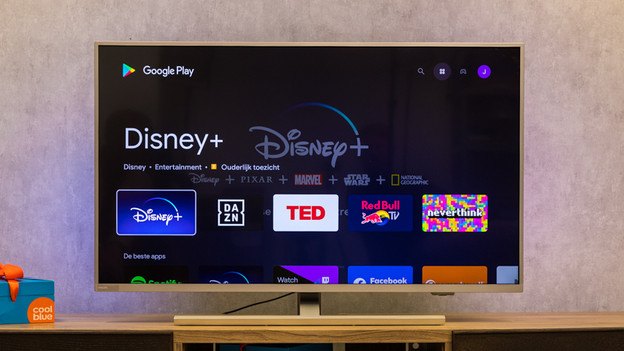
Step 5: find the app you want to install
Go through the overview of apps or select the magnifying glass at the top right to search for specific apps. Then, select the app that you want to install.
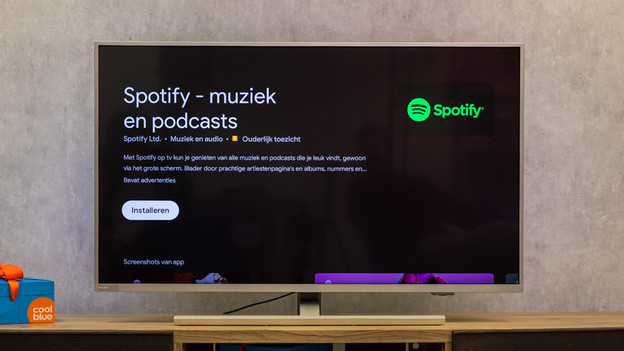
Step 6: install and open the app
Select 'Install'. The app will be downloaded and installed. Once this is done, you can select 'Open' and the app is ready for use.
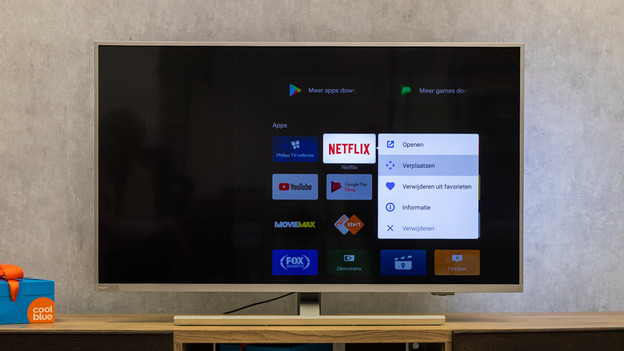
Step 7: more or delete an ap
Don't want to have to look for your favorite apps every time? Move them to the app overview. This is how:
- Go to 'Apps'.
- Use the arrow buttons on the remote to go to the app you want to move.
- Press and hold the selection button for a couple of seconds.
- A menu with options will appear, including the option to move or add to favorites.
If you want to delete an app, click 'Delete' at the bottom of the options menu.