Written by Giovanni
Edited on
23 August 2022
·
12:42
How do you set up FreeSync on your monitor?
If you want to prevent screen tearing and stuttering, it's important that your AMD video card and monitor are synchronized. You can use FreeSync for this. This technology matches the fps of your graphics card to the refresh rate of your gaming monitor. We'll explain how to set this up on your computer.

Set up FreeSync in 2 steps
Do you have an AMD video card and a FreeSync (compatible) monitor? FreeSync will adjust the refresh rate of your monitor to the number of frames produces by your video card. That way, you'll never experience screen tearing. You can set this up the following way:
Step 1. Install and update AMD drivers
Step 2. Set up FreeSync

Step 1: install and update the AMD drivers
- Turn on 'FreeSync' via the On-Screen display of your monitor (press the physical button on your monitor).
- Download AMD Radeon Settings via the link at the end of this paragraph, but only if you haven't done this already.
- Open and install AMD Radeon Settings on your PC.
- Go to your desktop, right-click, and choose 'AMD Radeon Settings'.
- Update your AMD drivers via the AMD Radeon Settings software by clicking the update button.
- Reboot your PC once you've updated the drivers.

Step 2: set up FreeSync
Open 'Radeon Settings' again and go to the tab 'Display'. Switch on AMD FreeSync and close the program. Start your game and play without screen tearing or a stuttering image.
No FreeSync? Set up V-Sync
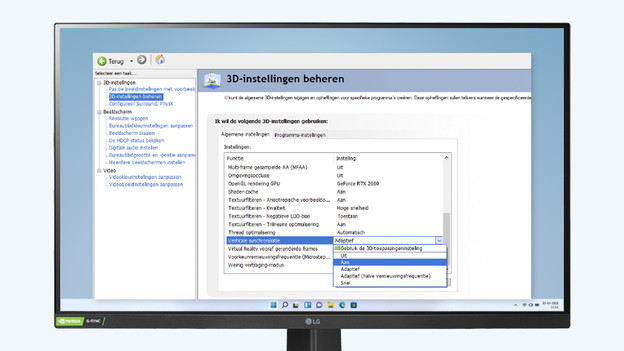
Just like FreeSync, V-Sync ensures the refresh rate of your monitor matches the fps of your video card. The difference is that V-Sync isn't developed by the manufacturer of the video card. As a result, there's a delay of a few milliseconds in image transmission.
- Download the AMD Radeon Software via the link in step 1.
- Go to your desktop, right-click, and choose 'AMD Radeon Settings'.
- Navigate to the tab 'Gaming' and select 'Global Settings'.
- Set 'Wait for Vertical Sync' to 'Always on' or choose 'On, Unless Application Specifies'.
- Close the application.
- Games will now be smooth and won't display screen tearing.
Article by Giovanni
Gaming Expert.