Written by Lucas
Edited on
22 December 2025
·
11:38
How do you solve Apple AirPods microphone problems?
Do you often make calls with your AirPods and do people always complain that they can't hear you? There's probably something wrong with the microphone. In this article, we'll explain how you can solve these problems. That way, you won't be unintelligible on the phone anymore.
Solve AirPods microphone problems
You can solve problems with the microphone of your AirPods in 2 steps.
Step 1: set up the microphone
Step 2: clean your AirPods

Step 1: set up the microphone
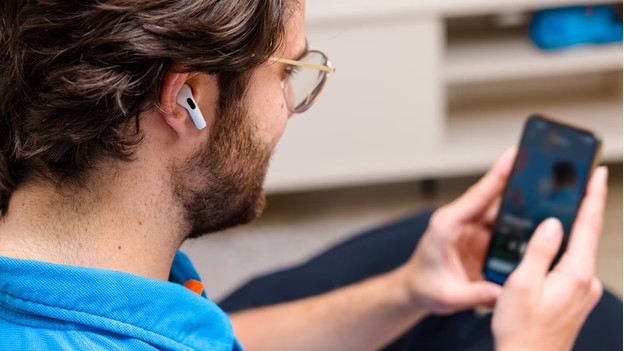
To set up the microphone of your AirPods, you go to the Bluetooth settings on your iPhone. Tap the i-symbol next to your AirPods in the list of Bluetooth devices and select the microphone. Here, you can choose if you want to use the microphone on the left or right, depending on which earbud you prefer to make your calls with.

Step 2: clean AirPods
It's important that you keep your AirPods properly clean. There might be dirt in the microphone that makes you difficult to hear. Grab a dry cotton swab or a soft, dry, and lint-free cloth and carefully clean all of the openings. Never clean the earbuds with water or sharp objects.
Article by Lucas
Audio Expert.