Written by Jorn
Edited on
27 January 2025
·
13:10
How do you set up your Samsung television?
Your new Samsung television has been delivered. You've unpacked and connected the TV and given it a nice spot in your room. Now all you have to do is set it up. In this article, we'll explain how to do this step by step. Before you start, download the Samsung SmartThings app on your smartphone and keep it within reach.
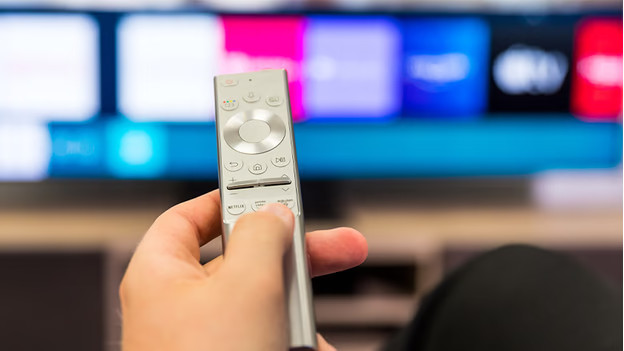
Set up your Samsung TV in 9 steps
- Step 1: before you start
- Step 2: select a language
- Step 3: select 'remote'
- Step 4: select country or region
- Step 5: start the automatic setup
- Step 6: connect the TV to the internet
- Step 7: accept the terms and conditions
- Step 8 (optional): register at Samsung
- Step 9 (optional): set up the intelligent mode

Step 1: before you get started
We've listed the steps to set up your Samsung TV for you. Before you get started, take care of the following:
- Place your TV in the desired location.
- Ensure a good WiFi signal.
- Connect your TV to a TV signal via your provider box, CI+ module, or Coax antenna cable.
- Put batteries in the remote.

Step 2: select language
Select your language.

Step 3: select 'Remote'
Select the option 'Remote' to set up the television with the remote. Do you prefer to do the setup via your smartphone? Select 'Smartphone'.
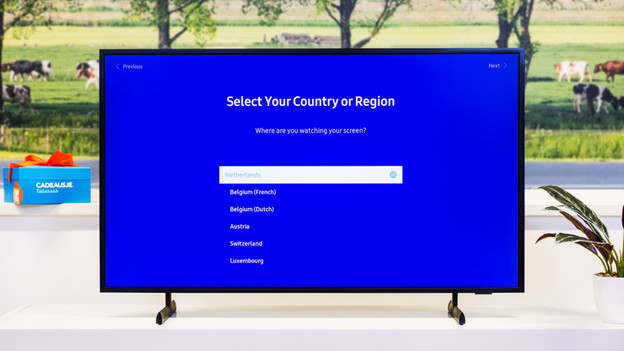
Step 4: select country or region
Select the country or region of your TV.

Step 5: start the automatic setup
Connect the appliances you want to control with the Samsung remote, like your media box. Select 'Start automatic setup' once you've connected the appliances.
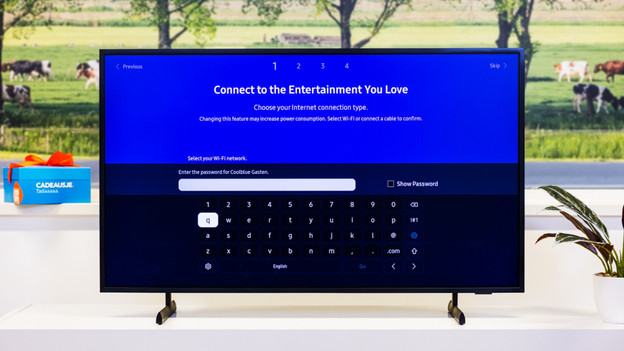
Step 6: connect the TV to the internet
Go through the following steps to connect to the internet:
- Select the desired WiFi network
- Enter the password
- You're connected to the internet
Select your WiFi network
Fill in your password
You're connected!



Step 7: accept the terms and conditions
Read the terms and conditions, privacy notice, and device functions. Select 'Agree all' if you agree on everything you've read or select the sections you agree on.
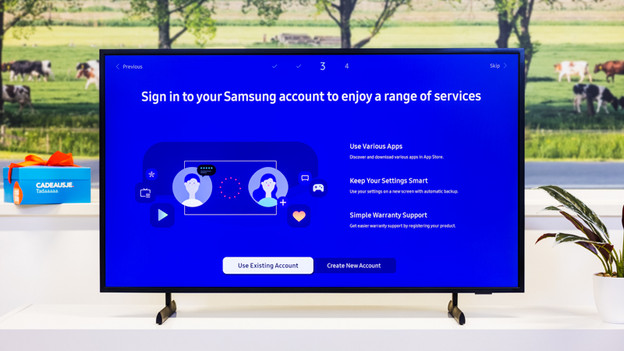
Step 8 (optional): register at Samsung
Select 'Create new account' to create an account with Samsung. With this account, you can use extra options by Samsung. For example, you can use certain apps for members. Do you already have an account? Select 'Use existing account' and log in.

Step 9 (optional): activate the intelligent mode
The intelligent mode adjusts the sound, the volume, and the brightness to the surrounds of your TV. Select 'Turn on now' if you want to use this mode. Select 'Later' if you want to try the mode another time or you don't want to use it.
Yes! Your Samsung television has been set up successfully.
Article by Jorn
Television Expert.