Written by Jan
Edited on
28 August 2023
·
06:02
How do you use the Google Play Store on a Chromebook?
If you have a Chromebook, you can use the Google Play Store to download and install Android applications. In this article, you can read how to activate the Google Play Store. That way, you can quickly get started with your favorite applications.
Steps
In just 3 steps, we'll explain how to activate the Google Play Store on your new Chromebook. We'll cover the following steps:
- Open settings.
- Activate Play Store.
- Accept terms and conditions.
Step 1: open settings
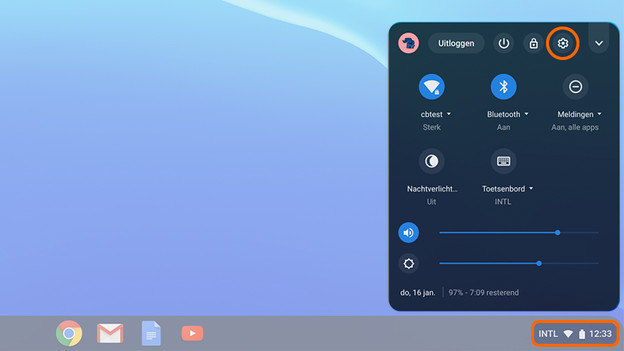
Click the time indicated at the bottom right of the menu bar. A new window will open. Click the gear icon. This icon takes you to the settings menu.

Step 2: activate
Scroll down with your mouse or touchpad until you reach the heading Google Play Store. Here, click Turn on. You can find this button next to Install apps and games from Google Play on your Chromebook.

Step 3: terms and conditions
A new window with terms and conditions opens. To use the Google Play Store, you have to accept these terms. Click More and read the conditions carefully. Select Accept if you're finished reading the 'fine print' and agree with this.
Succesful
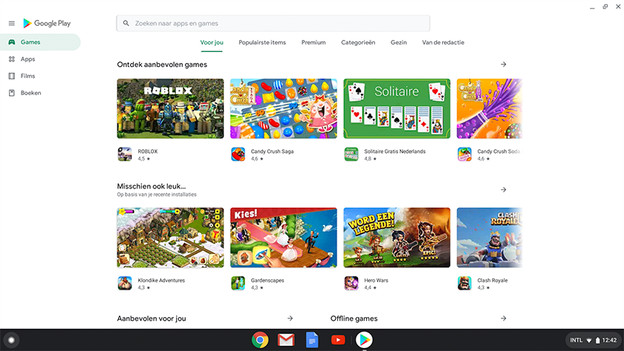
Your Chromebook now installs the Google Play Store. When this process is successful, the Play Store opens automatically. Do you want to open the application store at a later time? Go to the launcher and click the Play Store icon.
Article by Jan
Laptop Expert.