

6 tips to use your Apple TV
Get started with Apple TV
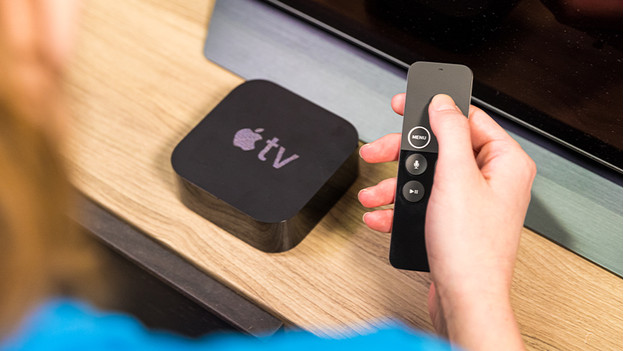
These handy tips make it even easier to use Apple TV.
- Tip 1: make clever use of the Siri Remote
- Tip 2: control Apple TV with your iPhone or Apple Watch
- Tip 3: turn on dark mode at night
- Tip 4: collect your favorite apps in folders
- Tip 5: manage the storage of your Apple TV
- Tip 6: use Apple TV as a HomeKit hub
Tip 1: make clever use of the Siri Remote
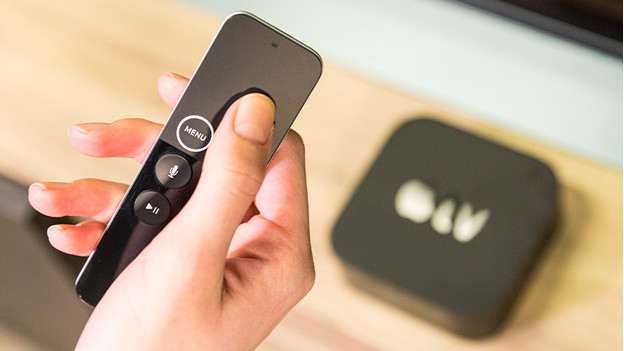
The included Siri Remote has a lot of useful functions. You can turn on Siri with the Dictation button. If you ask Siri to find a specific series for you, the voice assistant does the rest. With the touchpad, you can easily navigate through all your apps. Simply fast forward or rewind your favorite series 5 seconds by clicking on the top left or right corner of the touchpad. You can also use the Siri Remote for certain functions of your television, for example to control the volume.
Tip 2: use your Apple device as a remote
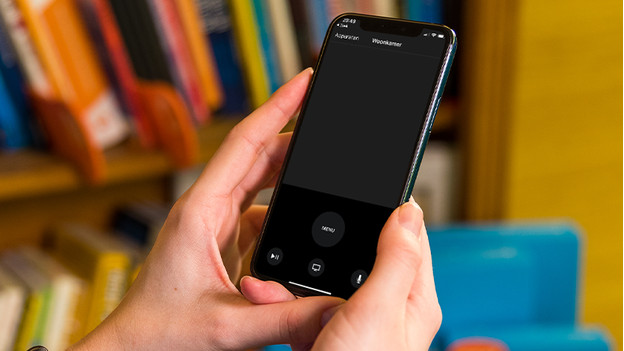
Not sure where your Siri Remote is? No worries. You can also control Apple TV with your iPhone or Apple Watch. Open the Remote app on your iPhone and swipe your iPhone screen as you normally swipe the touchpad of the Siri Remote. The Remote app is also available on the Apple Watch. This way, you can easily rewind your favorite movie from your wrist and you never have to look for your Siri Remote again.
Tip 3: turn on dark mode
-
Open the 'Settings' on Apple TV and go to 'General'.
-
Navigate to 'Appearance' and click on it.
-
Select 'Dark' to start the Apple TV app in dark mode.
-
Your Apple TV is now set to dark mode.
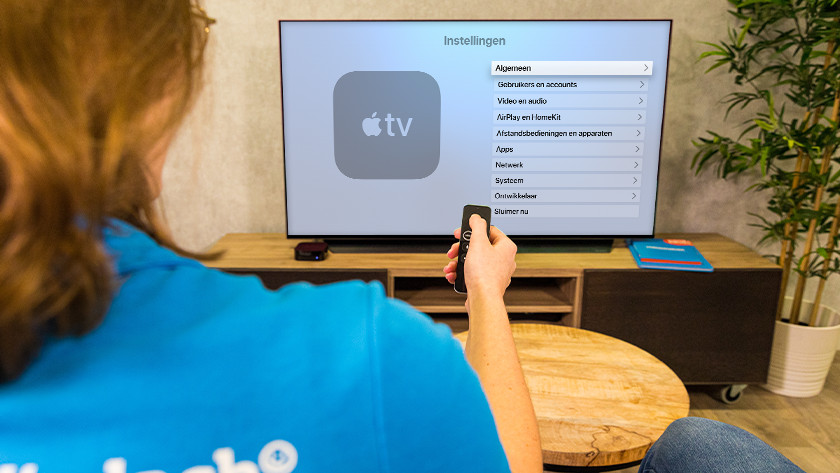
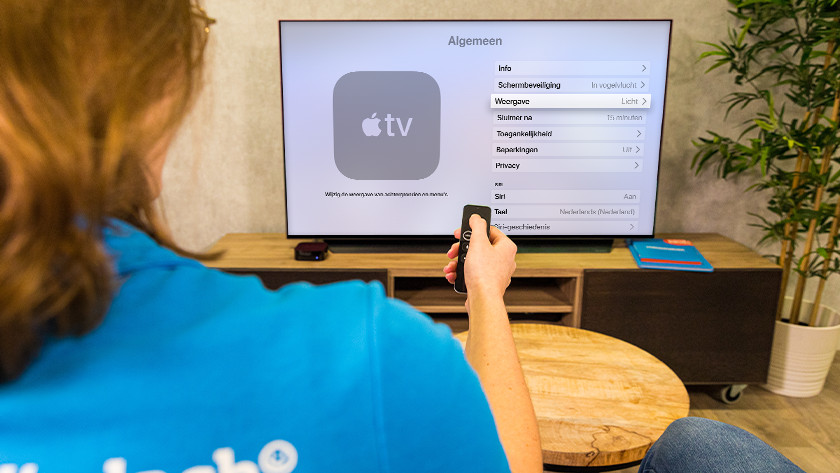
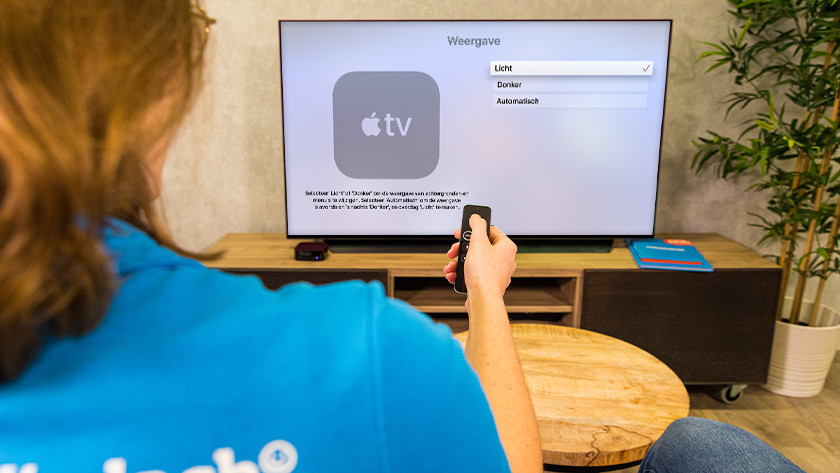
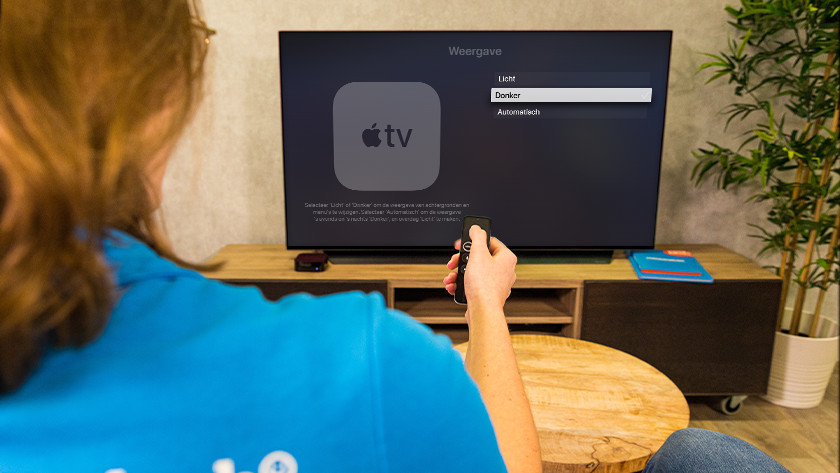
Is your television screen too bright at night? Turn on dark mode for Apple TV.
- Open the Settings app on Apple TV, tap General, and navigate to Display.
- In the next screen, select Dark to always start the Apple TV app in dark mode. Or select Automatic to adjust Apple TV to the ambient light and the time you watch TV.
Tip 4: put your apps in folders
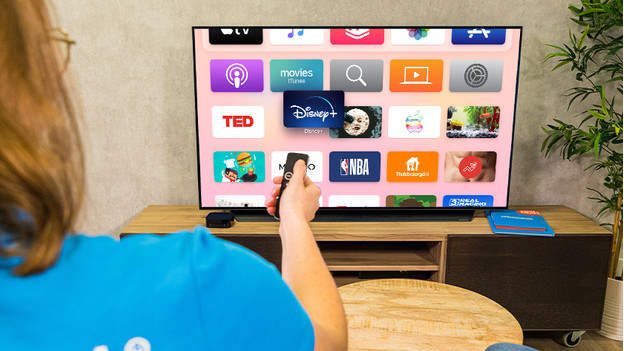
If you download a lot of apps on Apple TV, you can lose some of the overview. To quickly find your favorite apps, you can collect apps in folders, just like on your iPhone or iPad.
- Go to the overview with all apps and switch to one app using the Siri Remote.
- Tap the app on the touchpad and hold your finger down. The app starts to wobble.
- Drag the app onto another app and tap the touchpad again. Your apps are now in a folder.
Tip 5: manage the storage of your Apple TV
-
Open 'Settings' and go to 'General'.
-
Navigate to 'Manage storage' and click on the trash can behind the apps you want to delete.
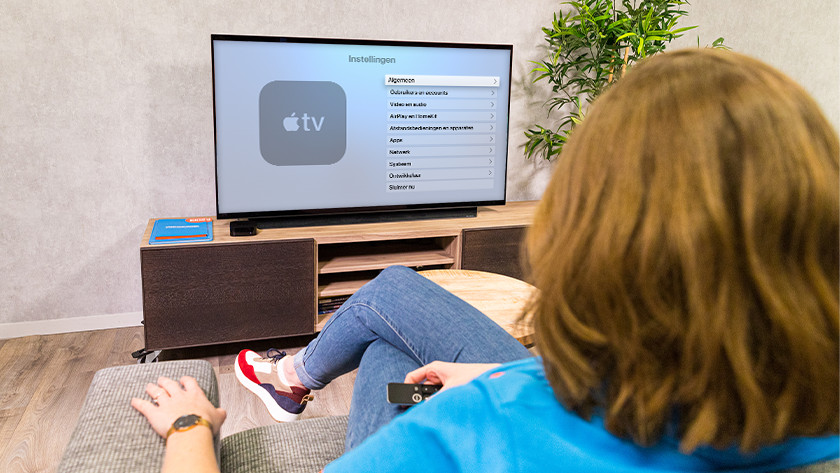
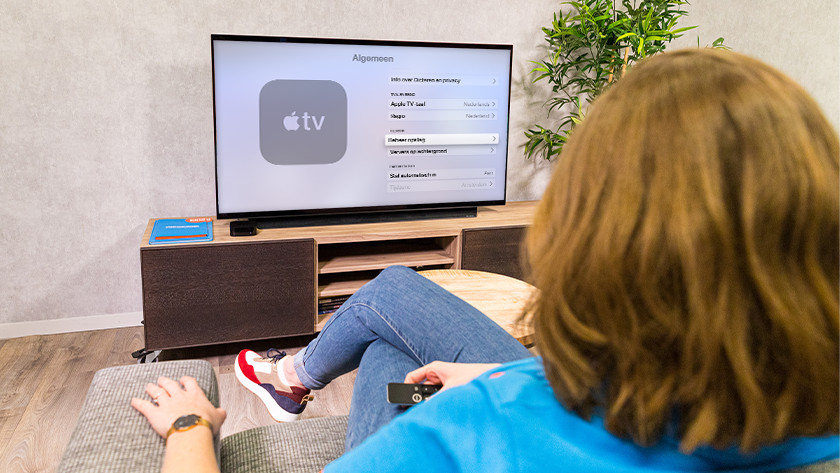
You were a bit too eager when downloading apps and now the storage of your Apple TV is full. You can easily manage the storage of Apple TV via the Settings app.
- Open the Settings app and go to General.
- Scroll to Manage Storage. You can see all the apps that are installed on Apple TV and how much storage they're using.
- Click on the trash can icon to delete apps. This allows you to free up space for new apps.
Tip 6: use Apple TV as a HomeKit hub

You can use the Apple TV as a HomeKit hub for all the smart devices in your house as well. By connecting your appliances to the Apple TV, you can easily control them from your iPhone, iPad, or Apple Watch. For example, you can use voice commands to control your thermostat knobs or smart connectors.