Written by Emme-Lotte
Edited on
4 March 2025
·
10:52
3 tips to use your Samsung tablet with your Galaxy Book laptop
Your Samsung Galaxy tablet and Samsung Galaxy Book laptop work well together. You can use your Samsung tablet as a second screen or easily transfer your photos to your Galaxy Book laptop without cables. It's also possible to quickly switch between your tablet and laptop. We'll give 3 tips to use your Samsung tablet with your Samsung laptop.

Get started with your Samsung tablet and Samsung laptop
We'll give 3 tips to get the most out of your Samsung Galaxy tablet and Samsung Galaxy Book laptop:
Tip 1. Use your Samsung tablet as a second screen
Tip 2. Easily transfer photos to your Samsung laptop
Tip 3. Start on your Samsung tablet and finish with your Samsung laptop
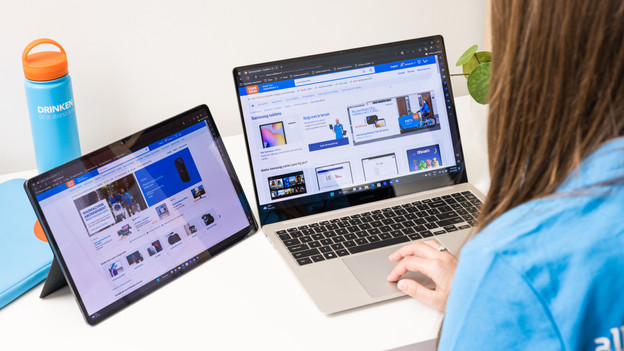
Tip 1: use your Samsung tablet as a second screen
Extend the screen of your Samsung laptop and use your Samsung tablet as a second screen. That's useful if you have multiple windows open, if you watch videos, or if you edit images. Click 'Second screen' in the Quick Panel on your Samsung tablet. Then, press the Windows key and the K key on your laptop at the same time. On the Samsung tablet, click on what you want to connect to. You can control the connected devices with the trackpad of your laptop.
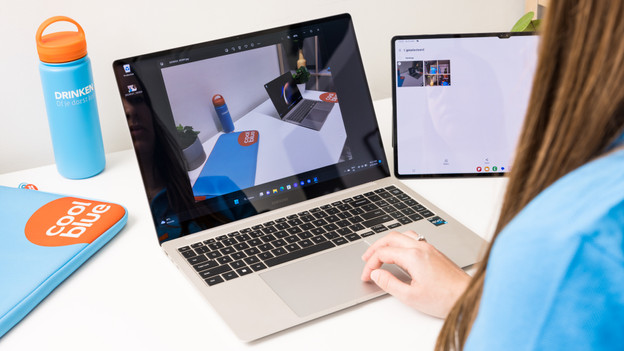
Tip 2: easily transfer photos to your Samsung laptop
Do you want to transfer photos from your Samsung tablet to your Samsung laptop? Thanks to Samsung Multi Control or Samsung Quick Share, you don't need cables anymore. Turn on Samsung Multi Control, WiFi, and Bluetooth on both devices. The devices connect to each other automatically. Drag the selected photos from the Gallery on the tablet to your laptop with your mouse or trackpad. Or the other way around, if you prefer that.
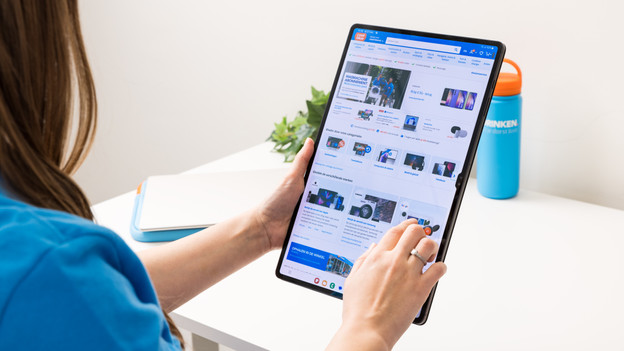
Tip 3: start on your tablet, but finish with your laptop
You can easily switch between your tablet and laptop with Samsung Pass and Website Share. With Website Share, you can find airplane tickets on your Samsung tablet, for example. Did you find tickets? You can send the website to your Samsung Galaxy Book directly, so you can continue to book your trip there. With Samsung Pass, you can visit the same websites on all your devices, without logging in again.
Article by Emme-Lotte
Tablet Expert.