
Written by Robyn
Edited on
8 July 2025
·
15:06
How does dual SIM work on your iPhone?
With dual SIM on your iPhone, you can use 2 phone numbers on 1 device at the same time. That's useful when you have a business and personal phone number, for example. All more recent iPhone models have dual SIM. You can usually use 1 regular SIM card and a digital eSIM. You can read how this works here.

Get started with dual SIM on your iPhone
As of the iPhone Xs, you can always use 2 SIM cards in your iPhone: a regular SIM card and a digital eSIM. This works differently starting from the iPhone 14 as dual SIM now also works with 2 digital eSIMs.
- Tip 1. Check whether your provider offers eSIM
- Tip 2. Install an eSIM on your iPhone
- Tip 3. Choose a phone number per contact
- Tip 4. Switch between your phone numbers
Note: if you make the conscious decision for an iPhone that supports dual SIM, make sure your provider supports eSIMs.
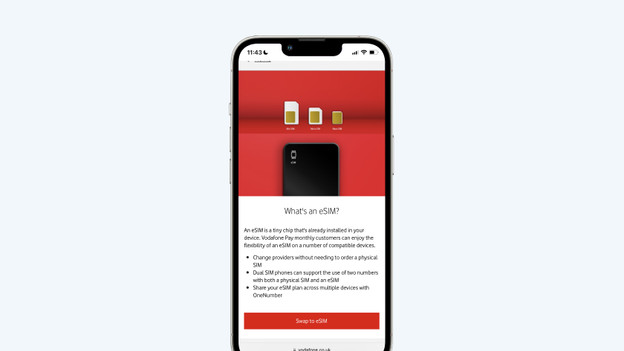
Tip 1: check whether your provider offers eSIM
You can't fit 2 physical nano SIM cards into an iPhone. One of them has to be a digital eSIM. Not every provider offers eSIMs. What providers offer differ per country.
- The Netherlands: Vodafone, T-Mobile, Ubigi, and Simyo
- Belgium: Orange and Ubigi
- Germany: Vodafone, O2, Telekom, and Truphone
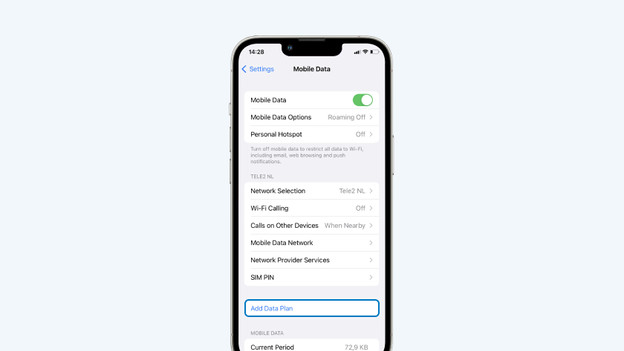
Tip 2: install an eSIM on your iPhone
You can install an eSIM in 2 ways: via a code or manually. You can choose which number is your default phone number here. This is how you do that:
- Go to 'Settings' and tap 'Cellular'.
- Choose 'Add Cellular Plan'.
- Follow the steps you see on screen.
Note: did you already set up an eSIM? Place a physical nano SIM card in your iPhone and follow the steps you see on screen. Do you have a device from the iPhone 13 series or a newer one? In that case, you can add a second eSIM.
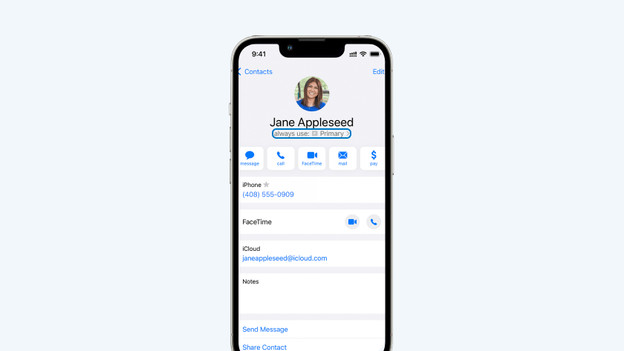
Tip 3: choose a phone number per contact
Now that you're available on 2 different phone numbers, you can choose which phone number you use per contact. The people you call will see that number. If you have a colleague in your contacts, you can select your business phone number.
- Go to 'Contacts'.
- Tap on a contact. You'll now see the screen with different information.
- Below the contact name, you'll see 'always use: Primary; or ; always use: Secondary'. Select that.
- Choose the right phone number here and select 'Done'.
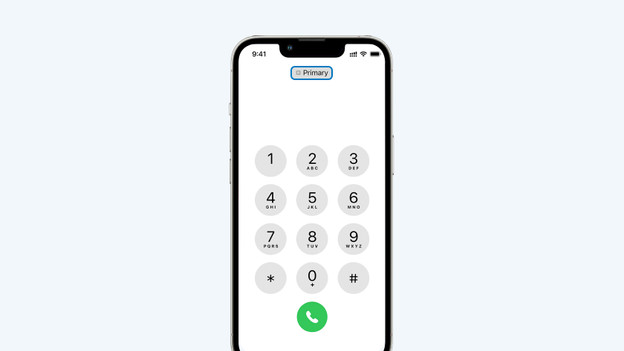
Tip 4: switch between your phone numbers
You can always switch numbers before you call someone. You do this when your business phone number isn't your default number, or the other way around.
- Go to 'Phone' or the green icon with the phone in it.
- Type in the phone number you want to call.
- Then select 'Primary' at the top. Here, you can switch to 'Secondary'.
- You're now calling with your second phone number.
Article by Robyn
Apple Expert.
