Written by Laurence
Edited on
27 January 2025
·
13:10
How do you connect your LG TV to the internet?
With an LG smart TV, you get access to websites and online apps like Netflix or YouTube. To use these functions, you have to connect the TV to the internet first via a wired or wireless connection. In this article, you can read how to do this in 5 steps.
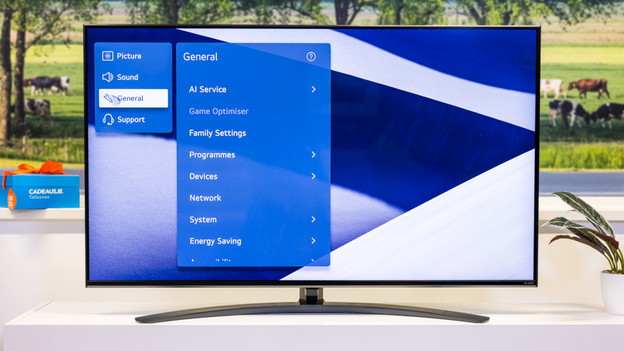
Step 2: go to General
Select the option 'General'.
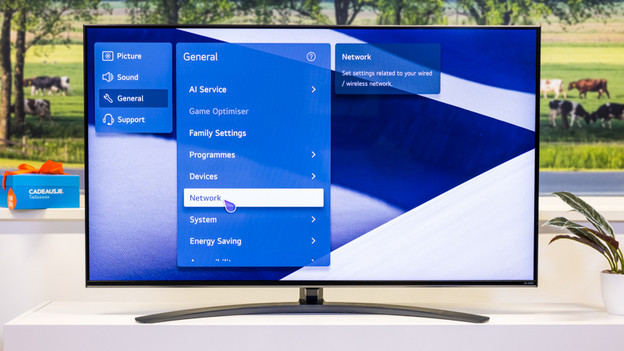
Step 3: select Network
Select the option 'Network'. If you want to connect internet via a cable, you should go to step 4. Go to step 5 if you want to connect wirelessly.
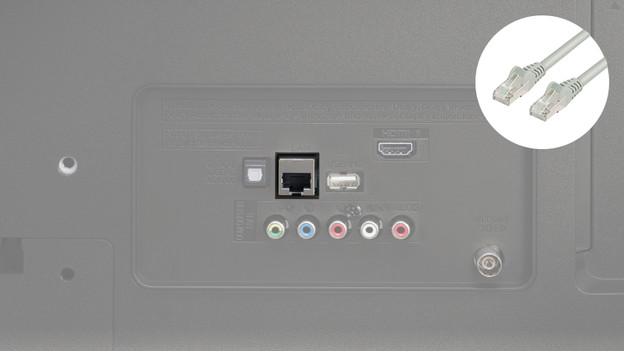
Step 4: connect an Ethernet cable
Connect an ethernet cable to the LAN port of your TV. Connect the other end of your cable to your wall socket, router, or modem.

Step 5: confirm a connection
If you want to confirm the connection with the cable, you should select 'Wired connection (Ethernet)*. If the cable is connected properly, the connection should work. Select Wi-Fi connection if you want to connect wirelessly.
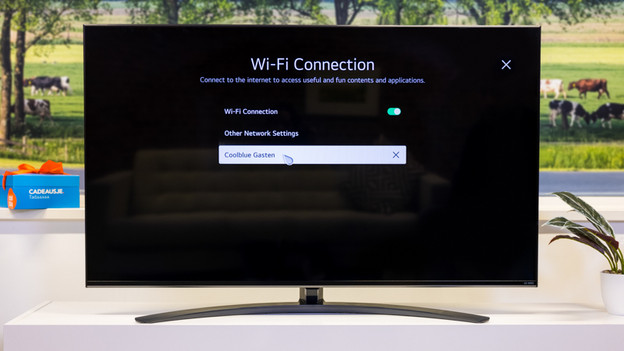
Step 6a: choose a wireless network
Select WiFi connection. You'll see a list of available networks. Select the network to which you want to connect the TV.
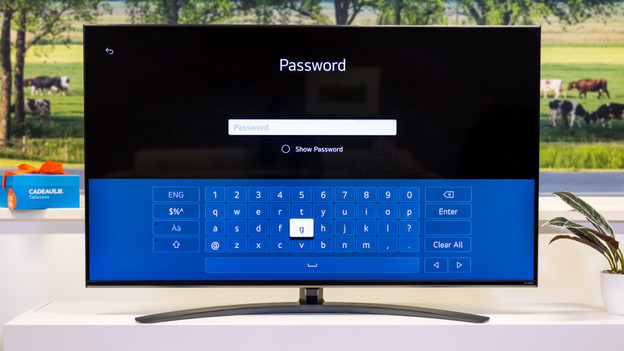
Step 6b: set up a wireless connection
You'll now see a window where you can enter the password of your network. After you've done this, you select Connect.
Forgot your password? You can often find your password on the back or bottom of your router. Contact your internet provider if you can't find your password.
Article by Laurence
Television Expert.