Written by Laurence
Edited on
21 March 2025
·
16:32
How do set up the apps of your LG smart TV?
With an LG smart TV, you have access to several apps, such as YouTube or Spotify. To use these apps, you first have to install them and place them in your smart menu. On this page, you'll read how to do this in 6 steps.
Installing apps on your LG smart TV
- Step 1. Open the home screen
- Step 2. Open the Apps option
- Step 3. Install an app
- Step 4. Open the Edit Mode
- Step 5. Move or remove the app

Step 1: open the home screen
Take your remote and open the home screen by pressing the Home button. You can recognize this button by the icon that looks like a house.
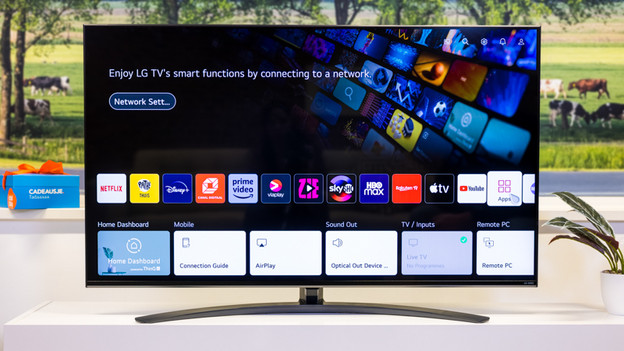
Step 2: open the Apps option
Select the 'Apps' option in the bar on the bottom right.
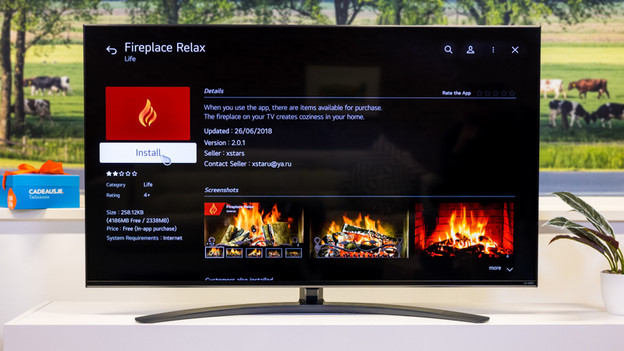
Step 3: install an app
When you select your desired app, you'll go to the app page. Select the Install option underneath the app logo.

Step 4: open the Edit Mode
After installing, you can find the app between the other functions on the home screen. Do you want to move or delete it? Go to the app, then press and hold the OK button briefly. This way, you open the Edit Mode.
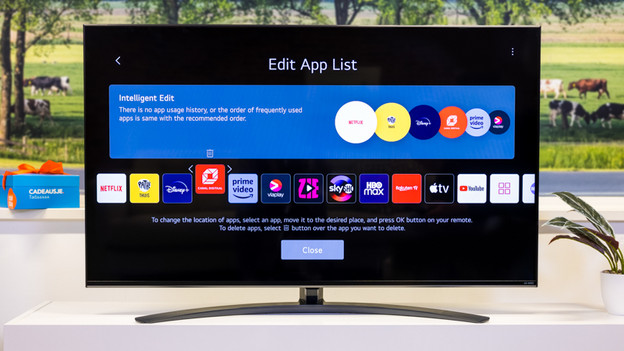
Step 5: move or remove the app
Move the app to the left or right and press the OK button to confirm the new position. Remove an app by clicking the trash can at the top of the app.
Article by Laurence
Television Expert.