Written by Lucinda
Edited on
23 August 2022
·
12:48
Solve problems with your wireless keyboard and mouse
Is the connection of your wireless keyboard or mouse poor? Or does your peripheral not have any connection at all? Then you can try out a couple of things. You can switch USB ports or put in new batteries, for example. In this article, you can read what you can do to solve problems with your wireless peripherals yourself.
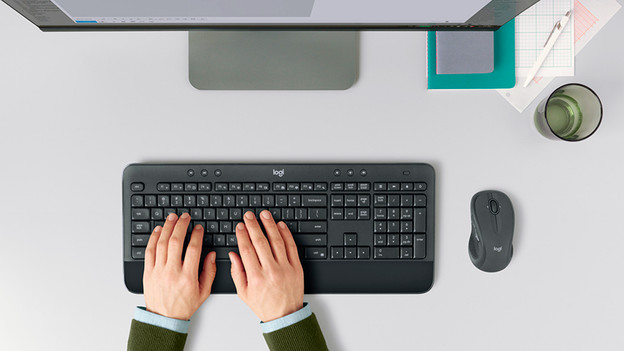
Battery level low
If your keyboard or mouse works on disposable batteries, then these will be empty at some point. Put new batteries in the peripheral to check if this solves your problems. Does your keyboard or mouse have an integrated battery? Put in the charging cable and connect it to the PC. If an empty battery was indeed the problem, this step will solve it and your keyboard should do exactly what you want again.
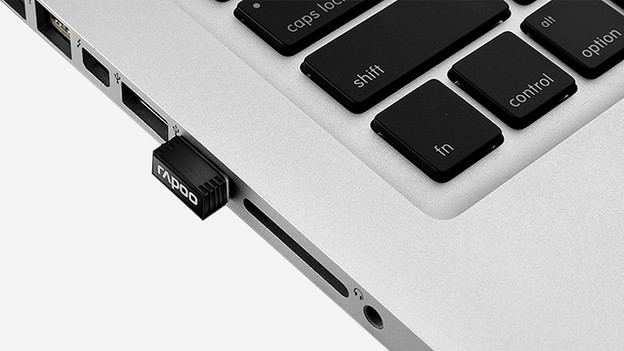
Try a different USB port
It might be the case that the dongle of your keyboard or mouse isn't working properly if it's inserted in a gray or black USB 2.0 port. Always try if the keyboard or mouse do work properly if you put the dongle in a USB 3.0 port. These ports are usually blue. Make sure the dongle is inserted in the port closest to the keyboard or the mouse. That way, it's more likely that the peripheral picks up the signal well.

Disrupting devices nearby
If there are devices nearby that use a 2.4Ghz band, this can disrupt the wireless signal of your keyboard or mouse. These can be appliances like a microwave, mouse, or telephone base station, for example. Try setting up your work space in a different location in the house or make sure your other devices with a 2.4Ghz signal are turned off.
Check software and driver updates
The software and/or drivers for the peripheral might not be up-to-date. Check the software app or the website of the manufacturer to see if there are available updates.
Article by Lucinda
Keyboard Expert.