Written by Stefan
Edited on
9 September 2026
·
08:02
How do you choose the right Apple Pencil for your iPad?
With an Apple Pencil, you can write and draw on your Apple iPad just like with a real pen. There are different Apple Pencil models, all with different functions. Not every Apple Pencil is compatible with every iPad model. In this article, we'll tell you all about the different Apple Pencil models so you can choose the best Apple Pencil for you.
Compare all Apple Pencil models
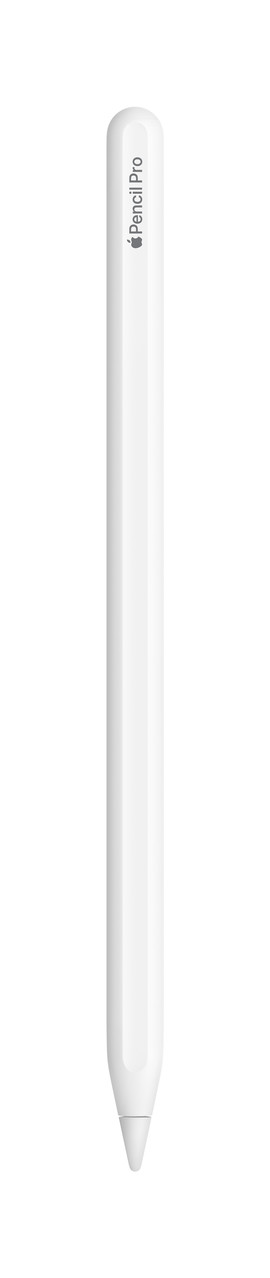
- Apple Pencil Pro
Thanks to palm rejection, you can also draw on the screen with you hand.
You can tilt the Apple Pencil to draw shadows and effects.
Magnetically attach the Apple Pencil to your iPad to charge it.
Pinch or twist to switch between tools and styles.
From
143,-
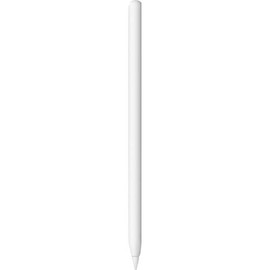
- Apple Pencil 2
Thanks to palm rejection, you can also draw on the screen with you hand.
You can tilt the Apple Pencil to draw shadows and effects.
Magnetically attach the Apple Pencil to your iPad to charge it.
You can only use the basic functions.
From
95,-
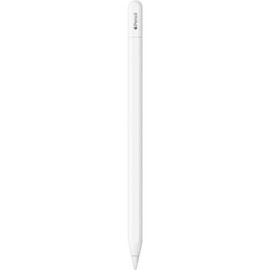
- Apple Pencil with USB-C
Thanks to palm rejection, you can also draw on the screen with you hand.
You can tilt the Apple Pencil to draw shadows and effects.
This Pencil is magnetic, but has to charge via a cable.
You can only use the basic functions.
From
95,-
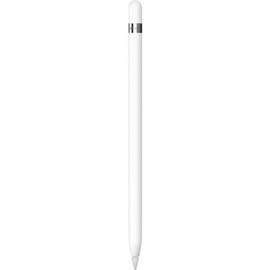
- Apple Pencil 1
Thanks to palm rejection, you can also draw on the screen with you hand.
You can tilt the Apple Pencil to draw shadows and effects.
The Apple Pencil isn't magnetic and has to be charged via a cable.
You can only use the basic functions.
From
123,-
Which Apple Pencil works with my iPad?
| Apple Pencil Pro | Apple Pencil with USB-C | Apple Pencil 2 | Apple Pencil 1 |
|---|---|---|---|
| iPad Pro (2024/2025) | iPad Pro (2018/2020/2021/2022/2024/2025) | iPad Pro (2018/2020/2021/2022) | iPad Pro (2015/2017) |
| iPad Air (2024/2025/2026) | iPad Air (2020/2022/2024/2025/2026) | iPad Air (2020/2022) | iPad Air (2019) |
| iPad mini (2024) | iPad mini (2021/2024) | iPad mini (2021) | iPad mini (2019) |
| iPad (2022/2025) | iPad (2018/2019/2020/2021/2022/2025) |
Connect and charge Apple Pencil
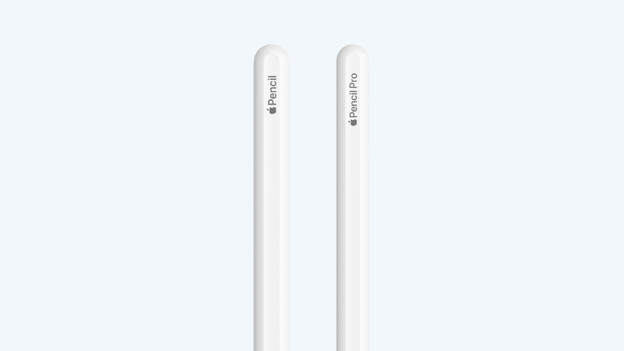
Apple Pencil 2 and Apple Pencil Pro: wireless charging
You can use the Apple Pencil 2 and Apple Pencil Pro wirelessly with the latest iPad models. You can then magnetically attach the pen to your iPad and charge it. That way, your Apple Pencil is always charges and you'll never lose it. You can start drawing or writing right away.
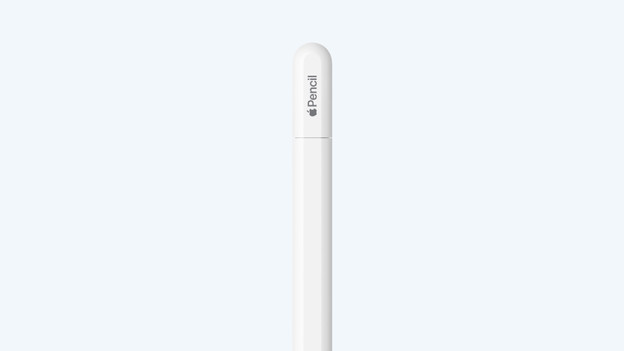
Apple Pencil with USB-C: USB-C for new iPad models
You can use the Apple Pencil with USB-C with all iPad models with a USB-C connector. You can connect the Apple Pencil to the iPad and charge it with this. You can also charge your Apple Pencil in the socket with an adapter. You can magnetically attach the Apple Pencil to the side of your iPad. That way, you're sure you always have your Apple Pencil with USB-C at hand.
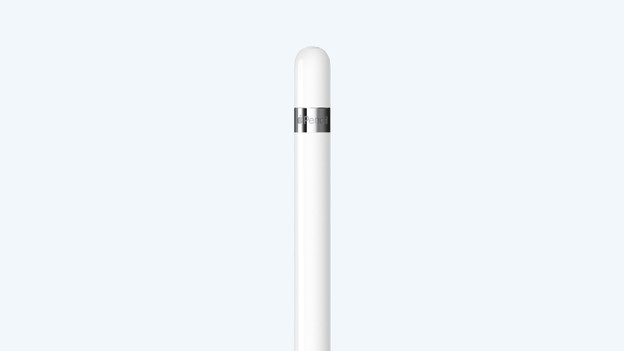
Apple Pencil 1: Lightning connector for old iPad models
You can use the Apple Pencil with all iPad models with a Lightning connector. Easily connect the Apple Pencil to your iPad to connect and charge it. Do you want to use the Apple Pencil 1 with a newer iPad? You'll need a USB-C to Apple Pencil adapter. Apple Pencil 1 isn't magnetic, so you can attach it to the side of your iPad.
Which functions does Apple Pencil have?
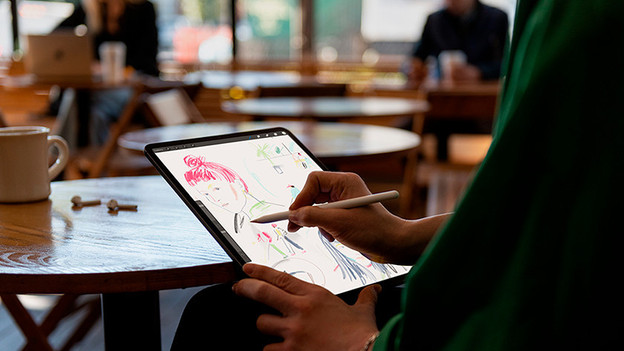
Apple Pencil Pro: the most extensive Apple Pencil
With the extensive functions of the Apple Pencil Pro, you can effortlessly put all your ideas on 'paper'. Pinch, twist, or double-tap the pen and quickly switch between styles or writing tool. You can smoothly switch to the eraser to remove a mistake this way, for example. The Apple Pencil Pro also gives feedback by vibrating. That way, you can see and feel what you're drawing. You can also find your Apple Pencil via the 'Find My' app anytime, anywhere.
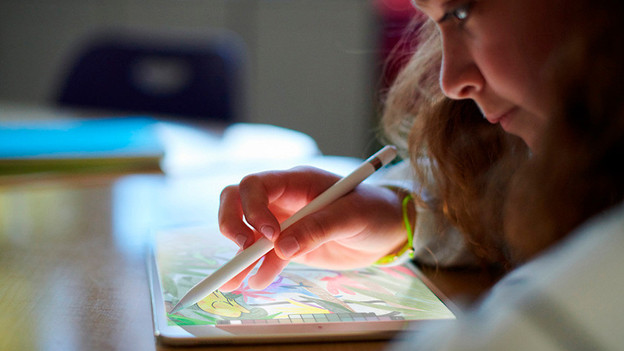
Apple Pencil 1, Apple Pencil 2, and Apple Pencil met USB-C: working quickly with basic functions
With the Apple Pencil 1, Apple Pencil 2, and Apple Pencil with USB-C, you can quickly and smoothly work on an iPad. You can tilt all Apple Pencil models to change the shape of a line without having to touch the screen. You can also use Apple Pencil Hover with the Apple Pencil 2 and Apple Pencil with USB-C. That way, you can see where you're going to draw before you even touch the screen.
Conclusion
With an Apple Pencil, you can draw and write on your Apple iPad faster. With the extensive functions of Apple Pencil Pro, you can get the most out of your iPad. You can magnetically attach the Apple Pencil 2 and Apple Pencil Pro to your iPad. The Apple Pencil 1 is the least extensive, and only works with older Apple iPad models.
Article by Stefan
Apple Expert.