
Written by Jesper
Edited on
16 June 2026
·
07:21
How do you switch from iOS to Android?
You're about to switch from an iPhone with iOS to an Android device. It would make your life easier if you can copy all your data in one go, such as your contacts, photos, and files. We'll explain how you can easily do that in 7 steps here.
Switch from iOS to Android:
- Download Google Drive on your iPhone or iPad.
- Log in to Google Drive.
- Go to 'Backup'.
- Make a backup.
- Go to 'Accounts' on your Android phone or tablet.
- Log in to your Google account.
- Synchronize your data.
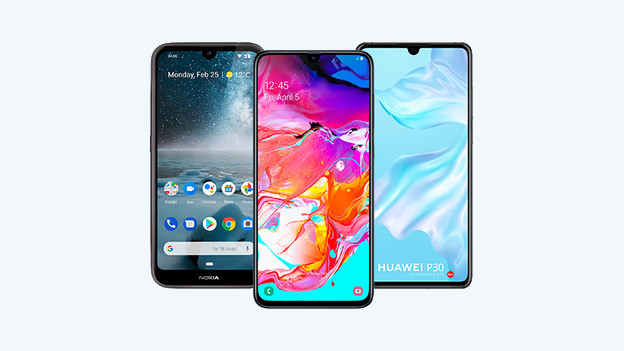
Step 1: download Google Drive on your iPhone
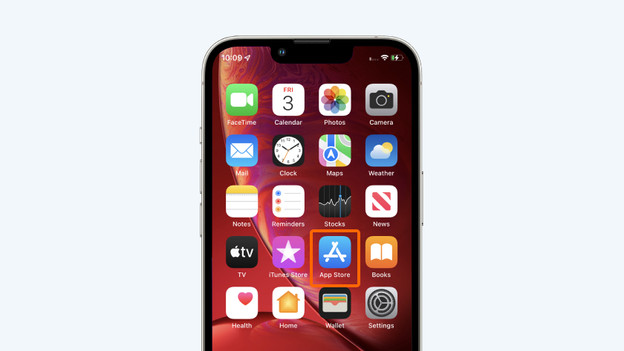
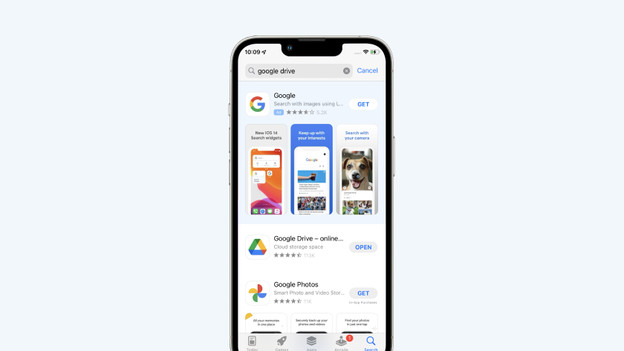
Open the App Store on your old iPhone or iPad. You need iOS 13 or iPadOS 13 or newer for this. Then, tap the search bar and type 'Google Drive'. Tap the cloud with the blue downward arrow to download the Google Drive app
1. Open the app store
2. Type 'Google Drive' and download the app
Step 2: log in to Google Drive
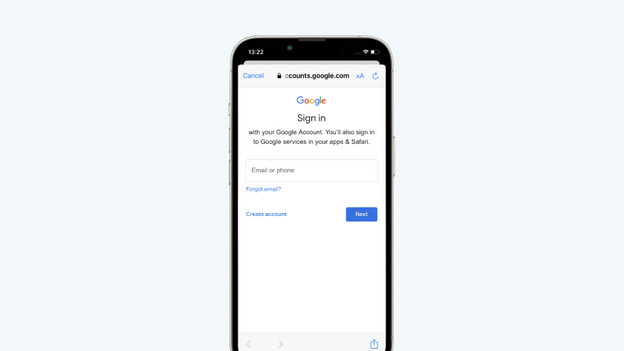
Open the Google Drive app and log in with your Google account. Don't have a Google account yet? Tap 'Create account' to create one. You need a Google account to switch to an Android phone. You also need a Google account to use various functions of your new Android phone or tablet.
1. Log in with your Google account
Step 3: go to 'Back up'
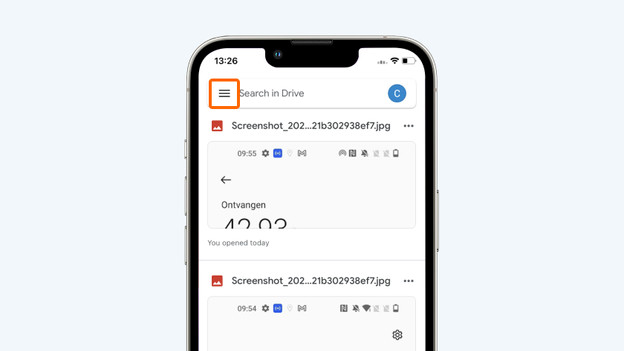
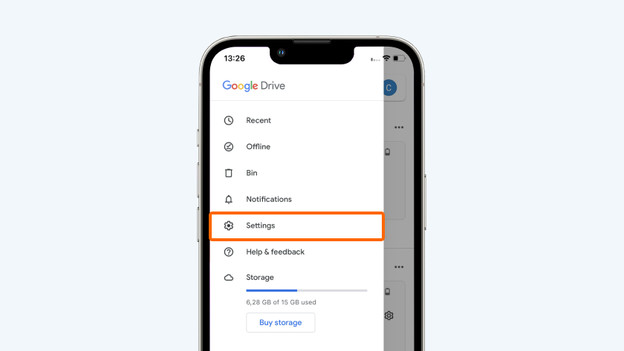
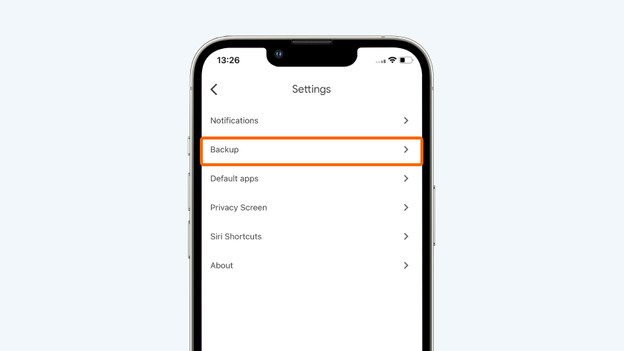
Click the 3 horizontal lines at the top left on the screen. Then, choose 'Settings' and click 'Back up'.
1. Tap the 3 horizontal bars
2. Choose Settings
3. Tap Backup
Step 4: make a backup
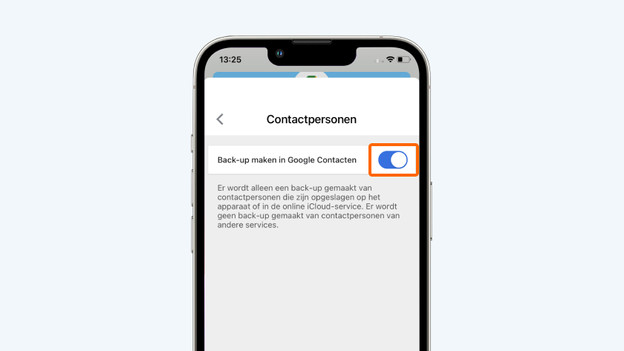
In this window, you can back up various data. Do you want to transfer your contacts to your new phone? If so, click 'Contacts'. In the next screen, turn on 'Back up in Google Contacts' by tapping the ball. The option is turned on if the ball is on the right side. Repeat this for all data that you want to transfer, such as your calendar appointments, photos, and videos, and tap 'Start backup'. Your data will now be transferred to Google Drive.
1. Tap Contacts and turn on Create a backup
Step 5: go to 'Accounts' on your Android device
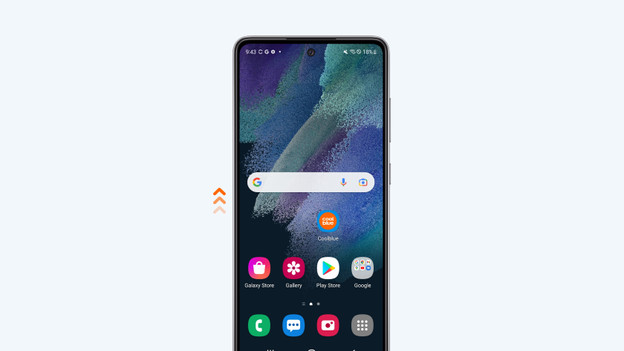
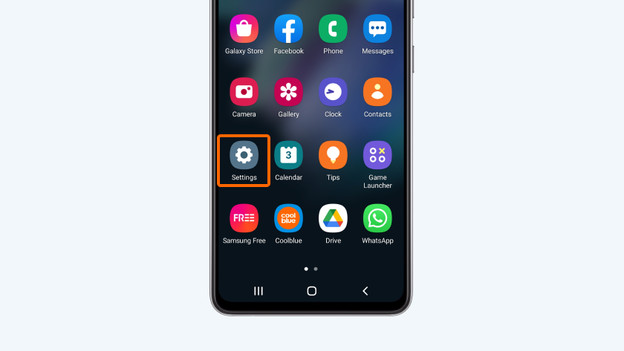
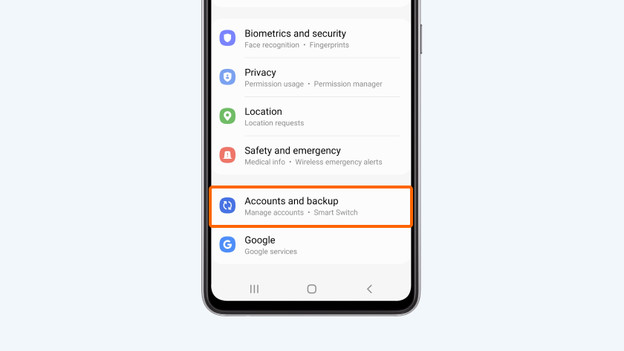
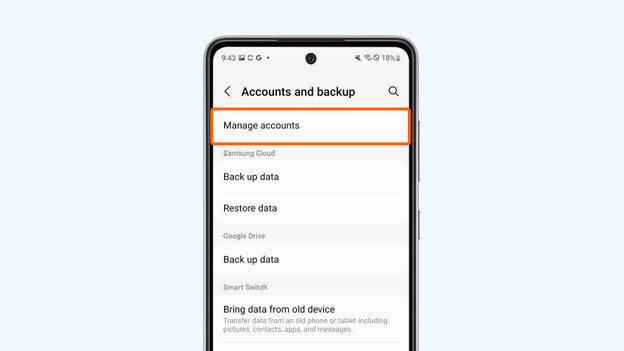
Now, it's time to grab your brand new Android smartphone or tablet. Tap the settings icon. Scroll down in the menu that you see and tap 'Accounts'. Note: we used a Motorola device for the images you see here. The menu may look slightly different compared to other Android smartphones or tablets, but the structure is the same.
1. Swipe upwards to open your apps
2. Tap Settings
3. Tap Accounts and backup
4. Go to Manage accounts
Step 6: log in to your Google account
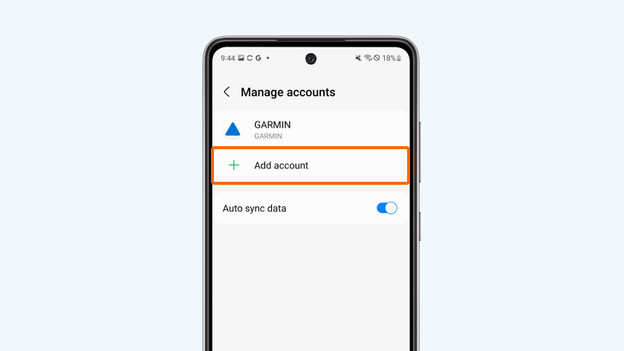
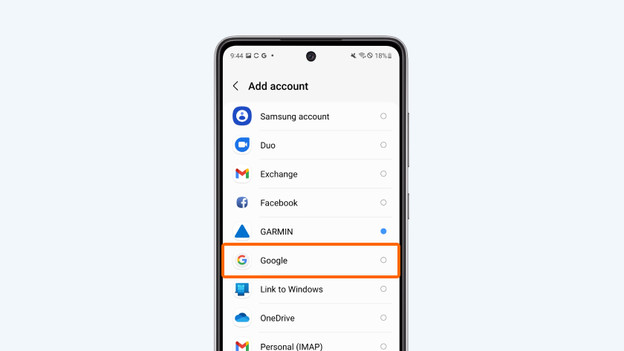
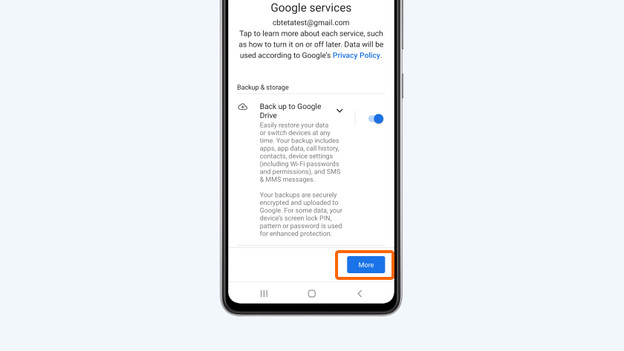
You can now log in to your Google account. To do this, click 'Add account'. In the next screen, choose 'Google'. Then, log in with your Google Account. Do you want your new smartphone or tablet to back up regularly? Turn this on right away in the next screen and tap 'Accept.'
1. Tap Add account
2. Choose Google
3. Turn on Create backup on Google Drive and tap Accept
Step 7: synchronize your data
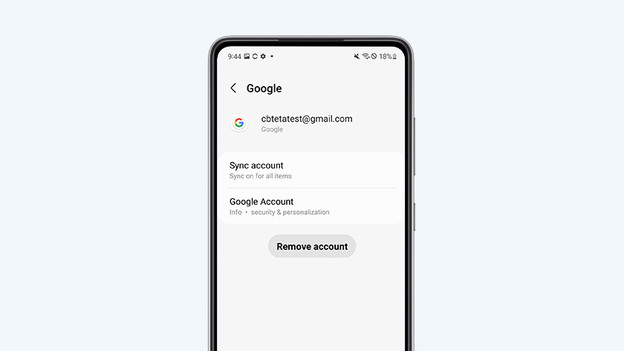
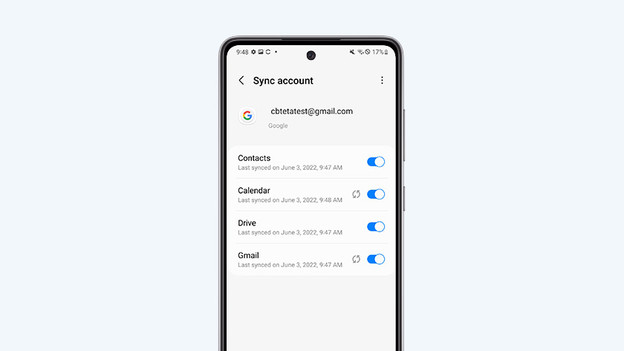
Now, select your Google account. In the next screen, choose 'Account sync'. Here, select all the data you want to take with you from your old iPhone or iPad. You can do this by tapping the switch on the right side for each item. If the ball is on the right, the account sync is enabled for that element. Your new Android device will now import all of this data from your iPhone or iPad from Google Drive. This doesn't mean that all your files have been deleted from your old device.
1. Choose Synchronize account for your account
2. Choose all the information you want to synchronize by clicking the ball
Article by Jesper
Smartphone Expert.
