Written by Dewy
Edited on
22 July 2026
·
15:11
How do you restart the System Management Controller (SMC) on your MacBook?
You come home, turn on your MacBook, but the screen stays black. Even when you push the on/off button, your MacBook doesn't respond. There are multiple solutions for this problem. In this article, we'll discuss restarting the SMC.

Get started with solving booting problems
SMC stands for System Management Controller. This system takes care of everything, such as the power supply, the fan, and tasks for the screen. If something is going wrong with these things, restarting the SMC may be the solution. Note: only MacBook models with an Intel chip have an SMC.
Follow the following steps first:
- Disconnect all peripherals from your MacBook.
- Press the on/off button of your MacBook.
- Watch and listen if there's a sign of power. This can be sounds or lights.
- No sign of power? Check if your MacBook gets power.
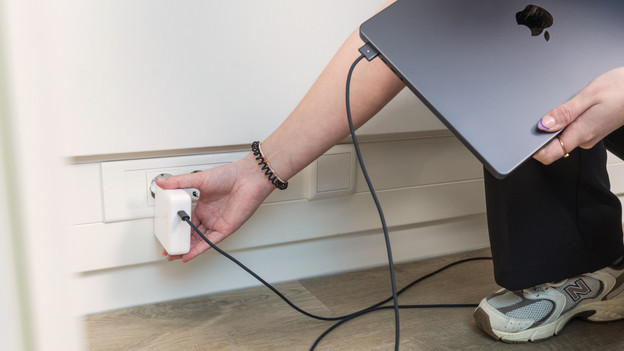
Step 1: check if your MacBook gets power.
First, it's important to make sure your MacBook gets power. Isn't this the case? Try this:
- Make sure the power cord is undamaged and properly connected.
- Check the socket by connecting different accessories.
- Charge your MacBook for at least 15 minutes and try restarting it.
- Press the on/off button for 10 seconds and then press it again.
- Reset SMC if your MacBook still doesn't boot.
Step 2: reset the SMC
- Turn your MacBook off by pressing the on/off button for 10 seconds.
- Check if your MacBook has a T2 chip. This is a security chip that's only used in MacBook models with an Intel processor. The following models have a T2 chip:
- MacBook Air (13 inches) - 2018/2019
- MacBook Pro (13 inches) - 2018/2019/2020
- MacBook Pro (15 inches) - 2019
- MacBook Pro (16 inches) - 2019

Reset SMC: Apple MacBook with T2 chip
- Press and hold down the following keys at the same time:
- Control on the left side of the keyboard
- Option on the left side of the keyboard
- Shift on the right side of the keyboard
- Count to 7 while you hold down the 3 keys.
- Now press and hold the on/off button as well.
- Count to 7 while you hold down the 4 buttons.
- Release the keys and wait for 10 seconds.
- Press the on/off button to turn on your MacBook.

Reset SMC: Apple MacBook without T2 chip
- Press and hold the following keys at the same time:
- Shift on the left side of the keyboard
- Control on the left side of the keyboard
- Option on the left side of the keyboard
- Count to 7 while you hold down the 3 keys
- Press and hold the on/off button.
- Count to 10 while you hold down the 4 keys.
- Release the keys and wait for 10 seconds.
- Press the on/off button to turn your MacBook on.