Written by Giorgos
Edited on
8 July 2025
·
15:06
How do you set up Windows Hello?
With Windows Hello, you can personalize the security of your Windows computer. That way, you make it even more difficult for hackers to hack into your computer. You can do this with facial recognition, a fingerprint, or a PIN code. In this article, you can read what else Windows Hello does and how you can set it up

Set up Windows Hello in 4 steps
Because Windows Hello uses your face or fingerprint, you need an infrared webcam or fingerprint sensor. The fingerprint sensor is often located next to the keyboard, on your touchpad, or in the on/off key. Do you want to know whether your webcam is suitable? Right-mouse click on Start and go to 'Application management'. Look for 'Cameras' and unfold the menu. Here, you'll see whether your camera has infrared and so if it's suitable for Windows Hello.
- Step 1. Set up your Windows Hello functions.
- Step 2. Personalize your security.
- Step 3. Set up dynamic locking.
- Step 4. Log in with your chosen option.
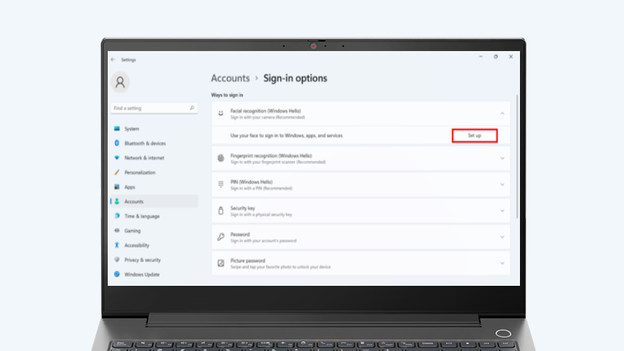
Step 1: set up your Windows Hello functions
Go to 'Settings', click 'Accounts', and choose 'Sign in options' in the menu on the left. Choose which Windows Hello option you want. We recommend you to start with the PIN code, because this code is required for Windows Hello.
- For the facial recognition, place your face in the center of the frame. Windows Hello will scan your features.
- For the fingerprint, place one of your fingers on the scanner so Windows Hello can scan your finger. Do this a couple of times, until your fingerprint is registered.
- For the PIN code, choose a 4-digit code that replaces your password.

Step 2: personalize your security
If you want to secure your laptop even better, you can take it to another level with Windows Hello. For example, if you want a face scan with and without glasses. Click 'Improve Recognition' if you want to do an extra face scan. Do you want to use more than 1 finger? Click 'Add a finger'. That way, you can personalize the security of your computer even more and make it more difficult for hackers to hack it.
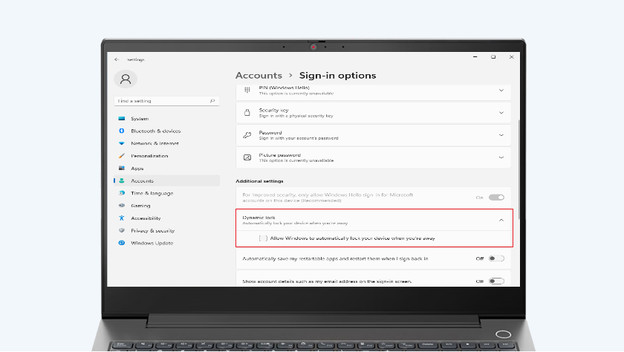
Step 3: set up dynamic locking
You can also easily use Windows Hello if you want to lock the PC. Go to 'Sign in options' and choose 'Dynamic locking'. Check the option for automatic locking and connect a device to the computer via Bluetooth, like your smartphone. The computer will lock automatically when the connected device moves away. This is convenient when you suddenly have to open the door or go talk to a colleague at the office.

Step 4: log in with your chosen option
Restart the PC now that you've set up everything. The computer will ask a PIN code by default, but it'll also show icons for other options. Select the log in option you want to use and you're ready. If you want to delete an option, go back to 'Sign in options'. Choose the sign in option and click 'Remove'. Windows will only store your personal information locally on the PC, not in the cloud. Your information isn't stored somewhere else separately.
Article by Giorgos
Laptop Expert.