Written by Daniel
Edited on
4 November 2022
·
17:37
How do you stream from your MacBook to your Apple TV?
Thanks to your Apple TV, you can stream images from your iPhone, iPad, or MacBook. It can be a bit difficult when you use it for the first time. You can find the small AirPlay logo in the top right corner of your browser, for example. In this article, we'll explain how to use your Apple TV as a second screen and how to stream music and series from your MacBook to your Apple TV.
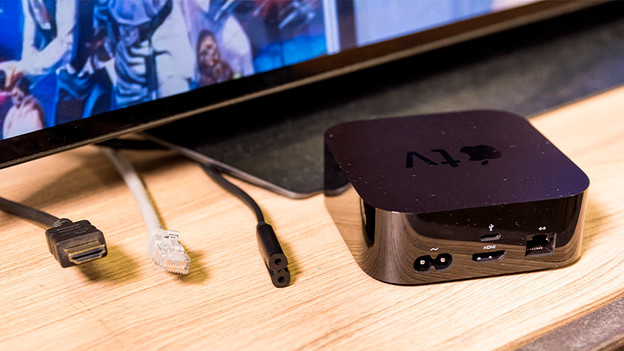
Get started with the Apple TV
You want to display the screen of your MacBook on your television. First, you have to connect the Apple TV to your television. After that, follow these 4 steps:
- Step 1: turn on 'AirPlay Mirroring' or 'Synchronic Display'.
- Step 2: set up your Apple TV.
- Step 3: set up your Apple TV as a second screen.
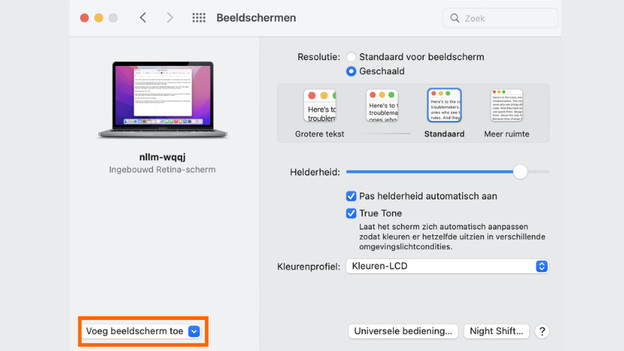
Step 1: turn on 'AirPlay Mirroring' or 'Synchronic Display'
Your MacBook and Apple TV have to get to know each other first. This usually happens automatically if the 2 devices are connected to the same WiFi network. If this is the case, click the AirPlay logo on the right side of your menu bar and continue to step 2. Don't see the AirPlay logo? Go to 'System Preferences' and then to 'Displays'. Find the Apple TV under the 'Add Display' option.
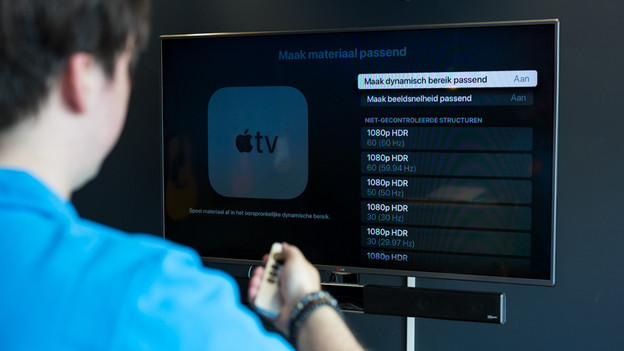
Step 2: set up your Apple TV
Choose 'Screen Preferences', choose a resolution, adjust the image size, and come up with a name for your Apple TV. Choosing a name is important if you have multiple media players if of you've had a different Apple TV before. This way, you know which Apple TV to choose in step 3. In the same menu, choose the 'Match Dynamic Range'. The Apple TV then adjusts it to the television.
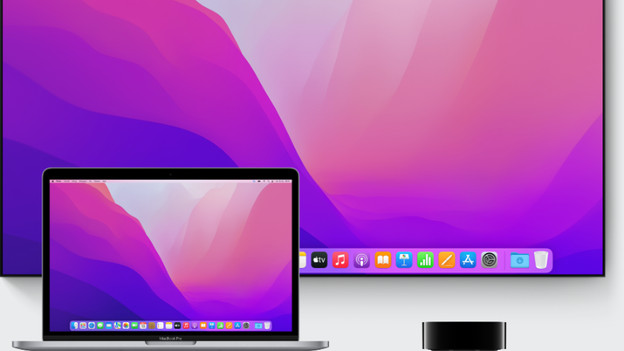
Step 3: set up your Apple TV as a second screen
All you have to do now to stream from your MacBook is follow this step. Select the AirPlay logo in the top right corner of your screen again. Then, click 'Use As Separate Screen'. This way, you can use the Apple TV as a second screen to display open apps on, for example. That's useful if you want to present something or if you're in a meeting.

Tip: stream a series or music directly to your television
You can stream series, movies, or music directly to your television. Open the music app or start a series. Then, find the AirPlay icon in the app when you put on a series, movie, or song. It's almost always located in the top right corner of your screen. If you've connected the Apple TV before, you can start streaming right away.
Article by Daniel
Media Player Expert.