Written by Evany
Edited on
15 December 2023
·
15:26
How do you turn off your Apple iPhone?
Do you have an older iPhone that you're not going to use anymore, or do you want to be unavailable for a day? You can turn off your iPhone in different ways. With iPhone models without a Home button, press and hold the side button and a volume button. It's also possible via 'Settings'. We'll explain the different ways in this article.
Turn off your iPhone
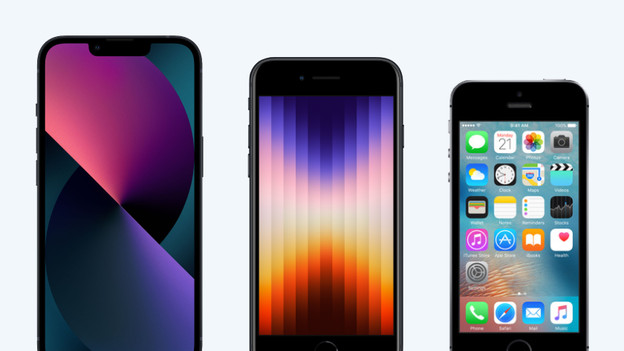
It differs per iPhone model how you turn off the device. With the iPhone 14, it's a combination of buttons, while you only press 1 button with the iPhone SE 3. There's also a way via 'Settings' that's the same for all iPhone models.
- Tip 1. Turn off iPhone without Home button
- Tip 2. Turn off iPhone with Home button
- Tip 3. Turn off older iPhone
- Tip 4. Turn off iPhone via 'Settings'

Tip 1: turn off your iPhone model without Home button
You can recognize the iPhone models without a Home buttons by the full display and the notch at the top of the screen. These are all iPhone models from the iPhone X, except for the iPhone SE models. You can turn off these devices like this:
- Press and hold the side button and 1 of the 2 volume buttons on the left at the same time.
- After a second, you'll see 'turn off' and a slider at the top of the screen. Release the buttons and swipe the slider to the right.
- The device is now turned off. Do you want to turn the device on again? Press and hold the side button on the right until you see the white Apple logo.
Tip 2: turn off your iPhone model without Home button
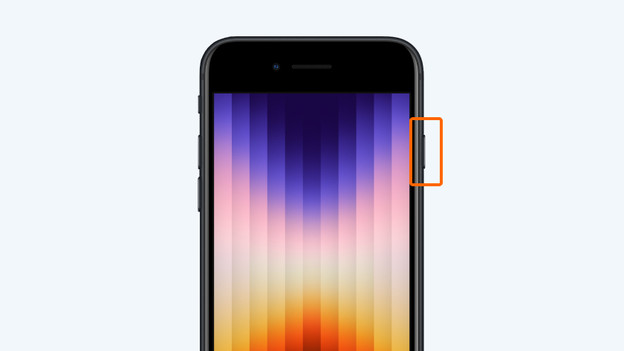
You can find a Home button on the iPhone 6(s), 6(s) Plus, 7, 7 Plus, 8, 8 Plus, SE 2, and SE 3. Do you want to turn off any of these devices? Follow the steps below.
- Press and hold the button on the right side.
- After a second, you'll see a screen with a slider at the top with 'turn off'. Release the side button and swipe the slider to the right.
- The device now turns off. When you need to turn the device on again, press and hold the right side button until you see the white Apple logo.
Tip 3: turn off your iPhone via 'Settings'
You can also easily turn off the iPhone SE or newer via the 'Settings'. Follow these steps:
- Go to 'Settings'.
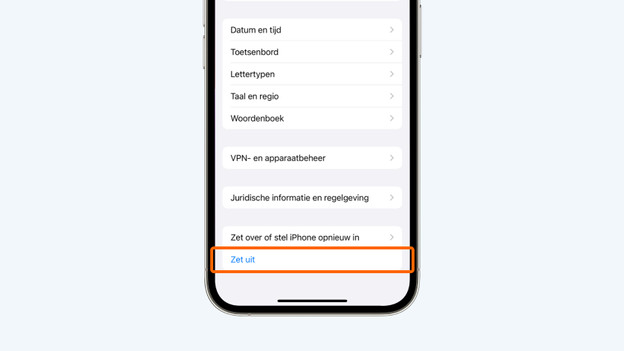
- Tap 'General' and scroll down.
- Choose 'Turn off'.
- You'll now see a slider with 'turn off'. Swipe the slider to the right.
- The device is now turned off. Press and hold the side button again if you want to turn the device on.
Tap 'General'
Choose 'Turn off'
Swipe the button to the right


Tip 4: turn off your older iPhone models
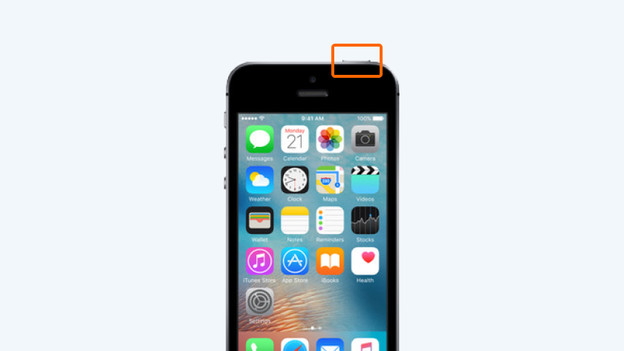
Do you have an older device, like the 1st generation iPhone SE? With older iPhone models, you'll find the on/off button at the top of the device.
- Press and hold the button at the top.
- Release the button when the screen is black.
- The device is now turned off. Press and hold the button at the top if you want to turn it on again.
Article by Evany
Apple Expert.