Written by Bob
Edited on
20 July 2026
·
10:41
How do you reset your Apple iPhone?
You can reset your iPhone in 2 ways. If you're going to sell or trade in your iPhone, revert your device back to factory settings. If your iPhone doesn't work well anymore or crashed, you can do a quick reset via the buttons. We'll explain how that works.
2 ways to reset your iPhone
You can reset your iPhone in 2 different ways. It depends on your situation which option you should choose.
- Option 1: Revert your iPhone to factory settings
- Option 2: Turn your iPhone off and on forcibly with buttons
Revert to factory settings on iPhone
Choose this if you want to completely empty your iPhone and want to delete all apps and files. You do this if you trade in your old device or sell it, for example.
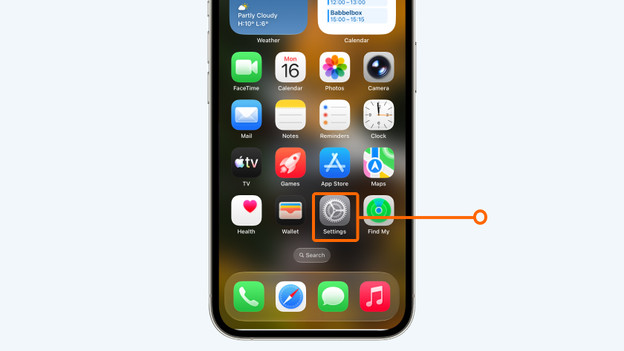
- Go to Settings.
- Go to General.
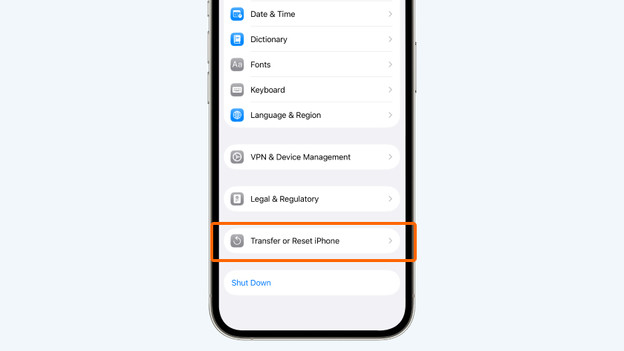
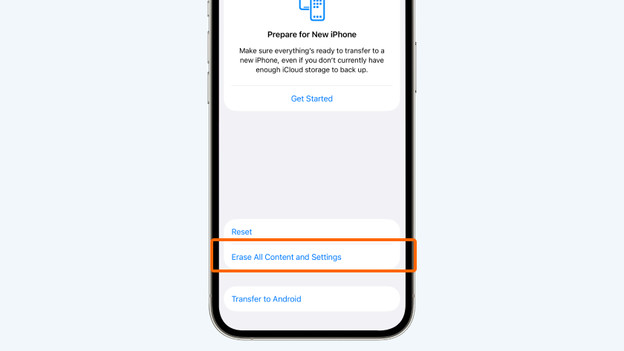
- Go to Transfer or Reset iPhone.
- Choose Erase all Content and Settings.
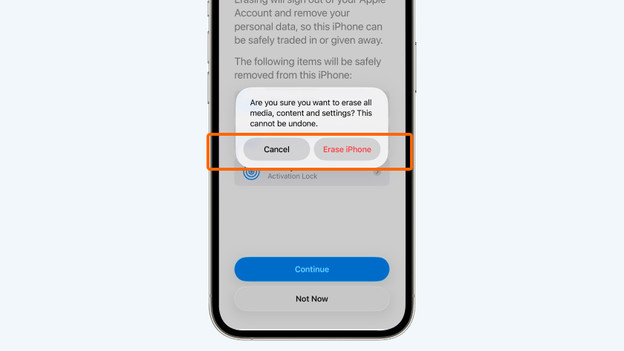
- Choose Continue and Erase iPhone to confirm.
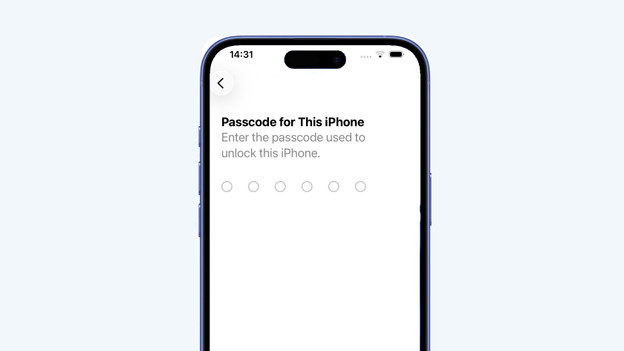
- Enter your PIN code.
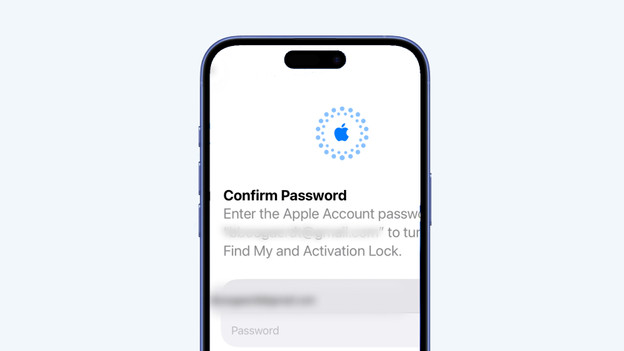
- Confirm with your password.
Your iPhone will now be reverted to factory settings.
Go to 'Settings'
Go to General and Transfer or Reset iPhone
Choose Erase all Content and Settings
Choose Continue and Erase iPhone
Enter your PIN code
Enter your password
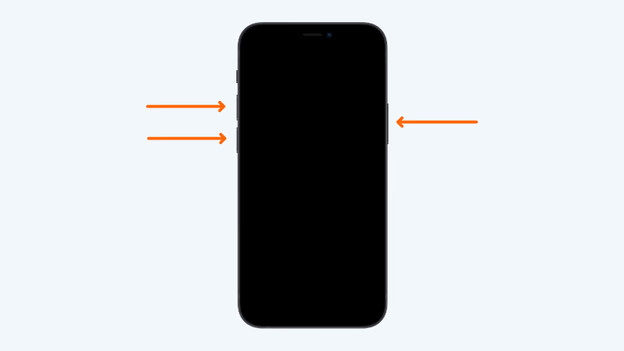
Reset iPhone with buttons
When you reset your iPhone with buttons, you're actually turning it off and on. Your data won't get erased. You do this when your iPhone crashed and doesn't respond anymore.
- Shortly press the volume up button.
- Shortly press the volume down button.
- Keep pressing the side button until the Apple logo appears.
Your iPhone now turns off and automatically turns on again.