Written by Lucinda
Edited on
16 February 2026
·
14:33
How do you unlock your Apple iPhone with the Apple Watch?
When you're wearing a face mask, Face ID won't recognize your face. That means you have to unlock your iPhone with the passcode. Luckily, Apple has come up with a solution for this. You can now also quickly unlock your iPhone when you're traveling by public transportation or waiting in line in the supermarket. We'll tell you how you can automatically unlock your iPhone when you're wearing your Apple Watch.

Get started with unlocking the iPhone with your Apple Watch
For this function, you need the Apple iPhone X or newer with iOS 14.5 or higher. IN addition, you can only use an Apple Watch Series 3 or newer with watchOS 7.4 or higher.
- Install the latest iOS update
- Install the latest watchOS update
- Create a passcode on your Apple Watch
Step 1: install the latest iOS update
To unlock your iPhone with an Apple Watch, you need at least iOS 14.5. Did you turn off automatic updates? Below, you can find how to manually install the latest iOS version step by step.
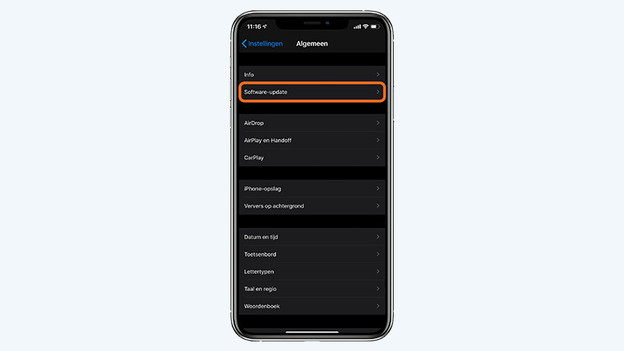
- Go to 'Settings' and tap 'General'.
- Choose 'Software Update'.
- Tap 'Download and Install'.
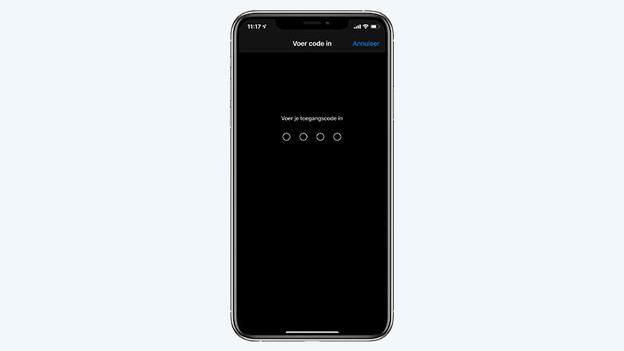
- Choose 'Install'. Enter your passcode if prompted.
- Your device will now start installing the software update. All you have to do is wait until the installation is complete.
Tap 'General'
Choose 'Software Update'
Tap 'Install now'
Enter the passcode


Step 2: install the latest watchOS update
Software is also important for your Apple Watch. Make sure you have at least watchOS 7.4 installed on your Apple Watch. Below, you can read how to install the latest watchOS version step by step.
- Place your Apple Watch on the charger.
- Open the Apple Watch app on your iPhone and go to 'My Watch'.
- Navigate to 'General' and then 'Software Update'.
- Tap 'Install'.
- Enter the passcode of your iPhone.
- Your Apple Watch will now start to update. Wait a while and your smartwatch have be fully updated.
Go to 'My Watch' in the Apple Watch app
Tap 'General' and then 'Software Update'
Choose 'Install'
Enter the passcode
Your iPhone has been updated


Step 3: set up 'Unlock with Apple Watch'
Now that you have the right software version, you can set up your iPhone.
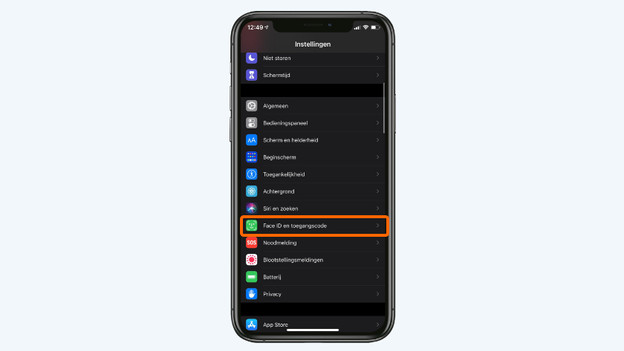
- Go to the Settings app and tap 'Face ID & Passcode'.
- Enter your passcode.
- Scroll down and move the slider for 'Unlock with Apple Watch'.
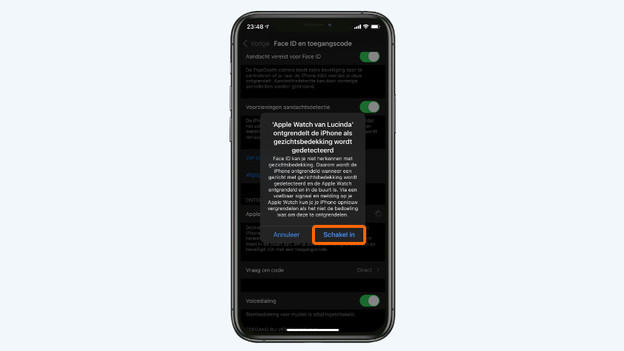
- You'll now see a popup. Choose 'Turn On'.
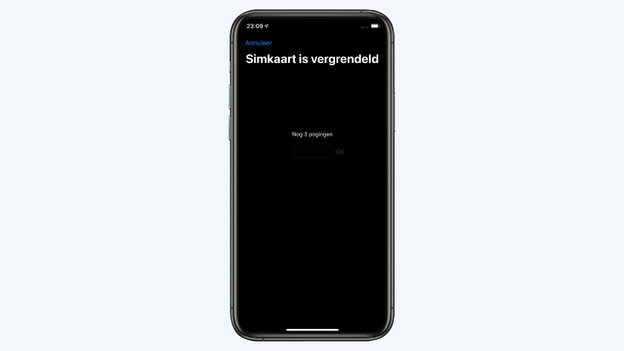
- Don't have a passcode on your Apple Watch? You'll see a popup. That's because you need to have a passcode for this function. Choose 'Open' and follow the steps on the screen of your Apple Watch.
Tap 'Face ID & Passcode'
Enter your passcode
Move the slider for 'Unlock with Apple Watch'
Choose 'Turn On'
Choose 'Open' and go through the steps on your Apple Watch


Article by Lucinda
Smartwatch Expert.