Written by Jelle
Edited on
9 October 2026
·
12:39
How do you connect a projector to your Apple MacBook?
You've made a nice presentation on your Apple MacBook and now you want to show it to your colleagues. With a projector, you can be sure you get your message across clearly. If you connect a projector to a MacBook, you have to keep the connectors of your projector and MacBook in mind. If you have the right cable converter, you'll be done in no time. In this article, we'll explain how you can easily and quickly connect a projector to your MacBook.

Stap voor stap een beamer aansluiten op je MacBook
It's not difficult to connect a projector to an Apple MacBook. In 4 short steps, you're ready to give your presentation:
-
Check the connectors.
-
Choose the right converter.
-
Connect the projector.
-
Choose the right settings.

Step 1: check the connectors
Check which connectors your projector and MacBook have. Most projectors have an HDMI or VGA connector, while many MacBook models mainly have USB-C connectors.
Does the connector of your MacBook match your projector? Skip step 2 and go to step 3 right away.
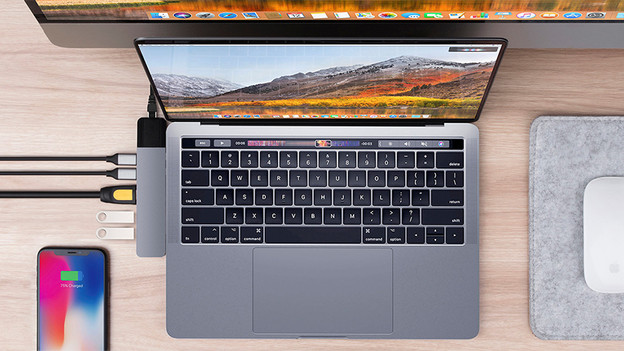
Step 2: choose the right converter
If your MacBook has a USB-C port, you often need a cable converter. A cable converter changes an HDMI or VGA signal into a USB-C port. Does your projector have an HDMI connector? Buy an HDMI to USB-C converter.

Step 3: connect the projector to your MacBook
Now, it's time to connect the projector to your Apple MacBook:
-
Connect the power cord of the projector to a socket.
-
Press the on/off button of the projector to turn it on.
-
Connect the projector to your Apple MacBook via a USB-C to HDMI or VGA cable converter.

Step 4: choose the right settings
Don't see an image? Follow these steps:
- Click the Apple logo at the top left of your screen.
- Click 'System preferences' and got to 'Displays'.
- Press and hold the Option key on your keyboard and click 'Find monitors' at the bottom right of your screen.
Next, you can choose to extend or duplicate the screen. Check or uncheck 'Enable synchronized display'. Doesn't this window appear? Check how many monitors you can connect.
- Click the Apple logo in the top left of your screen.
- Click 'About this Mac'.
- Click 'Sources' and click 'Specifications'. Under the header 'Video support' or 'Graphic support and display sources', you'll see the number of monitors you can connect.